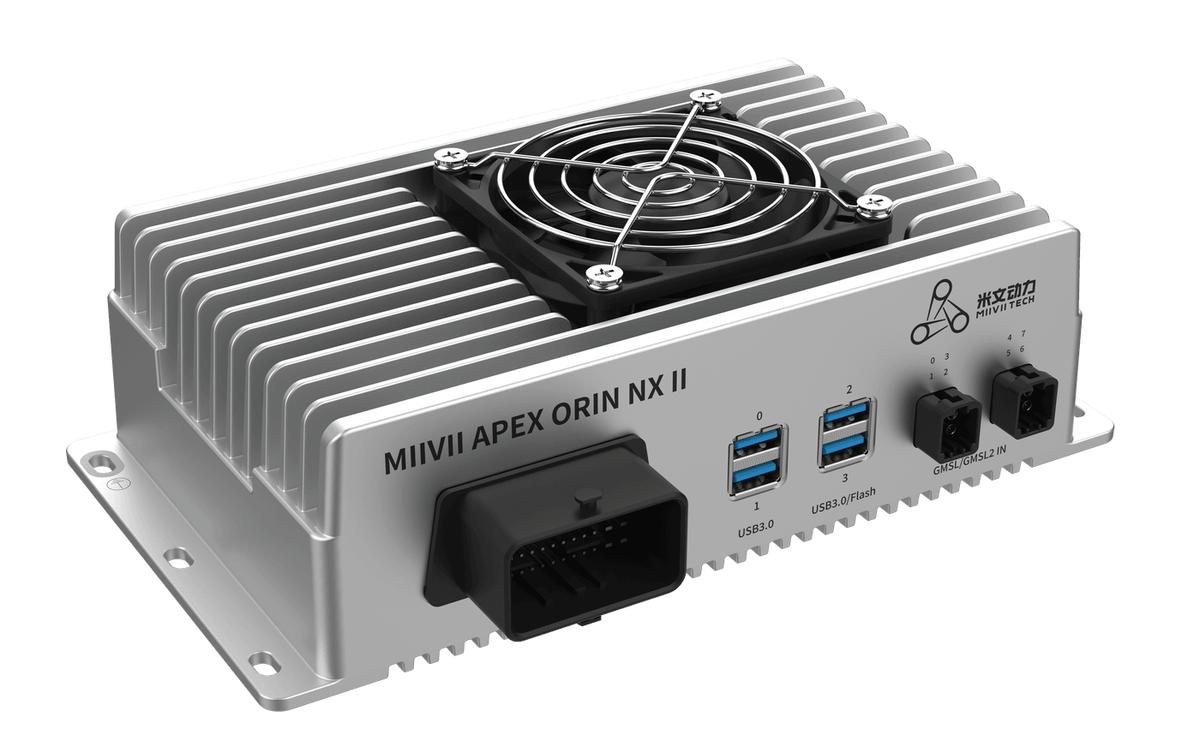
APEX ORIN NX II WiFi Usage#
M.2 E WIFI Support List#
No. |
Brand |
Model |
Interface |
Operating Temperature |
Wireless Standard |
Specification |
Notes |
|---|---|---|---|---|---|---|---|
1 |
AzureWave |
AW-XB547NF |
M.2 E KEY |
0°C~70°C |
IEEE 802.11a/b/g/n/ac/ax Wireless LAN 2T2R |
2.4 GHz: 2.412 ~ 2.484 GHz |
WiFi Module Installation:#
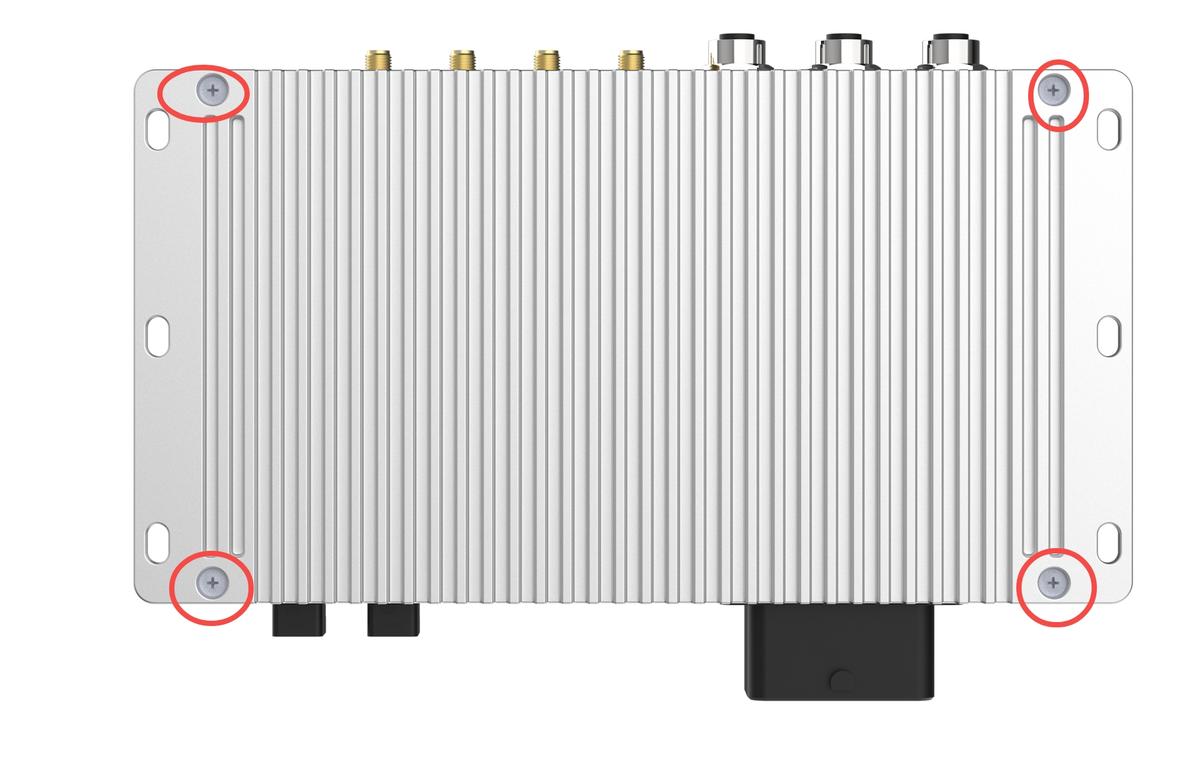
Enclosure Disassembly:#
Step 1:
Step 1: Remove the screws on the bottom.
Installation Steps:#
Install the WiFi module in the PCIe socket and secure it with one M3*6 Phillips screw with thread-locking adhesive.
Snap the IPEX connectors of the antenna adapter cables onto the WiFi module. Secure the Fakra female connectors to the antenna ports on the device.
Install and secure the antennas to the antenna ports on the device.
Reference Images:#
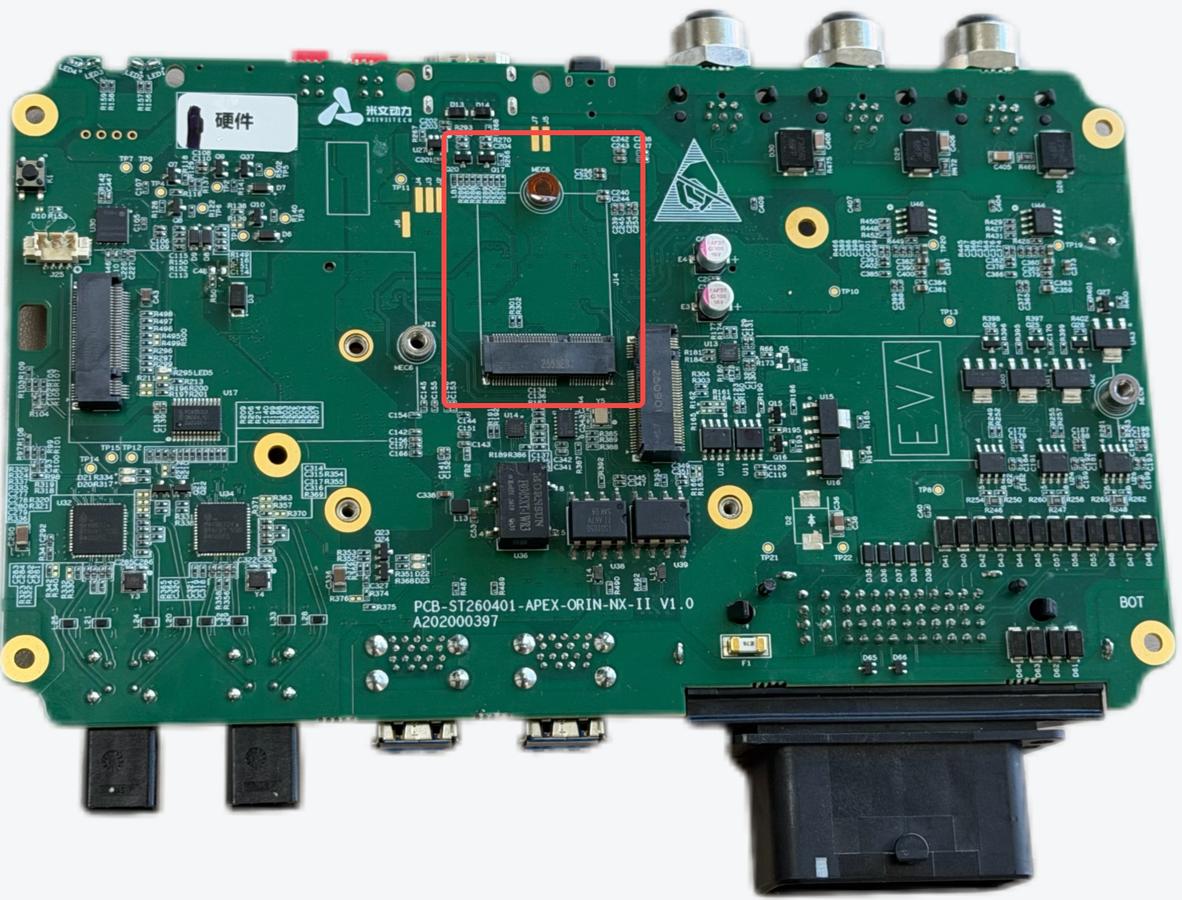
Required Accessories:
WiFi module ×1
M3*6 Phillips screw with thread-locking adhesive ×1
IPEX-to-Fakra antenna adapter cable ×2
Notes:#
The WiFi module on APEX ORIN NX II does not support Bluetooth.
Wireless Device Configuration#
WiFi Configuration#
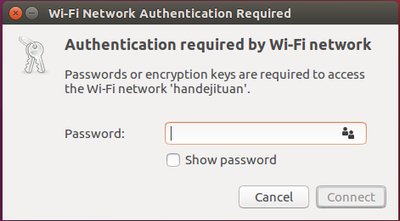
On the Ubuntu desktop, click the network icon in the upper-right corner. Select the WiFi network, enter the password in the dialog, and click Connect.
WiFi Troubleshooting#
Issue 1: The wireless network driver is not detected after the WiFi module is installed.#
Check 1: Check the Hardware#
Step 1: Confirm that the WiFi model is supported by MIIVII.#
Find the supported models in the user manual. AD10 example: https://doc.miivii.com/Apex-AD10-User-Manual-CH/wiki/Apex-AD10-WIFI.html.
If the model is not supported by MIIVII, replace it with a supported WiFi module.
If the model is supported by MIIVII, continue to Step 2.
Step 2: Confirm that the WiFi module is seated correctly in the PCIe slot.#
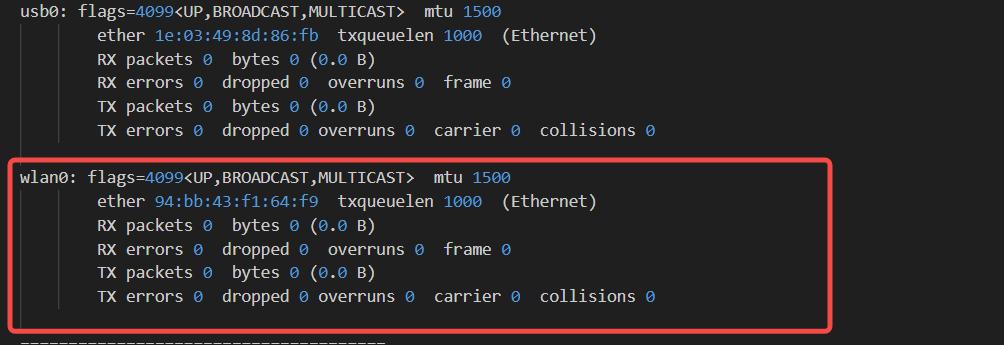
Run ifconfig -a to check whether the WiFi interface is detected.
sudo lspci
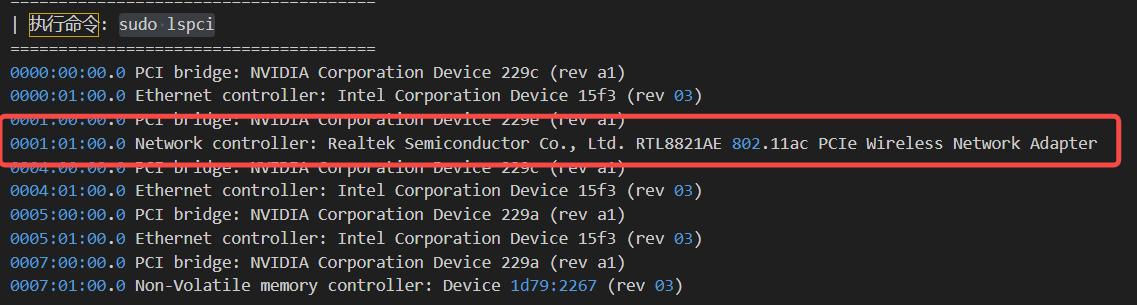
If the module does not appear, the hardware connection may be faulty or the module may be damaged. Check the module and its hardware connections.
Check 2: Check Service Status#
Step 1: Check the NetworkManager.service status.#
Open a terminal and run: sudo systemctl status NetworkManager.service
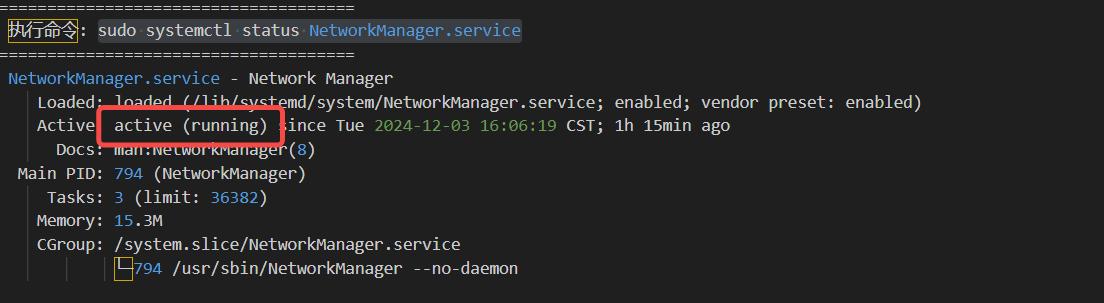
Reflash the image to determine whether the system environment is causing the issue.
Check 3: Flash the Image Again to Check for a Software Environment Issue#
Step 1: Flash the Image#
Image flashing instructions: https://wiki.miivii.com/pages/viewpage.action?pageId=182034027.
After flashing the image, check whether the WiFi connection works.
If WiFi communication works after reflashing, the issue is caused by the system software environment. The customer must investigate that environment.
If the WiFi connection still fails after reflashing, continue to Step 2.
Step 2: Collect Logs#
Connect the device to the Internet, open a terminal, and enter:
curl -sSL https://doc.miivii.com/scripts/run_miivii_diagnostic.sh | bash -s wifi
Export the logs and the files under /var/log, upload them to the support ticket, and submit them to MiiVii Technical Support.
Issue 2: The device cannot connect to the network after the WiFi module is installed.#
Check 1: Check the Hardware#
Step 1: Confirm that the WiFi model is supported by MIIVII.#
Find the supported models in the user manual. AD10 example: https://doc.miivii.com/Apex-AD10-User-Manual-CH/wiki/Apex-AD10-WIFI.html.
If the model is not supported by MIIVII, replace it with a supported WiFi module.
If the model is supported by MIIVII, continue to Step 2.
Step 2: Confirm that the WiFi module is seated correctly in the PCIe slot.#
Run ifconfig -a to check whether the WiFi interface is detected.
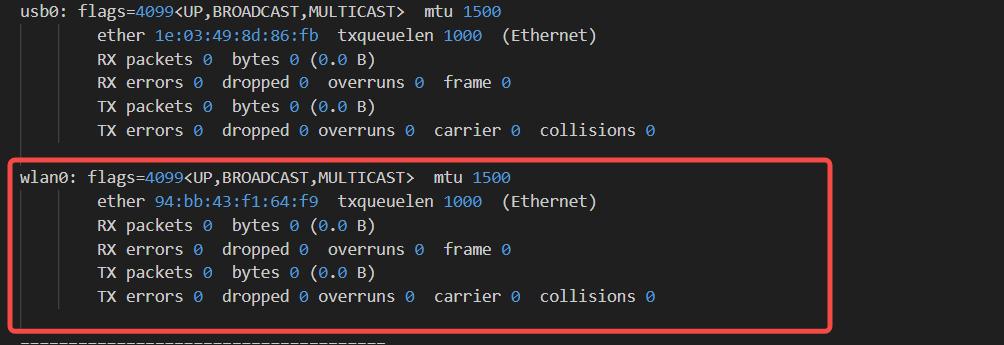
sudo lspci
If the module does not appear, the hardware connection may be faulty or the module may be damaged. Check the module and its hardware connections.
Step 3: Check the Antenna Connections#
Required accessories: IPEX-to-SMA antenna adapter cable ×2.
Check that the required number of antennas is installed.
Check that the antennas are connected correctly.
Check 2: Cross-test the Connection#
Step 1: Cross-test WiFi Operation#
Connect another WiFi-capable device to the same WiFi network and check whether the network works.
If the other device connects successfully, continue to Check Service Status.
If the other device also cannot use the WiFi network, investigate the WiFi module itself.
Check 3: Check Service Status#
Step 1: Check the NetworkManager.service status.#
Open a terminal and run: sudo systemctl status NetworkManager.service
If NetworkManager.service is not running, try restarting it manually: sudo systemctl restart NetworkManager.service
If the service still fails to start, upload the error information to the issue ticket system for MIIVII analysis.
If the service starts after a manual restart, investigate why it did not start automatically.
Step 2: Check the wpa_supplicant.service status.#
Open a terminal and run: sudo systemctl status wpa_supplicant.service
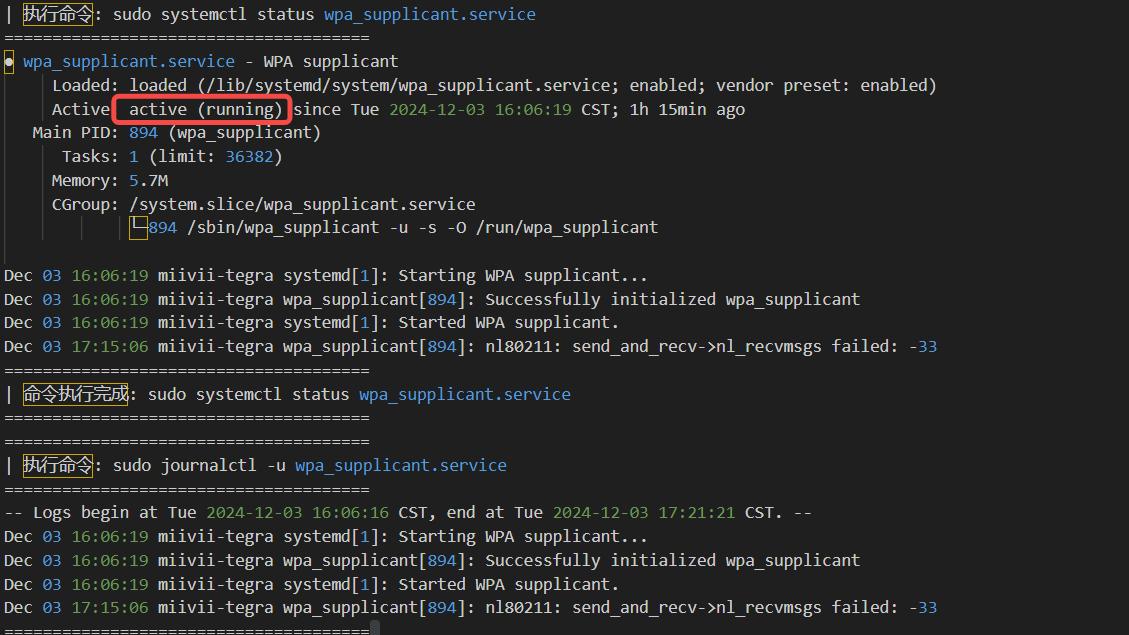
If wpa_supplicant.service is not running, try restarting it manually: sudo systemctl restart wpa_supplicant.service
If the service still fails to start, upload the error information to the issue ticket system for MIIVII analysis.
If the service starts after a manual restart, investigate why it did not start automatically.
Check 4: Flash the Image Again to Check for a Software Environment Issue#
Step 1: Flash the Image#
Image flashing instructions: https://wiki.miivii.com/pages/viewpage.action?pageId=182034027.
If WiFi communication works after reflashing, the issue is caused by the system software environment. The customer must investigate that environment.
If the WiFi connection still fails after reflashing, continue to Step 2.
Step 2: Collect Logs#
Connect the device to the Internet, open a terminal, and enter:
curl -sSL https://doc.miivii.com/scripts/run_miivii_diagnostic.sh | bash -s wifi
Export the logs and the files under /var/log, upload them to the support ticket, and submit them to MiiVii Technical Support.