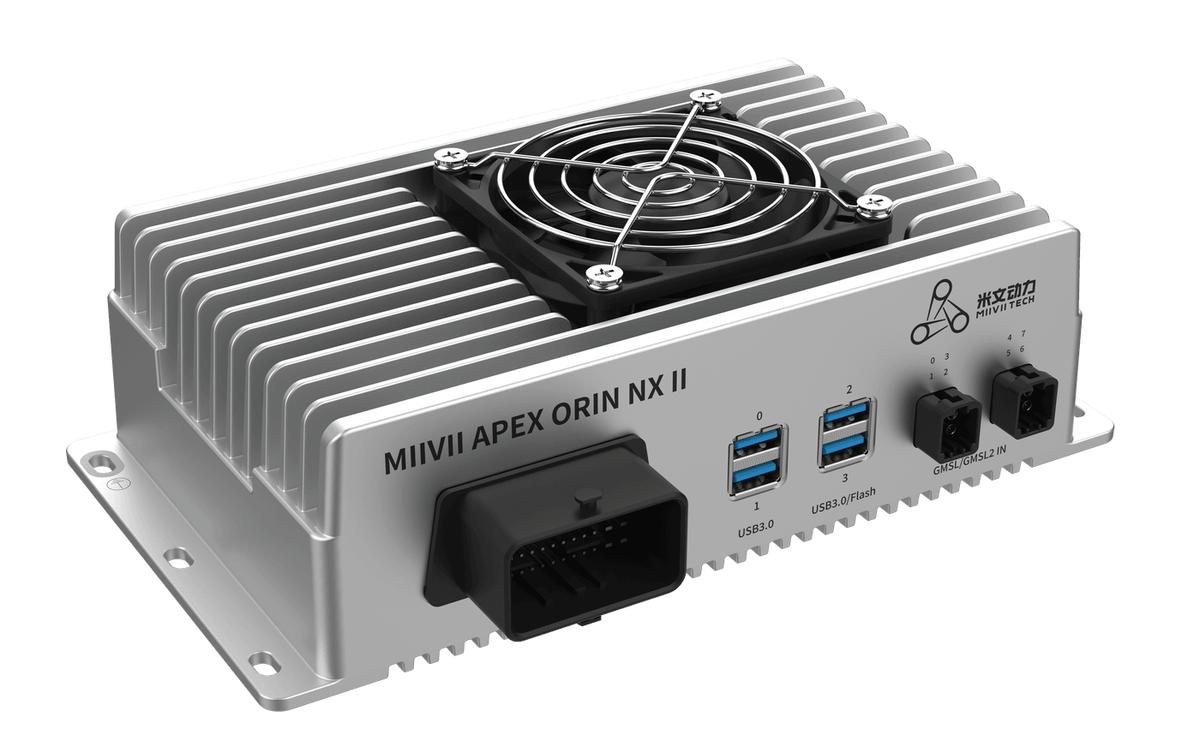
APEX ORIN NX II GMSL Camera Timestamps#
Configuration#
Camera Operating Modes#
Operating Mode |
Mode Description |
Usage Differences |
Notice |
|---|---|---|---|
Use Timestamps |
The device controls the start of exposure. To ensure timestamp accuracy, the camera does not capture images before the SDK starts. |
Images can be captured only through the SDK; other methods cannot capture images in this mode. |
All cameras must use the same operating mode. |
Purpose:#
Use this mode when you need to record the exact exposure start time of every frame to align images with other sensor data.
When “Use Timestamps” is enabled, the camera system provides high-precision hardware timestamps directly associated with the exposure start time of each image. To ensure absolute timestamp accuracy, the camera remains on standby after initialization until image acquisition is started through the dedicated SDK. It then begins capturing images in strict synchronization with the system clock.
Key Benefits:#
High-precision time reference: Hardware timestamps with microsecond-level or better precision accurately identify the exposure start of each frame.
System-wide time synchronization: All cameras supporting this feature share the same time reference and use a trigger frequency supported by every camera. This ensures that timestamps from different cameras are comparable and synchronized.
Eliminate startup interference: Before the application starts acquisition through the SDK, the cameras remain inactive and produce no image data or timestamps. From the first captured frame, timestamps are accurate, free of startup interference, and strictly aligned with the application start time.
Reliable data for critical applications: Strict control of acquisition startup and timestamp generation provides a reliable data foundation for algorithms and systems that depend on precise timing.
Applications:#
This feature is suitable for applications with strict requirements for the absolute time of image frames or relative time differences, including:
Multi-sensor fusion:
Autonomous driving and robot localization/navigation: Precisely aligning camera image timestamps with LiDAR point clouds, millimeter-wave radar signals, and IMU data is essential for accurate environmental perception and localization.
Industrial automation: Align images of workpiece position and pose with robot motion commands and sensor readings within milliseconds for precise closed-loop control.
High-speed motion analysis and measurement: Recording the position and state of fast-moving objects requires the exact exposure time of each frame to calculate speed and acceleration or analyze trajectories.
Synchronized multi-camera systems: Cameras may operate independently while their images are aligned afterward using precise timestamps, for example, for offline multi-view 3D reconstruction or event analysis.
Scientific experiment data recording: In physics, biology, and other experiments, visual observations must be accurately correlated in time with data recorded by other equipment, such as high-speed data acquisition cards and signal generators.
Event analysis: Analyzing frames before and after an event, such as an impact, flash, or fault, benefits from precise timestamps that identify when the event occurred and how long it lasted.
Usage#
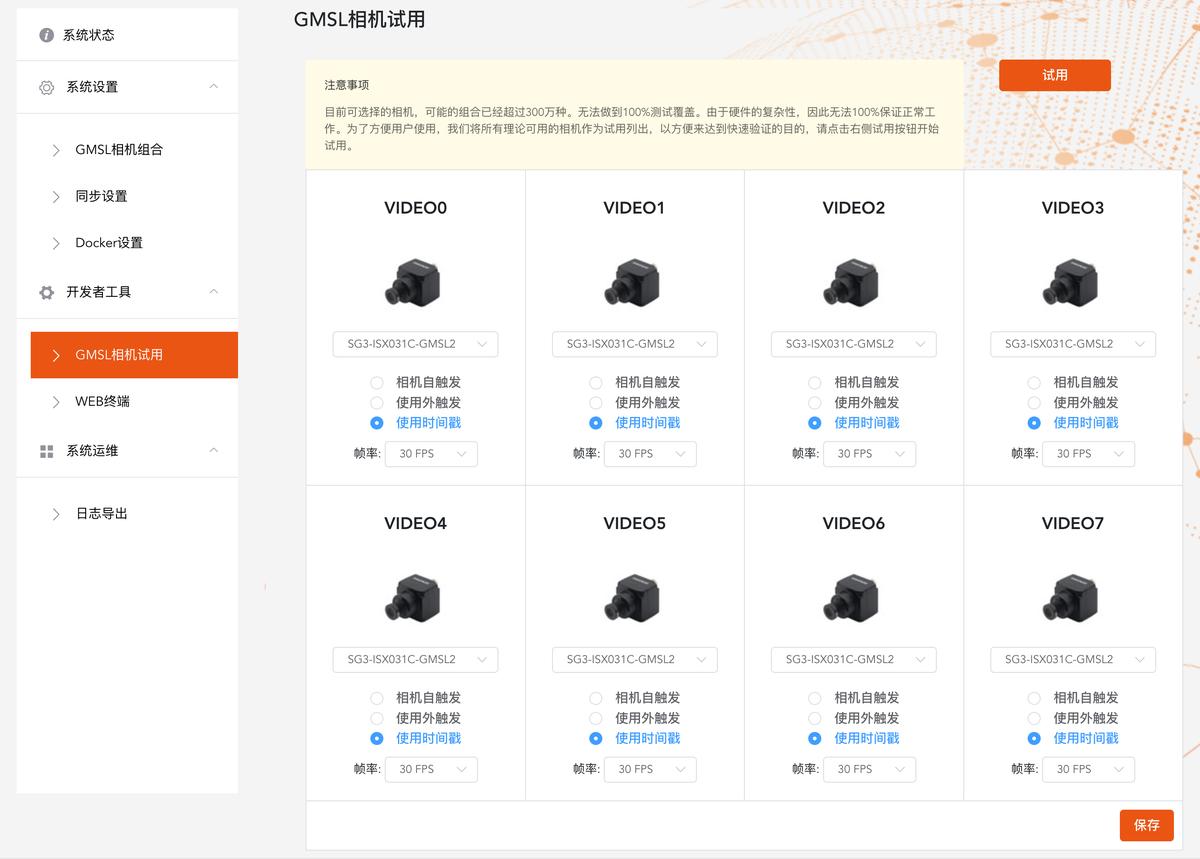
After selecting a camera, you can select “Use Timestamps” if the camera supports timestamp acquisition.
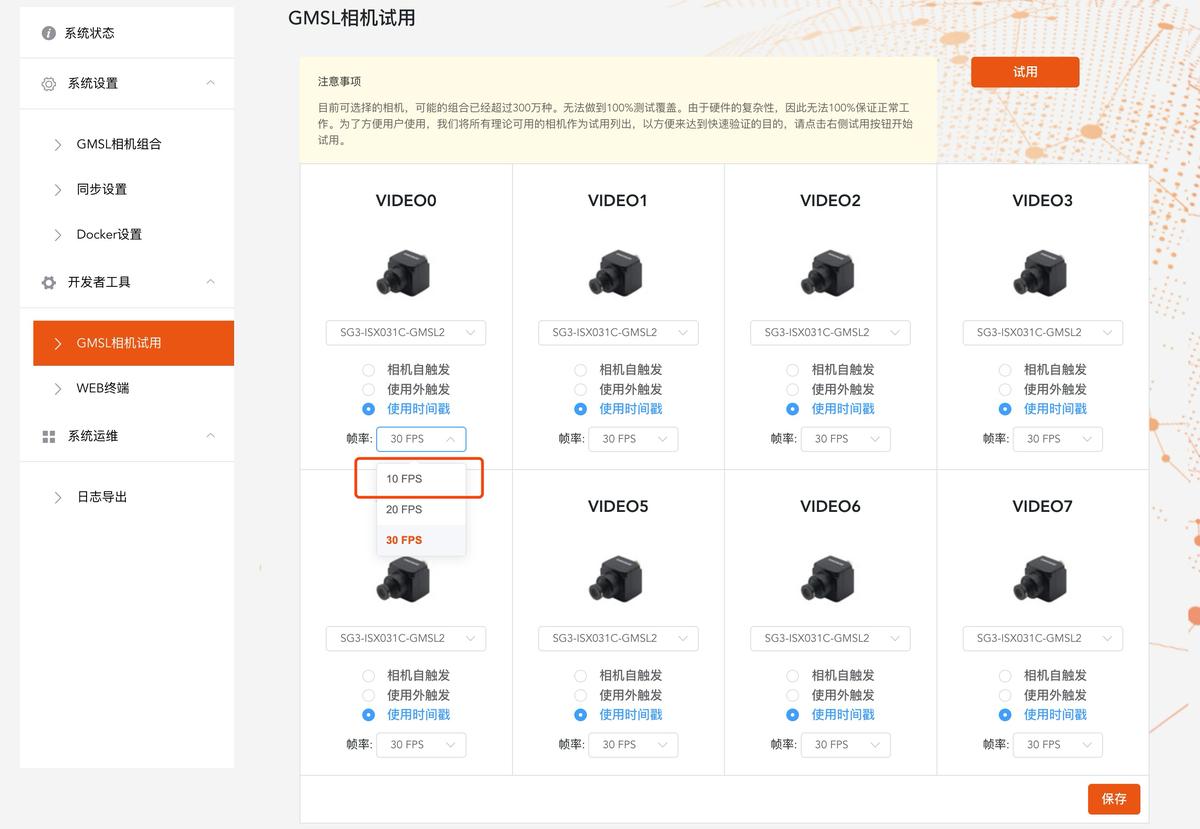
Select a Supported Trigger Frequency
All cameras share the same trigger, so the available frequencies are those supported by every camera.
Usage#
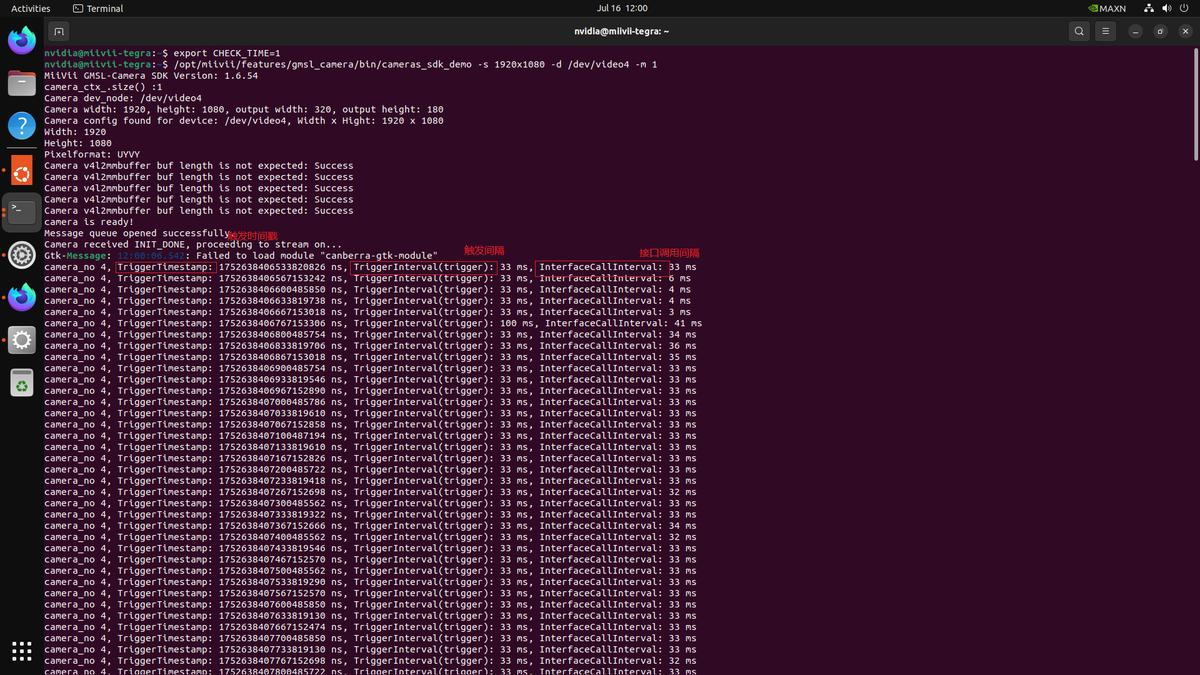
# export CHECK_TIME=1   For debug logging only. Do not enable this during testing; excessive logging can block the program.
sudo jetson_clocks
rm /tmp/cameras_sdk_demo.log
/opt/miivii/features/gmsl_camera/bin/cameras_sdk_demo
# Additional logs are printed on the screen.
# cameras_sdk_demo.log is generated under /tmp/.
Field |
Unit |
Physical Meaning |
Test Method |
|---|---|---|---|
TriggerTimestamp |
Nanoseconds |
The time when this frame was triggered. |
The trigger time retrieved from the queue according to the transmission delay. |
TriggerInterval(trigger) |
Milliseconds |
Trigger interval |
The difference from the previous Timestamp. |
InterfaceCallInterval |
Milliseconds |
API call interval |
Verification#
How Can I Check Whether the Timestamps Are Correct?#
The code checks FrameInterval to determine whether the timestamps are correct.
Run the command:
# export CHECK_TIME=1   For debug logging only. Do not enable this during testing; excessive logging can block the program.
sudo jetson_clocks
rm /tmp/cameras_sdk_demo.log
./bin/cameras_sdk_demo -s 1280x720 -d /dev/video0
If the timestamps are normal, no log file is generated.
If the timestamps are abnormal, a log file is generated and multiple timestamp records appear in /tmp/cameras_sdk_demo.log:
Timestamp : 1620958367246484576 FrameInterval  :  1620958367246484576 FrameTransferDelay : 67111424 LinuxGetFrameTime : 1620958367313596000 LinuxFrameInterval : 1620958367313596000
Timestamp : 1620958739646034432 FrameInterval  :  1620958739646034432 FrameTransferDelay : 67403568 LinuxGetFrameTime : 1620958739713438000 LinuxFrameInterval : 1620958739713438000
Timestamp : 1620958748796023808 FrameInterval  :  1620958748796023808 FrameTransferDelay : 80901192 LinuxGetFrameTime : 1620958748876925000 LinuxFrameInterval : 1620958748876925000
Timestamp : 1620958789795973504 FrameInterval  :  1620958789795973504 FrameTransferDelay : 72186496 LinuxGetFrameTime : 1620958789868160000 LinuxFrameInterval : 1620958789868160000
Timestamp : 1620959793244763712 FrameInterval  :  1620959793244763712 FrameTransferDelay : 73185288 LinuxGetFrameTime : 1620959793317949000 LinuxFrameInterval : 1620959793317949000
Timestamp : 1620959854794691840 FrameInterval  :  1620959854794691840 FrameTransferDelay : 68099160 LinuxGetFrameTime : 1620959854862791000 LinuxFrameInterval : 1620959854862791000
Timestamp : 1620960274844196896 FrameInterval  :  1620960274844196896 FrameTransferDelay : 68391104 LinuxGetFrameTime : 1620960274912588000 LinuxFrameInterval : 1620960274912588000
Timestamp : 1620960283994186240 FrameInterval  :  1620960283994186240 FrameTransferDelay : 71857760 LinuxGetFrameTime : 1620960284066044000 LinuxFrameInterval : 1620960284066044000
Timestamp : 1620960291394178080 FrameInterval  :  1620960291394178080 FrameTransferDelay : 68419920 LinuxGetFrameTime : 1620960291462598000 LinuxFrameInterval : 1620960291462598000
How Can I Check Timestamp Precision?#
Run the command
# export CHECK_TIME=1   For debug logging only. Do not enable this during testing; excessive logging can block the program.
sudo jetson_clocks
./bin/cameras_sdk_demo -s 1280x720 -d /dev/video0 > log
Verification Steps
Import the log into Excel.
Find the maximum and minimum FrameInterval values.
The difference between the maximum and minimum values gives the timestamp precision.