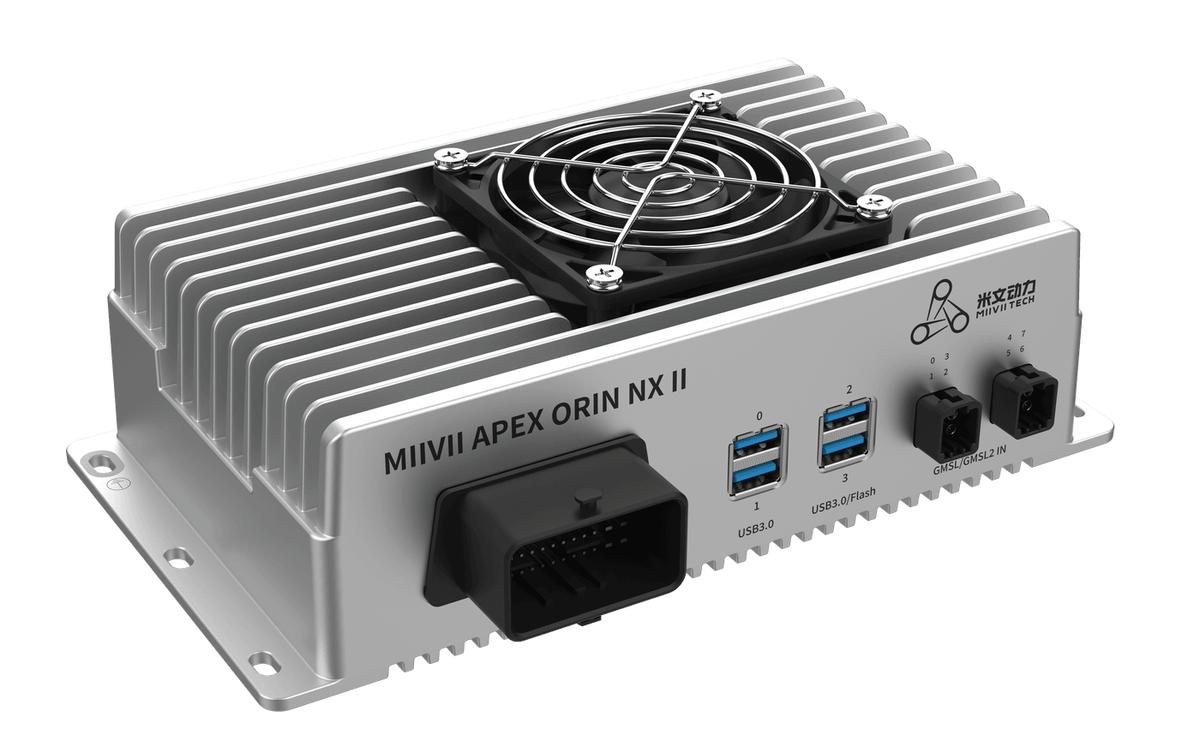
APEX ORIN NX II Gigabit Ethernet#
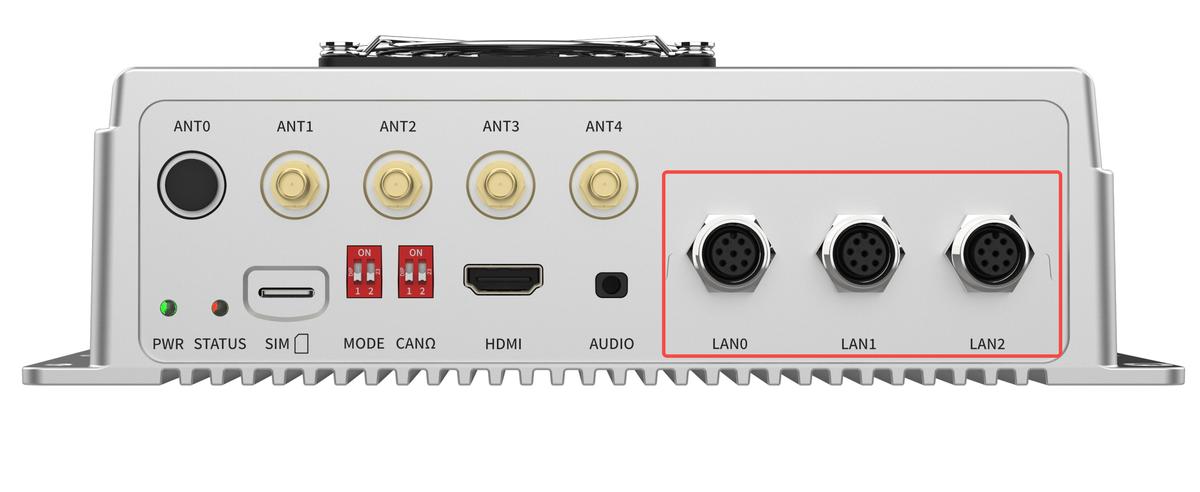
Hardware Specifications#
MIIVII Device (Female)

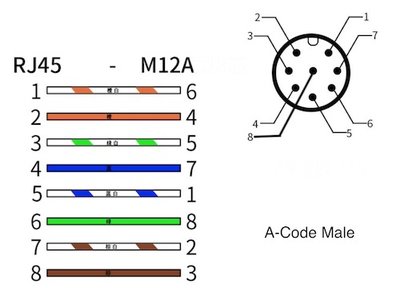
External Ethernet Cable and Pin Assignment (Male)

Mapping Relationship of Gigabit Ethernet Device Nodes#
Ethernet |
Network Device |
|---|---|
LAN0 |
eth0 |
LAN1 |
eth1 |
LAN2 |
eth2 |
Usage#
Use the interface in the same way as a standard Ethernet port.
Checking Ethernet Port Operation#
Criteria#
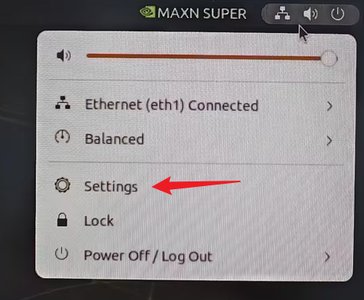
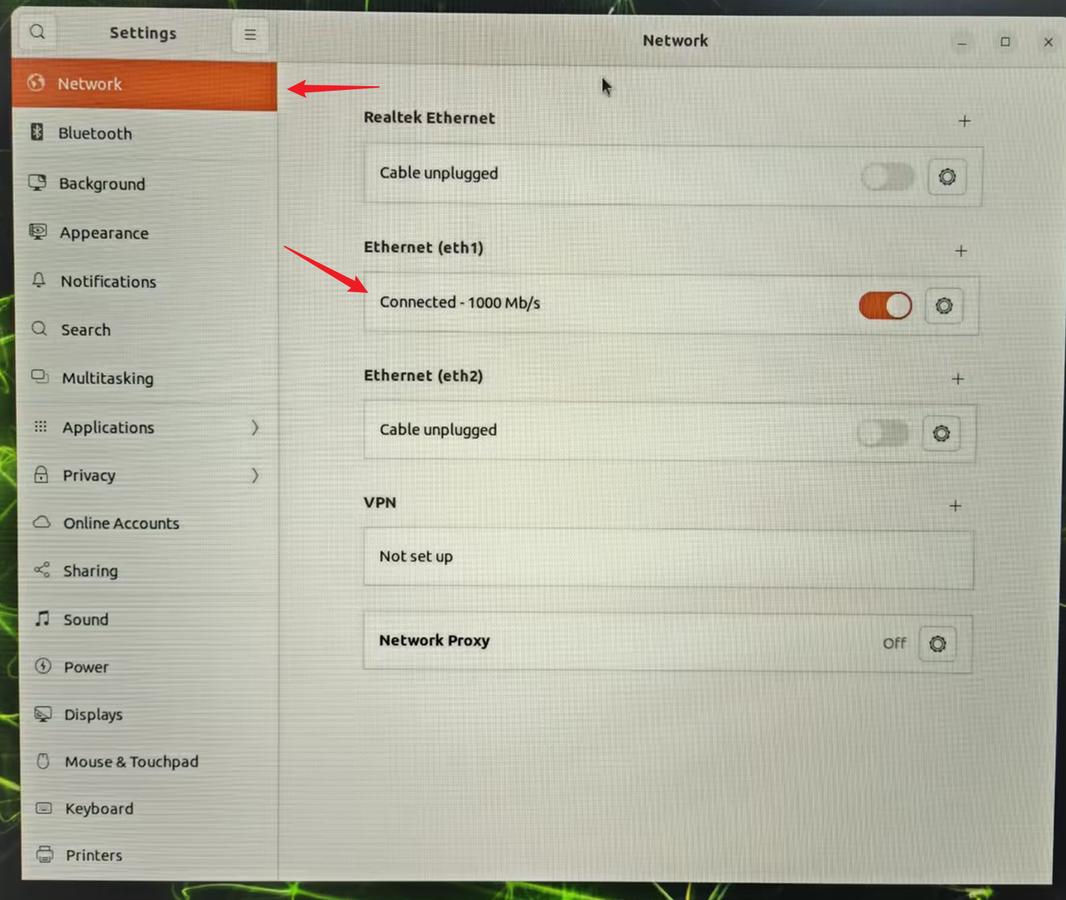
The Ethernet port is operating normally if it can communicate with the gateway or shows “Connected” under Settings > Network.
Procedure#
Check the physical connection and identify the device name using the device node mapping table (eth1 is used as an example).
Command Line Method#
Obtain the current network interface configuration and determine the gateway address.
ip addr show eth1
Ping the gateway address (192.168.1.1 in this example).
ping 192.168.1.1
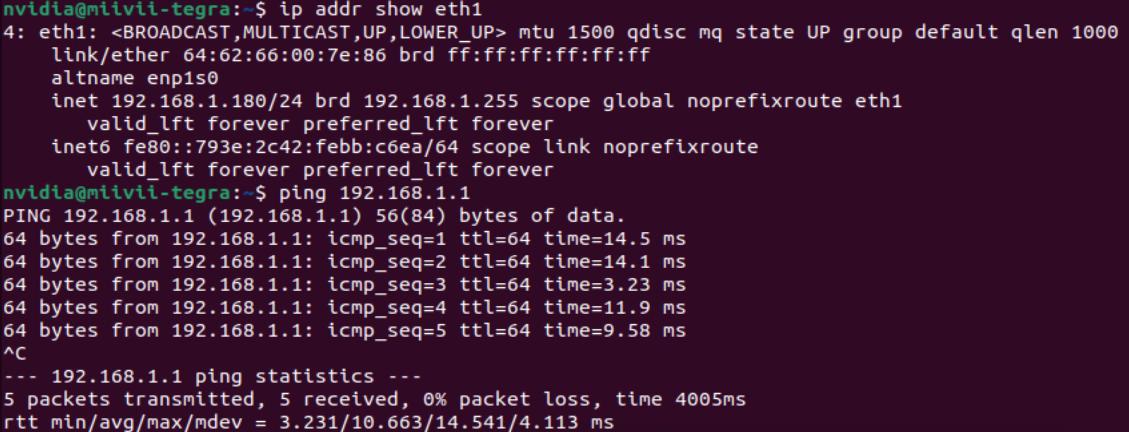
If communication with the gateway succeeds, the Ethernet port is operating normally.
Graphical Method#
Click the icon in the upper-right corner of the desktop and select “Settings” from the menu.
Select “Network” in the Settings window.
Check the connection status of the corresponding device on the right. If it shows “Connected”, the Ethernet port is operating normally.
Troubleshooting Internet Access over Ethernet#
Symptom: The Device Cannot Access the Internet after an Ethernet Cable Is Connected#
Check 1: Check the Ethernet Cable and Internet Connection#
Step 1: Connect the Cable to Another Device That Can Access the Internet#
If it cannot access the Internet, check or replace the cable and verify the Internet connection.
If it can access the Internet, proceed to “Check 2: Check the Network Interface on the Device”.
Check 2: Check the Network Interface on the Device#
Step 1: Use ifconfig to Check the Network Interface#
Connect the Ethernet cable to the MiiVii device, open a terminal, and enter ifconfig. Check whether the network interface corresponding to the connected cable is listed.
If the network interface is missing, proceed to “Step 2”.
If the network interface is present, proceed to “Step 3”.
Step 2: Flash the Device Image Again#
For image flashing instructions, see: https://wiki.miivii.com/pages/viewpage.action?pageId=182034027.
If flashing resolves the issue, it was caused by the software environment.
If the issue persists after flashing the image again, contact MiiVii Technical Support.
Step 3: Check Whether the Network Interface Obtains a Valid IP Address#
Check whether the network interface obtains an IP address and whether the address is valid.
If a valid IP address is obtained, proceed to “Step 4”.
If the IP address does not match the actual subnet, check whether the interface uses DHCP. If it does not, enable DHCP and try again.
Step 4: Configure the Default Route and Verify Internet Access#
Run: sudo route add default gw <gateway_ip>
If Internet access works after configuration, the issue is resolved.
If Internet access still fails, proceed to “Check 3: Collect Logs”.
Check 3: Collect Logs#
Step 1: Collect Logs#
Connect the device to the Internet, open a terminal, and enter: curl -sSL https://doc.miivii.com/scripts/run_miivii_diagnostic.sh | bash -s ethernet
Export the logs and the files under /var/log, upload them to the support ticket, and submit them to MiiVii Technical Support.
Troubleshooting Simultaneous Communication through Multiple Ethernet Ports#
Symptom: Multiple Ethernet Ports on the MiiVii Device Cannot Communicate with Connected Peripherals Simultaneously#
Check 1: Check the Ethernet Cable#
Step 1: Verify the Ethernet Cable#
If the devices connect and can ping each other after IP addresses are configured, proceed to “Check 3: Check the Network Interface on the Device”.
If the cable cannot connect to another device, replace it.
Check 2: Check the Network Configuration#
Step 1: Check Whether Multiple Ethernet Ports Use the Same Subnet (GUI, netplan, etc.)#
If multiple Ethernet ports use the same subnet, assign IP addresses in different subnets to those ports.
Otherwise, proceed to “Check 3: Check the Network Interface on the Device”.
Reason: Ethernet ports on MiiVii devices do not provide Ethernet switch functionality.
Solution: If multiple Ethernet ports must use the same subnet, configure a gateway or network bridge to implement this function.
Check 3: Check the Network Interface on the Device#
Step 1: Use ifconfig to Check Whether the Network Interface Is Present#
Connect the Ethernet cable to the MiiVii device, open a terminal, and enter: ifconfig. Check whether the network interface corresponding to the connected cable is listed.
If the network interface is missing, proceed to “Step 2”.
If the network interface is present, proceed to “Step 3”.
Step 2: Flash the Device Image Again#
Image flashing instructions: https://wiki.miivii.com/pages/viewpage.action?pageId=182034027. (See the user manual for the corresponding product for product-specific flashing details.)
If flashing resolves the issue, it was caused by the software environment.
If the issue persists after flashing the image again, proceed to “Check 4: Collect Logs”.
Step 3: Verify Whether the Network Interface Obtains an IP Address and Whether It Is Correct#
If an IP address is obtained successfully, proceed to “Check 4: Collect Logs”.
If the obtained IP address is not in the actual subnet, check whether the network interface is configured to use DHCP.
If DHCP is disabled, enable DHCP and try again.
Check 4: Collect Logs#
Step 1: Collect Logs#
Connect the device to the Internet, open a terminal, and enter: curl -sSL https://doc.miivii.com/scripts/run_miivii_diagnostic.sh | bash -s ethernet
Export the logs and the files under /var/log, upload them to the support ticket, and submit them to MiiVii Technical Support.