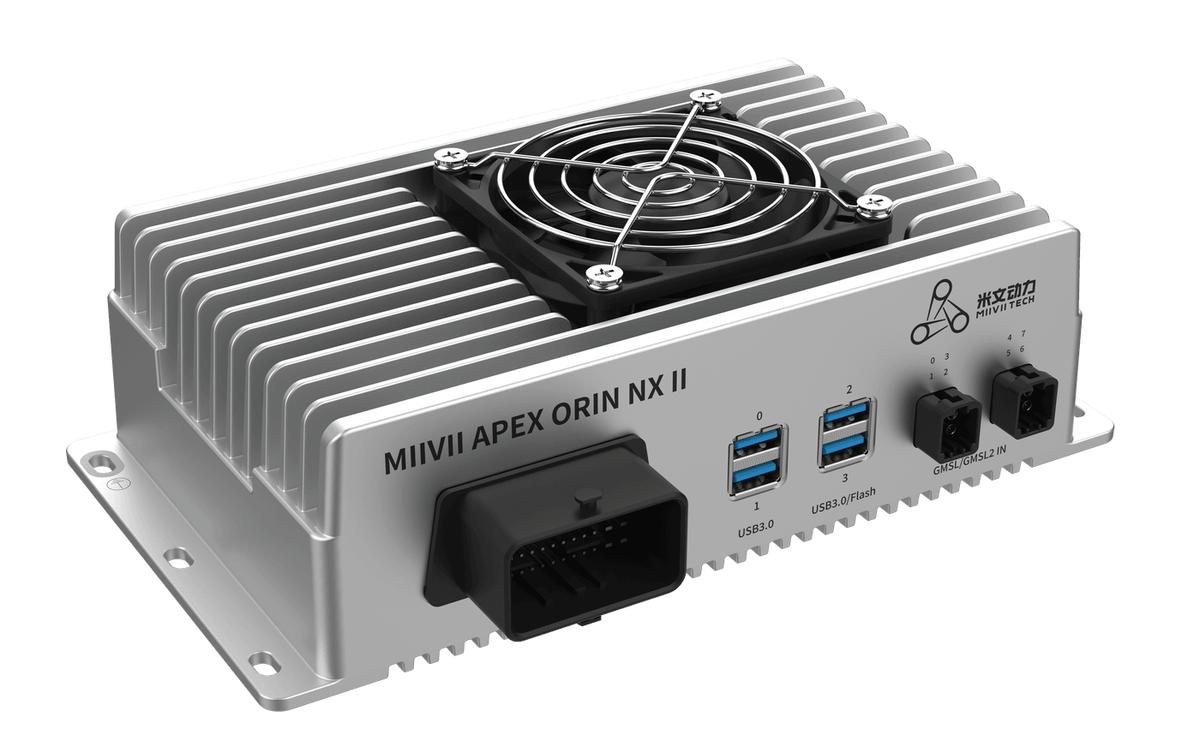
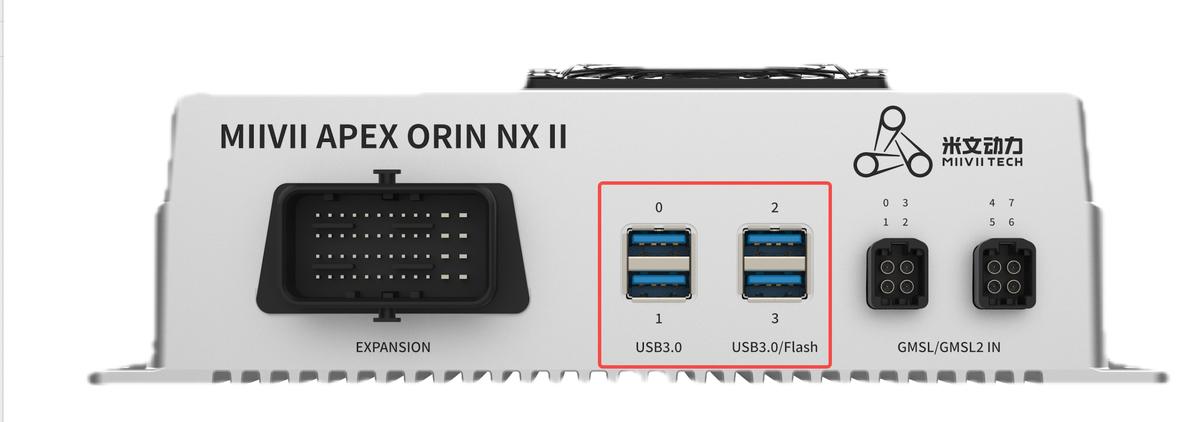
APEX ORIN NX II USB Interface#
#
Hardware Specifications#
Maximum load current per port: 2A
Maximum transfer rate: 5Gb/s
USB Troubleshooting#
Symptom 1: USB Communication Fails after the Device Starts#
Check 1: Check Whether the Hardware Is Normal#
Step 1: Check the Interface for Damage#
If the interface is visibly damaged, contact MiiVii After-Sales Support.
If there is no damage, proceed to “Step 2: Cross-Check (If Another Device Is Available)”.
Step 2: Cross-Check (If Another Device Is Available)#
If another device is available, connect the cable and USB peripheral to it and check whether communication works.
If another device communicates normally with the same setup, the issue is likely specific to this device’s hardware. Contact MiiVii After-Sales Support.
If the other device also fails to communicate, check the cable and USB peripheral for faults.
If another device is unavailable, try connecting the peripheral to another USB port. If another port works, the affected port may be damaged. Contact MiiVii After-Sales Support.
Check 2: Use the#
  command to Check Whether the USB Device Is Detected

### Step 1: Enter
and check whether the target device appears in the device list.
If it is missing, there may be a driver or hardware issue.
If it is present, proceed to “Check 3: Flash the Image Again to Check for a Software Environment Issue”.
Check 3: Flash the Image Again to Check for a Software Environment Issue#
Step 1: Flash the Image#
Image flashing instructions: https://wiki.miivii.com/pages/viewpage.action?pageId=182034027
After flashing the image, verify USB communication again.
If USB communication works after flashing, the issue was caused by the system software environment. Investigate your software environment.
If communication still fails after flashing, connect the device to the Internet and proceed to “Step 2: Collect Logs”.
Step 2: Collect Logs#
Connect the device to the Internet, open a terminal, and enter:
curl -sSL https://doc.miivii.com/scripts/run_miivii_diagnostic.sh | bash -s usb
Export the logs and upload them to the support ticket system for analysis by MiiVii after-sales engineers.
Symptom 2: A Keyboard and Mouse Connected through an External USB Hub Do Not Work#
Check 1: Check the Hardware#
Step 1: Check the Interface for Damage#
If the interface is visibly damaged, contact MiiVii After-Sales Support.
If there is no damage, proceed to “Step 2: Cross-Check (If Another Device Is Available)”.
Step 2: Cross-Check (If Another Device Is Available)#
If another device is available, connect the cable and USB peripheral to it and check whether communication works.
If another device communicates normally with the same setup, the issue is likely specific to this device’s hardware. Contact MiiVii After-Sales Support.
If the other device also fails to communicate, check the cable and USB peripheral for faults.
If another device is unavailable, try connecting the peripheral to another USB port. If another port works, the affected port may be damaged. Contact MiiVii After-Sales Support.
Check 2: Use the#
  command to Check Whether the USB Device Is Detected

### Step 1: Run
and check whether the target device appears in the device list
If it is missing, there may be a driver or hardware issue.
Step 2: Use lsusb -t to inspect the USB topology and check whether the device is detected#

Check 3: Change the Hardware Connection#
Step 1: Cross-Check the Hub#
Try a higher-performance hub and check whether the issue is resolved.
Step 2: Check for a Cascaded Hub Issue#
Connect the hub to a native USB port to avoid signal issues caused by cascaded hubs. Contact MiiVii Technical Support to identify the native USB port.
Check 4: Flash the Image Again to Check for a Software Environment Issue#
Step 1: Flash the Image#
Image flashing instructions: https://wiki.miivii.com/pages/viewpage.action?pageId=182034027.
After flashing the image, verify USB communication again.
If the keyboard and mouse work through the external USB hub after flashing, the issue was caused by the system software environment. Investigate your software environment.
If the keyboard and mouse still do not work through the external USB hub after flashing, connect the device to the Internet and proceed to “Step 2: Collect Logs”.
Step 2: Collect Logs#
Connect the device to the Internet, open a terminal, and enter:
curl -sSL https://doc.miivii.com/scripts/run_miivii_diagnostic.sh | bash -s usb
Export the logs and upload them to the support ticket system for analysis by MiiVii after-sales engineers.