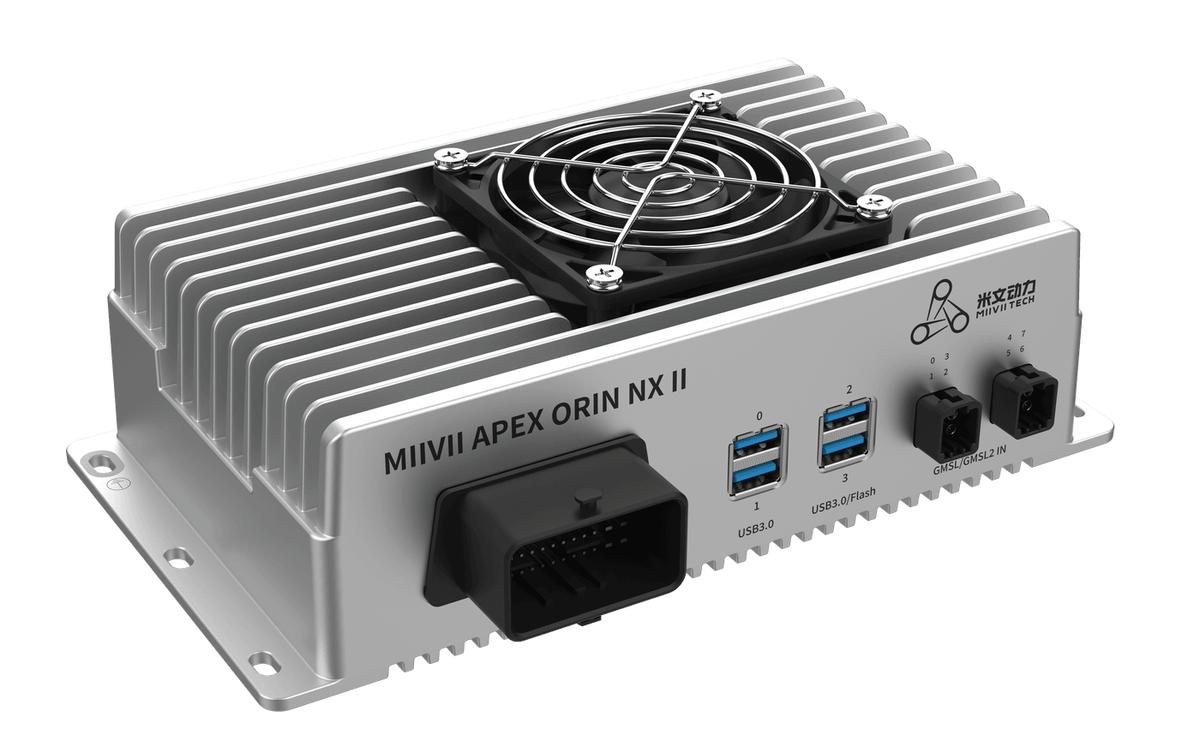
APEX ORIN NX II 5G Usage#
5G Module and SIM Card Installation#
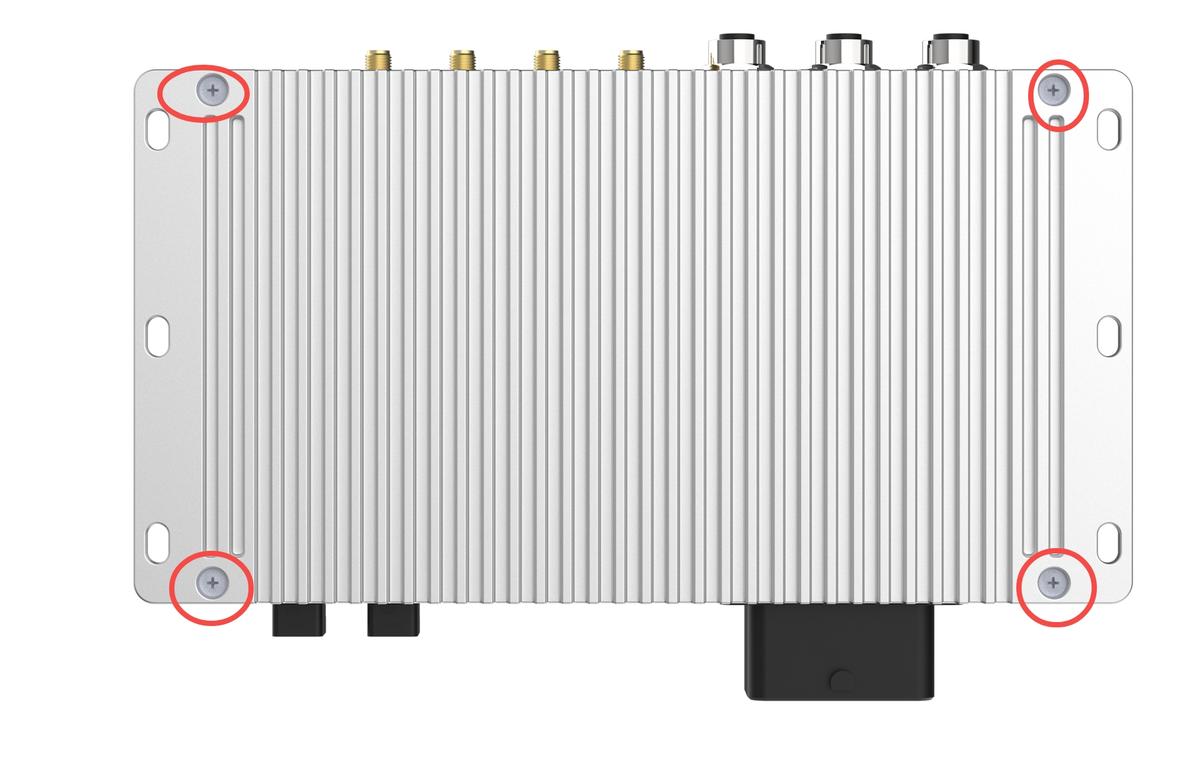
Enclosure Disassembly:#
Step 1: Remove the screws on the bottom.
Installation Steps:#
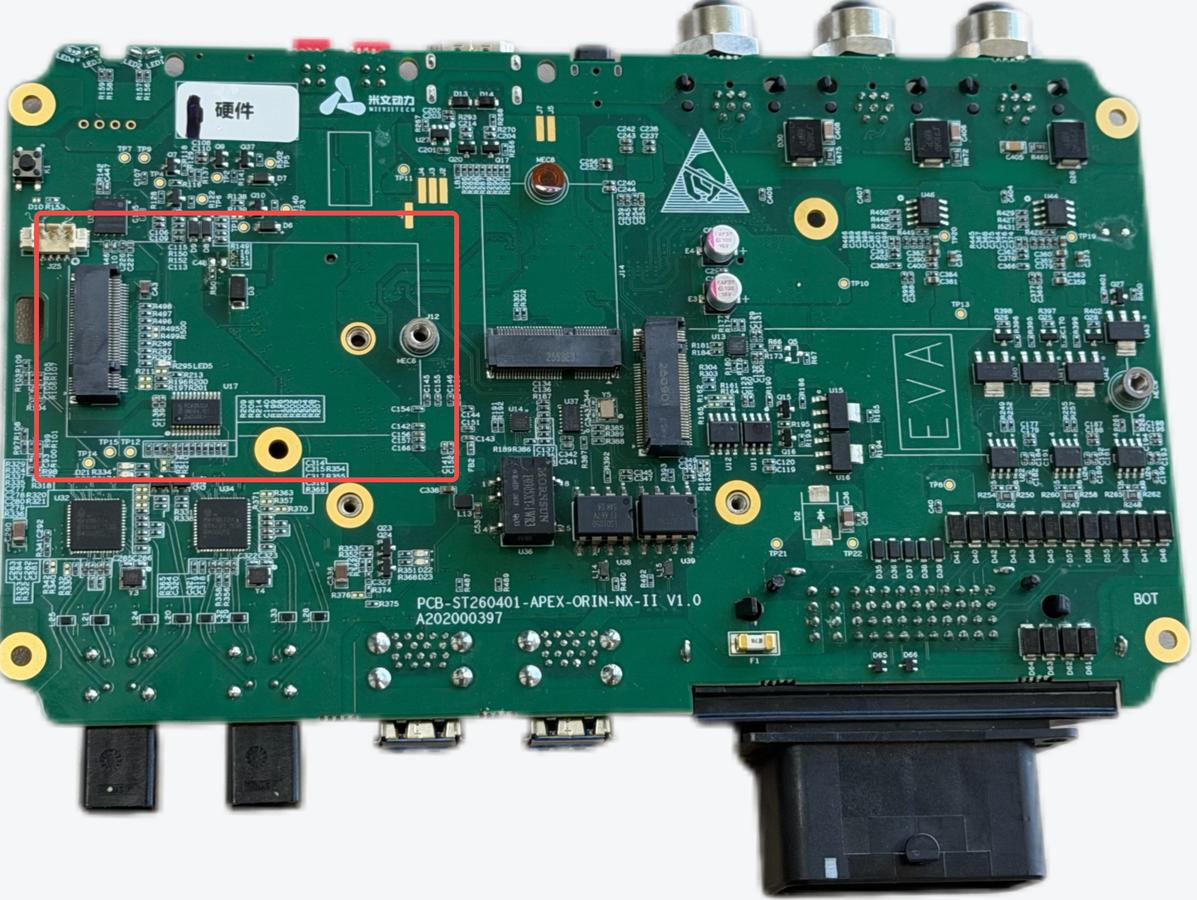
Install the 5G module in the M.2-B socket using one M3*8 Phillips screw with thread-locking adhesive.
Snap the IPEX connectors of the antenna adapter cables onto the 5G module. Secure the SMA female connectors to the ANT0 and ANT1 antenna ports on the device.
Attach a 4 mm thick thermal pad to the 5G module.
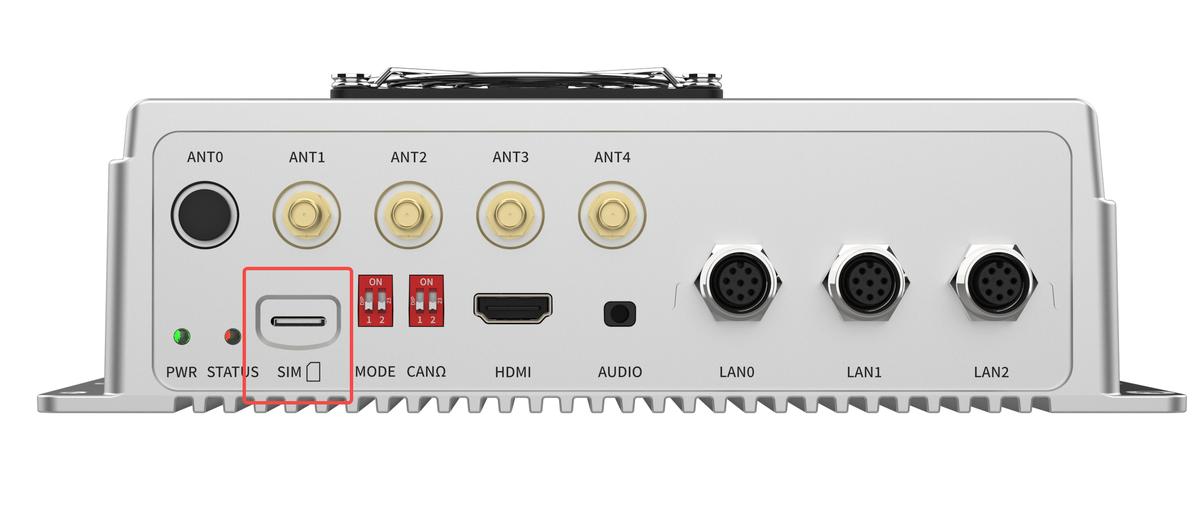
Insert the SIM card into the SIM socket.
Install and secure the antennas to the ANT0 and ANT1 antenna ports on the device.
Reference Images:#
Required Accessories:#
5G module ×1
SIM card ×1
M3*8 Phillips screw with thread-locking adhesive ×1
IPEX-to-Fakra antenna adapter cable ×2
4 mm thermal pad ×1
Notes:#
Install a thermal pad on the 5G module for heat dissipation.
Automatic Startup Settings#
The built-in MIIVII driver starts automatically and establishes a data connection at boot without additional configuration.
Module Configuration#
If you use an IoT SIM card, the card may be bound to the device hardware. Confirm this with your communications provider in advance.
The MIIVII system image includes the corresponding module driver. The system detects the module automatically after installation.
No. |
Brand |
Model |
Interface |
Module Function |
Operating Temperature |
Specification |
Notes |
|---|---|---|---|---|---|---|---|
1 |
Quectel |
RM520N-CN |
M.2 B KEY |
5G |
-30 °C ~ +75 °C |
SA DL 2.4 Gbps; UL 900 Mbps |
|
2 |
Quectel |
RM520N-GL |
M.2 B KEY |
5G |
-30 °C ~ +75 °C |
SA DL 2.4 Gbps; UL 900 Mbps |
4G / 5G Troubleshooting#
Check 1: Check the Hardware#
Step 1. Confirm that the 4G/5G model is supported by MIIVII.#
Find the supported models in the user manual. AD10 example: https://doc.miivii.com/Apex-AD10-User-Manual-CH/wiki/Apex-AD10-4G.html.
If the model is not supported by MIIVII, replace it with a supported 4G/5G module.
If the model is supported by MIIVII, continue to Step 2.
Step 2. Confirm that the 4G/5G module is seated correctly in its slot and that the antennas are connected correctly.#
Remove the rear cover and confirm that the 4G/5G module is seated correctly. Refer to the corresponding product user manual for 4G/5G installation instructions. AD10 4G installation example: https://doc.miivii.com/Apex-AD10-User-Manual-CH/wiki/Apex-AD10-4G.html.
Note: connect at least one antenna for 4G and at least two antennas for 5G.
Step 3. Confirm that the SIM card is in the corresponding slot.#
Remove the rear cover and confirm that the SIM card slot corresponds to the installed 4G/5G module.
Check 2: Cross-test Components (If Available)#
Step 1. If multiple devices are available, perform the following cross-tests.#
For the cross-tests, label the faulty device Device A, its 4G/5G module Module A, and its SIM card SIM A. Label a working device Device B, its 4G/5G module Module B, and its SIM card SIM B.
Cross-tests:
Device A + Module A + SIM A
Device A + Module A + SIM B
Device A + Module B + SIM A
Device A + Module B + SIM B
Device B + Module A + SIM A
Device B + Module A + SIM B
Device B + Module B + SIM A
Device B + Module B + SIM B
These tests help identify the faulty component: Device A, Module A, or SIM A.
If the problem is traced to the module or SIM card, continue to Step 2.
If the problem is traced to Device A, continue to Check 4: Reflash the Image to Check the Software Environment.
Step 2: Act on the Identified Fault#
Module fault: replace the module or contact its manufacturer.
SIM card fault: confirm that the SIM account has sufficient credit and an active data service.
Note: if a SIM card is bound to a specific module, only that pairing can be used. Remove the binding before testing other combinations.
Check 3: Verify from the Command Line#
Step 1: Run lsusb to check the device connection.#
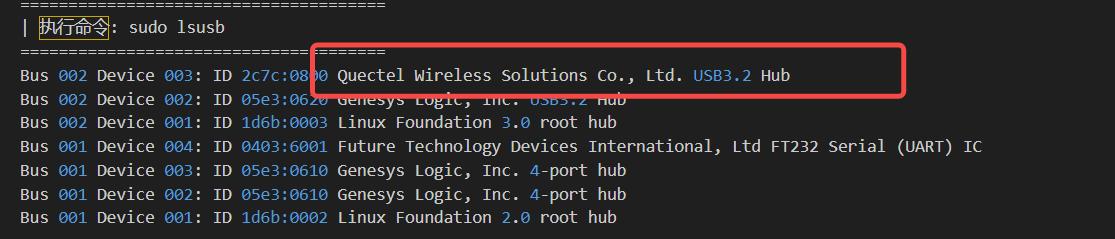
If the driver is not detected correctly, check for hardware problems first.
Step 2: Run ifconfig -a to check whether the network driver is detected.#
If the driver is detected as shown below, continue to Step 3.
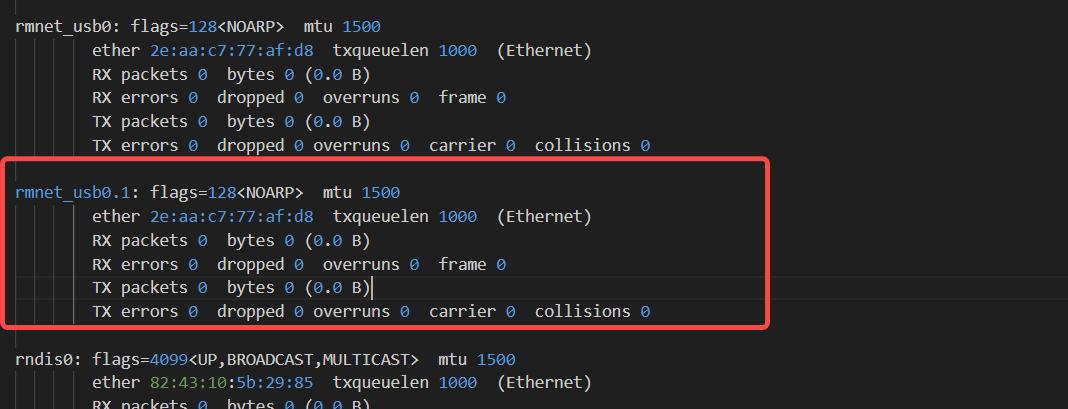
If the driver is not detected correctly, check for hardware problems first, then reflash the image to rule out a software environment issue.
Step 3: Run sudo ls -l /sys/class/net to check the network interface.#
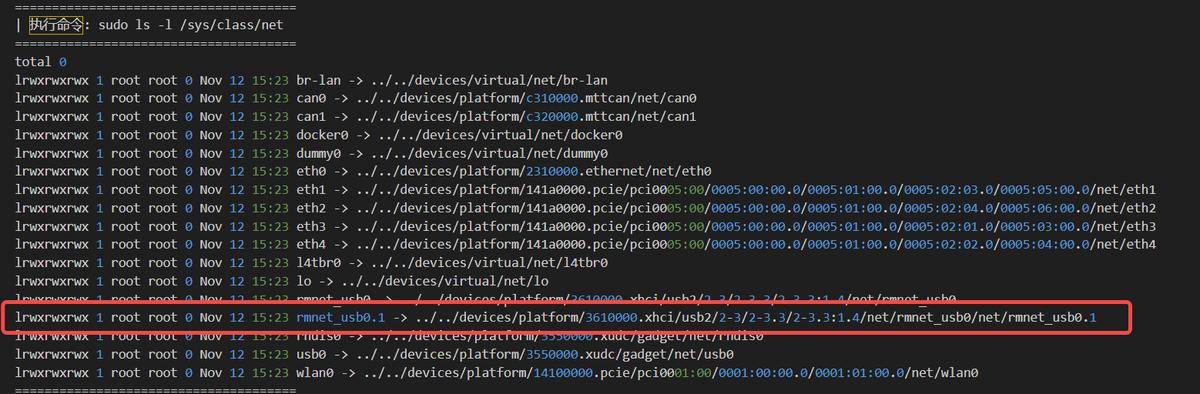
If the node appears as shown above, continue to Step 4.
If the node is missing, the network interface status is abnormal. Reflash the image to rule out a software environment issue.
Step 4: Run sudo systemctl status NetworkManager.service to check the NetworkManager.service status.#
Open a terminal and run:
sudo systemctl status NetworkManager.service
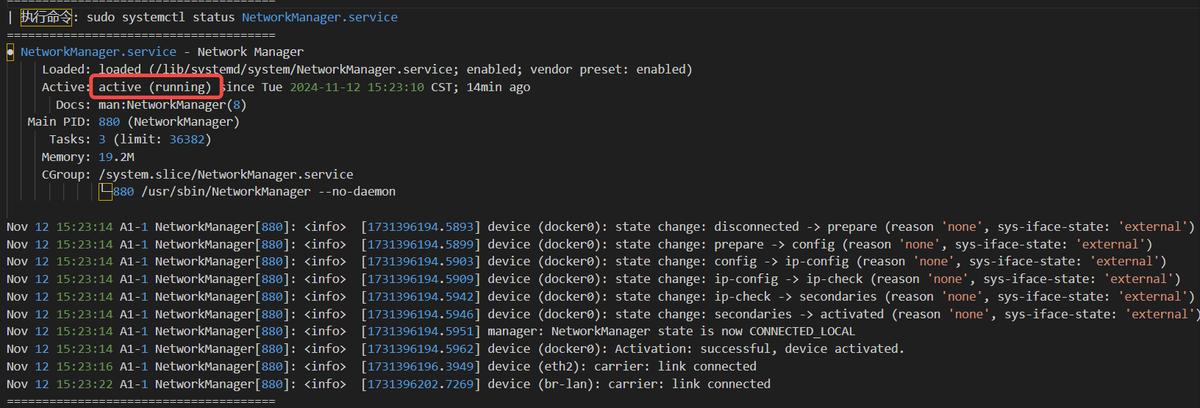
If NetworkManager.service is not running, try restarting it manually: sudo systemctl restart NetworkManager.service
If the service still fails to start, investigate the reported error. Upload a screenshot of the startup failure to the issue ticket system.
If the service starts after a manual restart, investigate why it did not start automatically. Upload a screenshot of the automatic startup failure to the issue ticket system.
Check 4: Flash the Image Again to Check for a Software Environment Issue#
Step 1: Flash the Image#
Image flashing instructions: https://wiki.miivii.com/pages/viewpage.action?pageId=182034027
After flashing the image, check whether the 4G/5G connection works.
If 4G/5G communication works after reflashing, the issue is caused by the system software environment. The customer must investigate that environment.
If the 4G/5G connection still fails after reflashing, continue to Step 2.
Step 2: Collect Logs#
Connect the device to the Internet, open a terminal, and enter:
4G diagnostic log collection command:
curl -sSL https://doc.miivii.com/scripts/run_miivii_diagnostic.sh | bash -s 4g #Collect diagnostic logs for 4G issues
5G diagnostic log collection command:
curl -sSL https://doc.miivii.com/scripts/run_miivii_diagnostic.sh | bash -s 5g #Collect diagnostic logs for 5G issues
Export the logs and upload them to the support ticket system for analysis by MiiVii after-sales engineers.