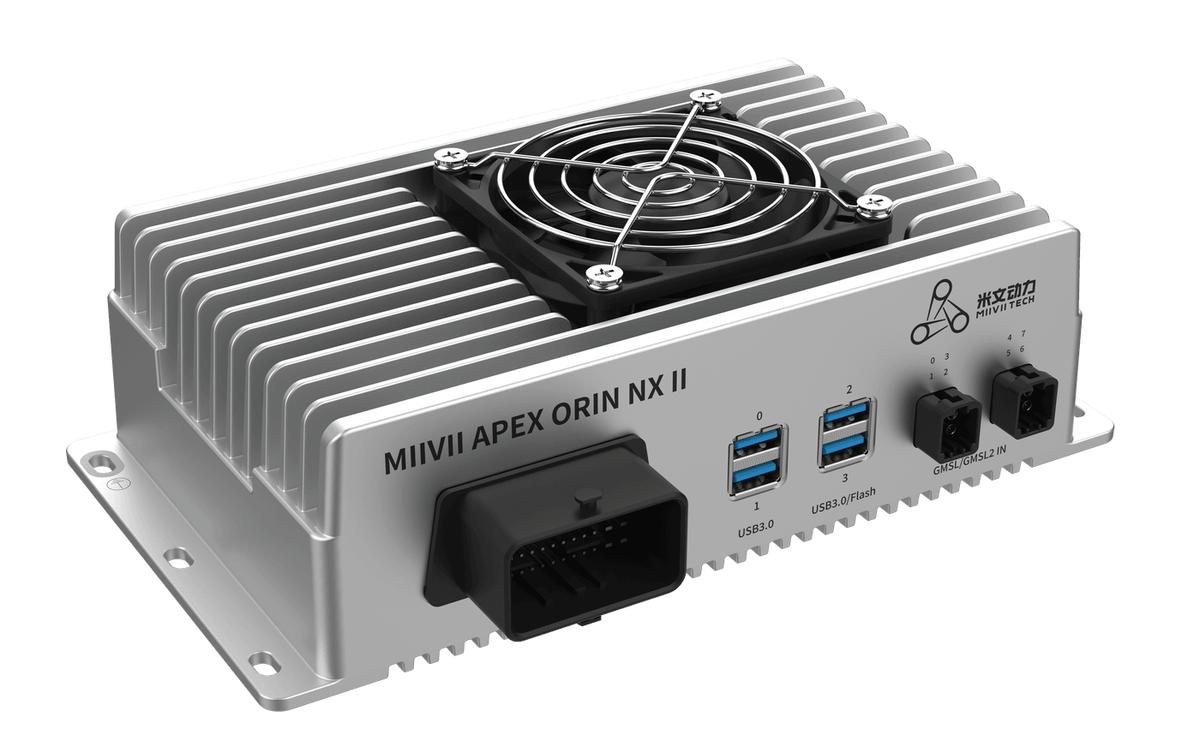
APEX ORIN NX II GMSL ROS2 Node Usage#
Before You Begin#
Install ROS2 Humble first and confirm the actual camera device node (/dev/videoN) and input resolution. In the following instructions, videoN and /miivii_gmsl/imageN must match the camera port you are using.
All the following steps use
 as the working directory for building and running the code.

### Download the Code
mkdir -p ~/catkin_ws/src && cd ~/catkin_ws/src git clone –no-checkout https://github.com/MiiViiDynamics/miivii_gmsl_camera && cd miivii_gmsl_camera && git checkout 3bc9f9b
### Build
sudo apt install python3-colcon-common-extensions source /opt/ros/humble/setup.bash sudo apt install ros-humble-camera-info-manager cd ~/catkin_ws/src/miivii_gmsl_camera colcon build –packages-select miivii_gmsl_camera source install/setup.bash
### Run: video0, 1280×720

If the camera is connected to video0 with an input resolution of 1280×720, and single.launch and single.rviz retain the corresponding default settings, run the following commands:
cd ~/catkin_ws/src/miivii_gmsl_camera source /opt/ros/humble/setup.bash source install/setup.bash ros2 launch miivii_gmsl_camera single.launch
If the camera port, resolution, or RViz topic was changed previously, follow the next section to configure the current camera, then rebuild before starting.

### Run: Other Ports or Resolutions

The LC009D1 example below uses the 1920 × 1536 camera mode/firmware configuration. The trial support list lists the 1920 × 1080 configuration. These resolutions correspond to different camera modes or firmware configurations; match the input resolution to the active camera configuration.

The following example uses **an LC009D1 camera connected to video5, with an input resolution of 1920×1536 and an output resolution of 640×360**.

#### 1. Modify the Camera Configuration
cd ~/catkin_ws/src/miivii_gmsl_camera vim miivii_gmsl_ros/launch/single.launch
Replace the contents of single.launch with the following:
For other camera ports or resolutions, adjust the following parameters to match your configuration:

-
: Disable the default port because this example does not use video0.#
: Enable video5 for this example. When using videoN, set the corresponding
to
 and disable unused ports. If you are using video0, enable video0.
-
: The camera input resolution, in
format. This example uses
.#
: The image output resolution. This example uses
. The parameter prefix must match the enabled videoN.
2. Modify the RViz Image Topic#
In the same working directory, change the RViz image topic from /miivii_gmsl/image0 to /miivii_gmsl/image5:
sed -i 's|/miivii_gmsl/image0|/miivii_gmsl/image5|g' \
  miivii_gmsl_ros/config/single.rviz
** Note: **image0 is the camera topic previously used in the configuration file and is the default topic; image5 is the topic needed for this example. If the port was changed previously, replace image0 in the substitution command with the current topic number in the configuration file, and replace image5 with the target port number. Do not always assume that the current topic is image0.
3. Rebuild and Start#
After changing single.launch or single.rviz, rebuild the package and load the environment generated by that build:
cd ~/catkin_ws/src/miivii_gmsl_camera
source /opt/ros/humble/setup.bash
colcon build --packages-select miivii_gmsl_camera
source install/setup.bash
ros2 launch miivii_gmsl_camera single.launch
4. Check the Display#
After startup, confirm that the camera image is displayed normally in RViz. The image topic for this example should be /miivii_gmsl/image5. If no image appears, check the actual device node, videoN.active, camera_res, and the RViz image topic. Also confirm that you rebuilt after the changes and ran source install/setup.bash.