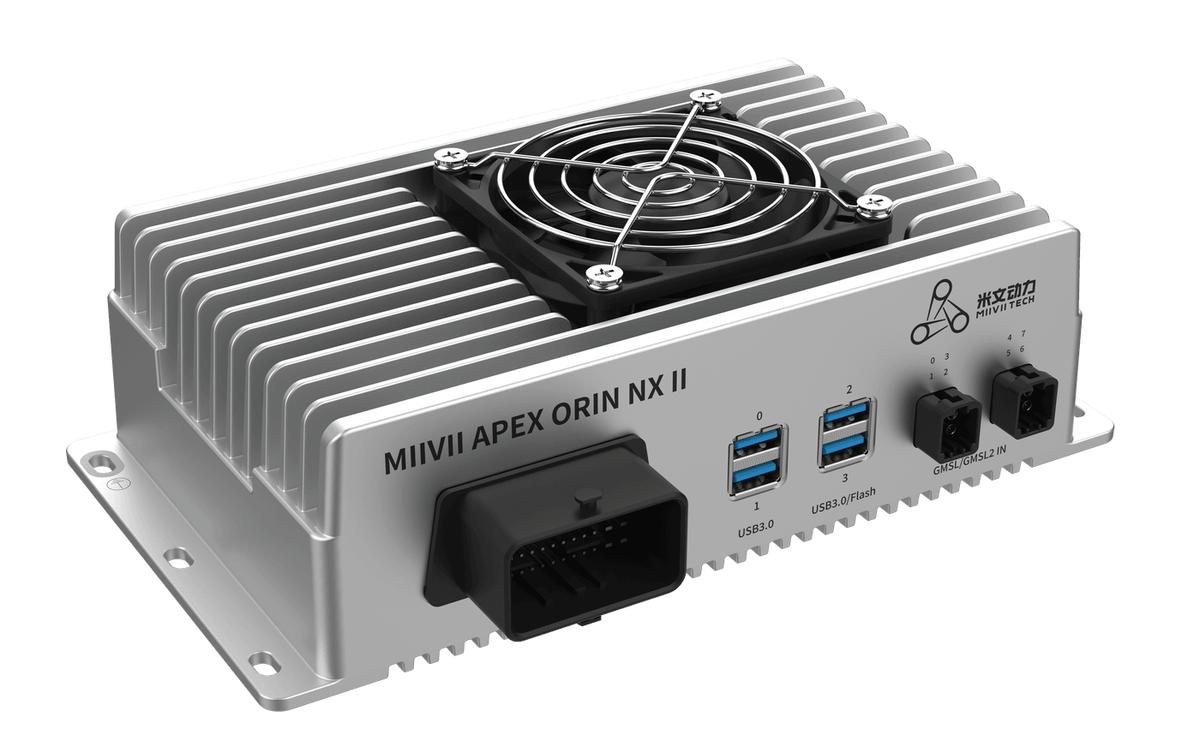
APEX ORIN NX II HDMI Interface#
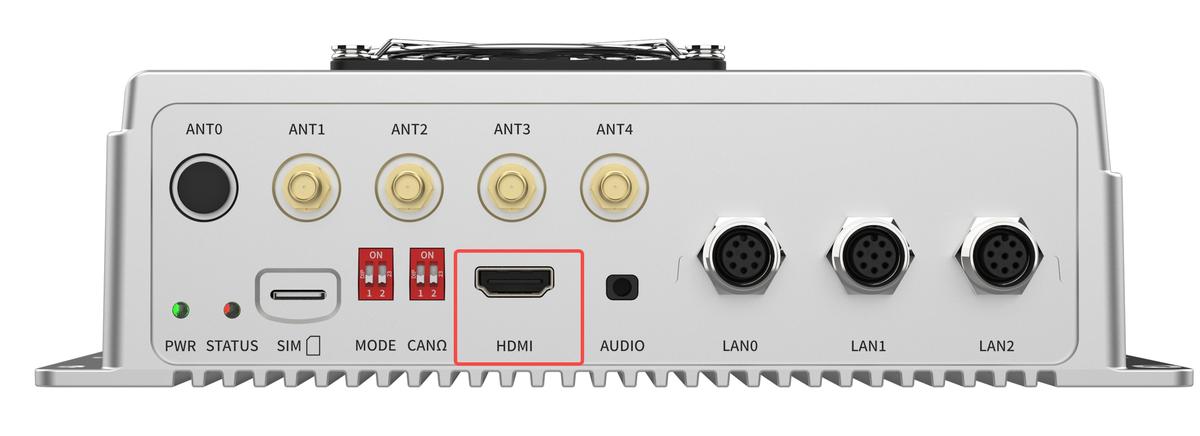
Hardware Specifications#
HDMI 2.0 Bandwidth: 18Gbps Maximum resolution: 4K@60Hz
Display Troubleshooting#
#
Symptom: An external monitor connected to the device remains blank and reports no signal#
Check 1: Hardware Connections#
Step 1: Confirm that the monitor’s power cable is connected correctly and the outlet supplies power#
If the monitor has no power, try another outlet or test the outlet with another appliance.
If the monitor power supply is normal, proceed to “Step 2”.
Step 2: Check the Connection between the Monitor and Device#
Ensure the cable between the device and monitor, such as HDMI, is firmly connected.
Check the connectors at both ends for damage.
Try another cable or use the same cable with another monitor to rule out a cable fault.
If these checks resolve the issue, troubleshooting is complete.
If the issue persists, proceed to “Check 2: Check the Monitor”.
Check 2: Check the Monitor#
Step 1: Verify that the Monitor Works#
Connect the monitor to another laptop or computer and check whether it displays an image.
If it displays an image, the monitor is working. Proceed to “Step 2”.
If it remains blank, the monitor is likely faulty. Try another monitor.MiiVii-recommended monitors: https://wiki.miivii.com/pages/viewpage.action?pageId=182034173.
Step 2: Check the Monitor Settings#
Use the monitor’s physical buttons to open its menu. Check that brightness and contrast are not so low that the display appears blank.
Select the Correct Input Source
If the monitor supports multiple input sources, ensure that the correct source is selected.
For example, select HDMI when using an HDMI cable. Also check whether the monitor detects the input signal correctly.
If these checks resolve the issue, troubleshooting is complete.
If the issue persists, proceed to “Check 3: Check Whether the Device Boots Normally”.
Check 3: Check Whether the Device Boots into the Operating System#
Step 1: Check Whether the Device Boots into the Operating System#
Check whether the device has a normal power supply.
Try connecting to the device through SSH or a debug tool to determine whether the operating system has started.
Debug tool instructions: https://wiki.miivii.com/pages/viewpage.action?pageId=182034056.
If the operating system does not start normally, flash the image and test again.
If the monitor remains blank after flashing, the device may have a hardware fault. Contact MiiVii for repair.
If the operating system starts normally, proceed to “Check 4: Check Available Storage Space”.
Check 4: Check Available Storage Space#
Step 1: Use df -h to Check Storage Space#
Check whether system storage is full: df -h
If storage is full, remove unnecessary files, such as logs.
If storage is not full, proceed to “Check 5: Check the Service”.
Check 5: Check the Service#
Step 1: Check the Desktop Service Status#
Open a terminal and enter: sudo systemctl status gdm3.service
If the service has not started, restart it manually with sudo systemctl restart gdm3.service and test again.
If the manual restart fails, investigate the reported errors.
If the monitor works after a manual restart, investigate why the service did not start automatically. The issue is likely related to system software; flashing the image again is recommended.
If the service is running normally, further investigation is required. Proceed to “Check 6, Step 2: Collect Logs”.
Check 6: Flash the Image Again to Check for a Software Environment Issue#
Step 1: Flash the Image#
Image flashing instructions: https://wiki.miivii.com/pages/viewpage.action?pageId=182034027.
If the monitor works after flashing, the issue was caused by the system software environment. Investigate your software environment.
If the monitor remains blank after flashing, proceed to “Step 2”.
Step 2: Collect Logs#
Connect the device to the Internet, open a terminal, and enter:
curl -sSL https://doc.miivii.com/scripts/run_miivii_diagnostic.sh | bash -s hdmi
Export the logs and the files under /var/log, upload them to the support ticket, and submit them to MiiVii Technical Support.