APEX AD10 Gigabit Ethernet Port#
Usage of Gigabit Ethernet#
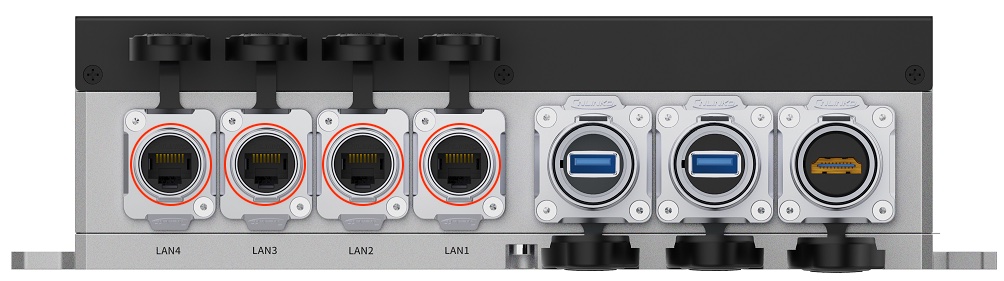
Hardware Connection#
Pre-conditions
Identify the location of the Gigabit Ethernet port.
Verify the use of an RJ45 Ethernet cable.
Insert the desired Gigabit Ethernet port to be used.
Connect using an RJ45 Ethernet cable through a switch or directly to a router.
Function vs Device Node#
Function |
Device Node |
|---|---|
LAN1 |
eth0 |
LAN2 |
eth1 |
LAN3 |
eth2 |
LAN4 |
eth3 |
#
Judgment on normal operation of Ethernet#
criteria for judgment#
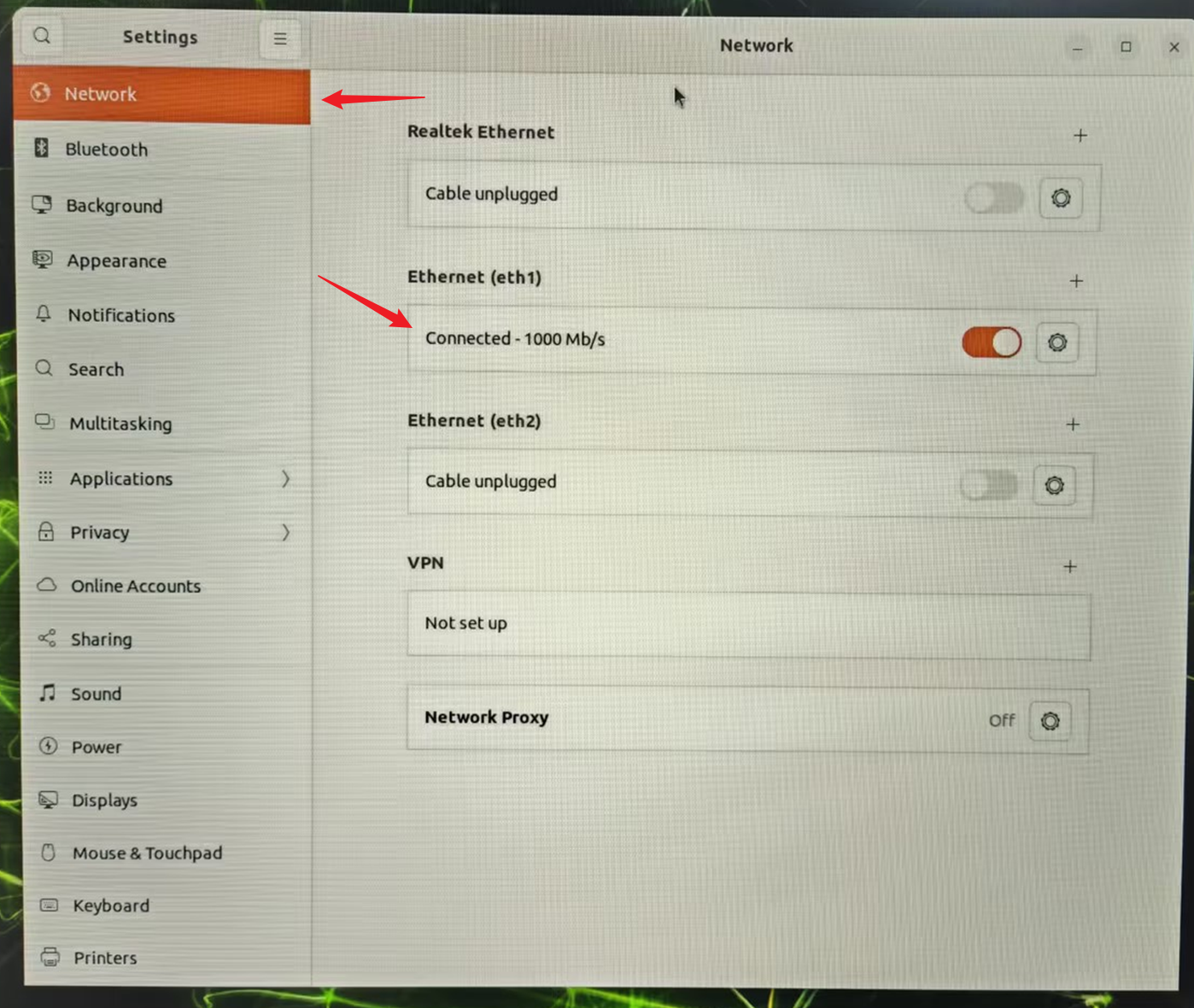
If communication with the current gateway is normal or “Connected” is displayed on the “Settings - Network” page, it can be determined that the Ethernet port is working properly.
judgment method#
Check the current physical connection status, obtain the device number, and refer to the “Device Node Mapping Relationship” (taking eth1 as an example).
solution of command line#
1.Obtain the current network interface configuration information and deduce the gateway address.
ip addr show eth1
2.Ping the gateway address (taking 192.168.1.1 as an example).
ping 192.168.1.1

If normal communication with the gateway is possible, it indicates that the current Ethernet port is functioning properly.
solution of graphical interface#
Click the icon in the top right corner of the desktop and select “Settings” from the pop-up menu.
In the pop-up settings page, select “Network”.
Check the connection status of the relevant device number on the right. If it is “Connected”, it indicates that the current Ethernet port is normal.
Troubleshooting methods for devices unable to connect to the external network via Ethernet#
Phenomenon: After inserting a network cable into the device, it cannot connect to the external network.#
Check item 1: Check if the network cable is working properly and if it can connect to the external network#
Step 1: Plug the network cable into another device that can connect to the external network.#
If you cannot connect to the external network, check and replace the network cable and verify if the external network connection is normal.
If you can connect to the external network, execute “Troubleshooting Item 2: Check if the device’s network card is normal”.
Check item 2: Check if the device’s network card is working properly#
Step 1: Use ifconfig to check if the network is working properly#
Connect the network cable to the Miwen device, open the terminal, and enter: ifconfig to check whether the network card corresponding to the inserted network cable can be identified.
If the network card does not exist, execute “Step 2”.
If the network card exists, execute “Step 3”.
Step 2: Re-flash the image to the device#
For details on how to flash the image, please refer to:https://doc.miivii.com/Apex-AD10-User-Manual-CH/wiki/Apex-AD10-%E5%9B%BA%E4%BB%B6%E7%83%A7%E5%86%99.html。
If the problem is resolved by flashing the image, it is a software environment issue.
If the problem still cannot be resolved after re-flashing the image, you need to contact Miwen technical support.
Step 3: Check if the network card can obtain an IP address and if the IP is normal#
Check if the network card can obtain an IP address and if the IP is normal.
If the IP can be obtained normally, proceed to “Step 4”.
If the obtained IP is inconsistent with the actual network segment, it is necessary to check whether the network card configuration is set to DHCP. If it is not set to DHCP, it needs to be modified to DHCP and then try again.
Step 4: After configuring the default route, verify whether the network can be connected.#
Execute the command: sudo route add default gw <gateway_ip>
If the external network can be connected after the configuration is completed, the problem is solved.
If the connection still cannot be established, execute “Troubleshooting Item 3: Collect log information”.
Check item three: Collect log information#
Step 1: Collect log information#
Connect the device to the external network, open the terminal, and enter: curl -sSL https://doc.miivii.com/scripts/run_miivii_diagnostic.sh | bash -s ethernetAnd export the logs and files under /var/log, upload them to the fault work order, and submit them to Miwen technical support.
Troubleshooting methods for the failure of a device with multiple network ports to communicate with peripherals simultaneously#
Phenomenon: When using Miwen devices to connect the network ports to other peripherals, multiple network ports cannot communicate with the peripherals simultaneously.#
Check item 1: Check if the network cable is working properly#
Step 1: Verify if the network cable is working properly#
If it can be connected and devices can ping each other after configuring the IP, then execute “Troubleshooting Item 3: Check if the device’s network card is working properly”.
If it cannot connect to other devices, it is recommended to replace the network cable.
Check Item 2: Check network configuration Check Item 3#
Step 1: Check if multiple network interfaces are configured in the same network segment (visual interface/netplan, etc.)#
If multiple network ports are configured with the same network segment, it is necessary to change the IP addresses of the multiple network ports to different network segments.
If this is not the case, execute “Check Item 3: Check if the device network card is working properly”.
Reason: The network port of the Miwen device does not have a switch function. Solution: If the customer needs multiple network ports in the same network segment, it is recommended that the customer configure a gateway/bridge to achieve this function.
Check item 3: Check if the device’s network card is working properly#
Step 1: Use ifconfig to check if the network card exists#
Connect the network cable to the Miwen device, open the terminal, and enter: ifconfig to check whether the network card corresponding to the inserted network cable can be recognized.
If the network card does not exist, execute “Step 2”.
If the network card exists, execute “Step 3”.
Step 2: Re-flash the image to the device#
Method for flashing the image:https://doc.miivii.com/Apex-AD10-User-Manual-CH/wiki/Apex-AD10-%E5%9B%BA%E4%BB%B6%E7%83%A7%E5%86%99.html。(不同产品烧写细节从对应用户手册中查找)
If the problem is resolved by flashing the image, it is a software environment issue.
If the problem still cannot be resolved after re-flashing the image, execute “Troubleshooting Item 4: Collect logs”.
Step 3: Verify whether the network card can obtain an IP address and whether the obtained IP address is correct#
If the IP address can be successfully obtained, execute “Check Item 4: Collect log information”.
If the obtained IP address does not belong to the actual network segment, please check whether the network card is configured to use DHCP.
If DHCP is not enabled, please switch to DHCP mode and try again.
Check item 4: Collect log information#
Step 1: Collect log information#
Connect the device to the external network, open the terminal, and enter:curl -sSL https://doc.miivii.com/scripts/run_miivii_diagnostic.sh | bash -s ethernetAnd export the logs and files under /var/log, upload them to the fault work order, and hand them over to Miwen technical support.