APEX AD10 GMSL Camera Basic usage#
Camera working mode selection#
Work mode |
Pattern description |
Differences in usage |
Attention |
|---|---|---|---|
Camera self-triggering |
After the camera is powered on, it takes pictures at the default supported frequency. |
You can use the default Linux method and the SDK to obtain images. |
All cameras need to use the same working mode. |
Function and role:#
When users only want to obtain the camera video stream and have no special requirements, using this working mode is the most convenient.
In this working mode, you can quickly connect to the GMSL camera and obtain the real - time image stream without complex configuration.
When the camera is correctly connected and powered on, it will automatically start working at the frequency supported by the factory default.
Key advantages:#
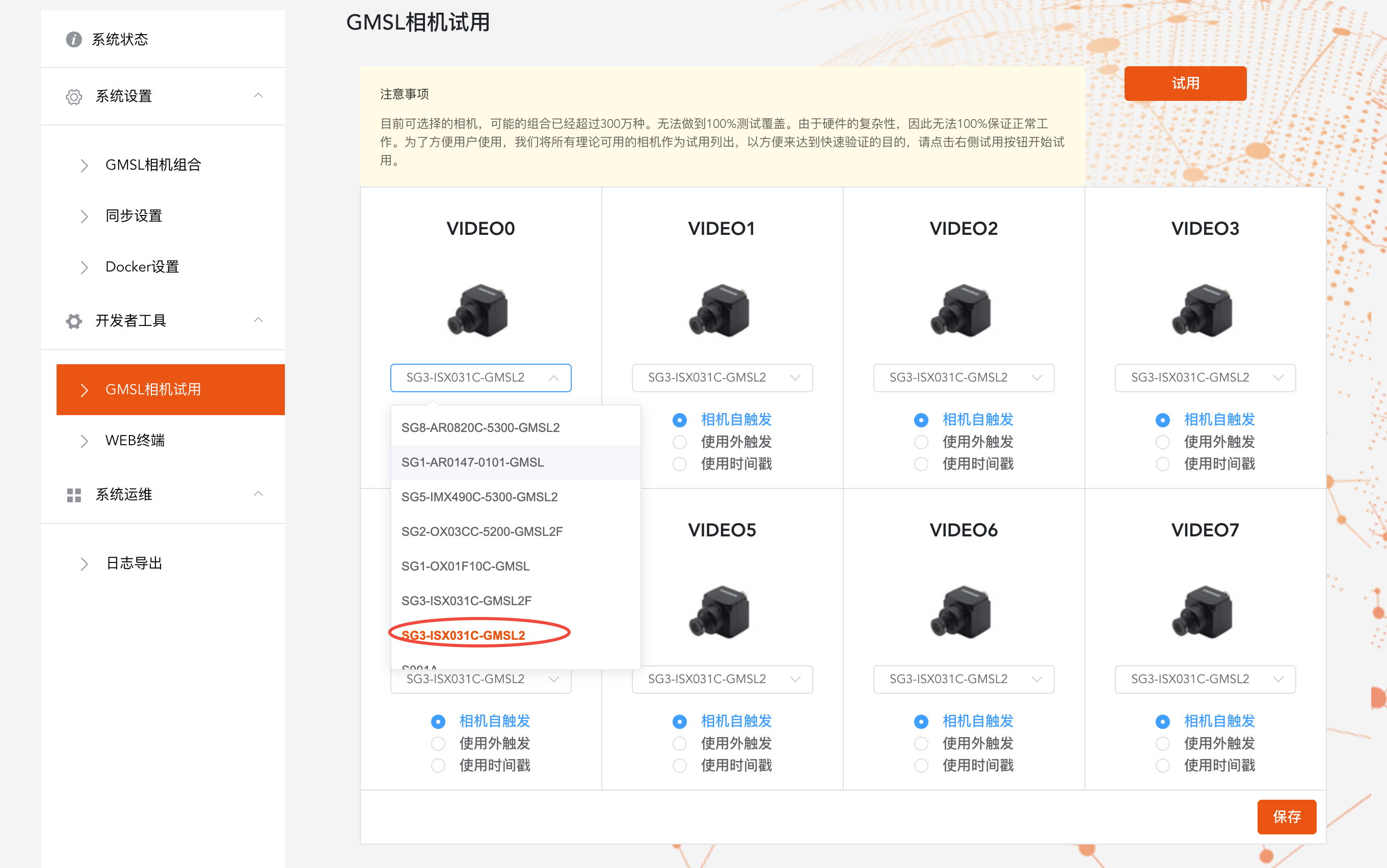
Minimalist deployment, quick start: There is no need to write underlying drivers or complex scripts. Select the camera model and number of the corresponding channel through the intuitive visual interface (System Settings > GMSL Settings), and click Save to complete the basic configuration.
Intuitive operation, clear status: The visual interface clearly displays the configuration status of each channel.
Application scenarios:#
Equipment Installation and Preliminary Debugging: Engineers quickly install the camera on - site and confirm whether its physical connection and basic functions are normal.
Prototype Development and Verification: Algorithm engineers and students can quickly obtain image data for prototype verification in the initial stage of developing the vision algorithm.
Conventional Applications with Low Requirements for Strict Synchronization: When the application scenario does not require multiple cameras to perform micro - second - level synchronized exposure, this default mode can meet the requirements.
GMSL Visualization Settings#
Click on “System Settings - GMSL Settings” in the left - hand menu bar to enter the page.
Select the corresponding camera model, camera number, and silk screen number for each channel.
Click Save.
Wait for a while.The system will prompt that the GMSL setting is successful, and then the GMSL camera can be used.
Confirmation of GMSL camera parameters#
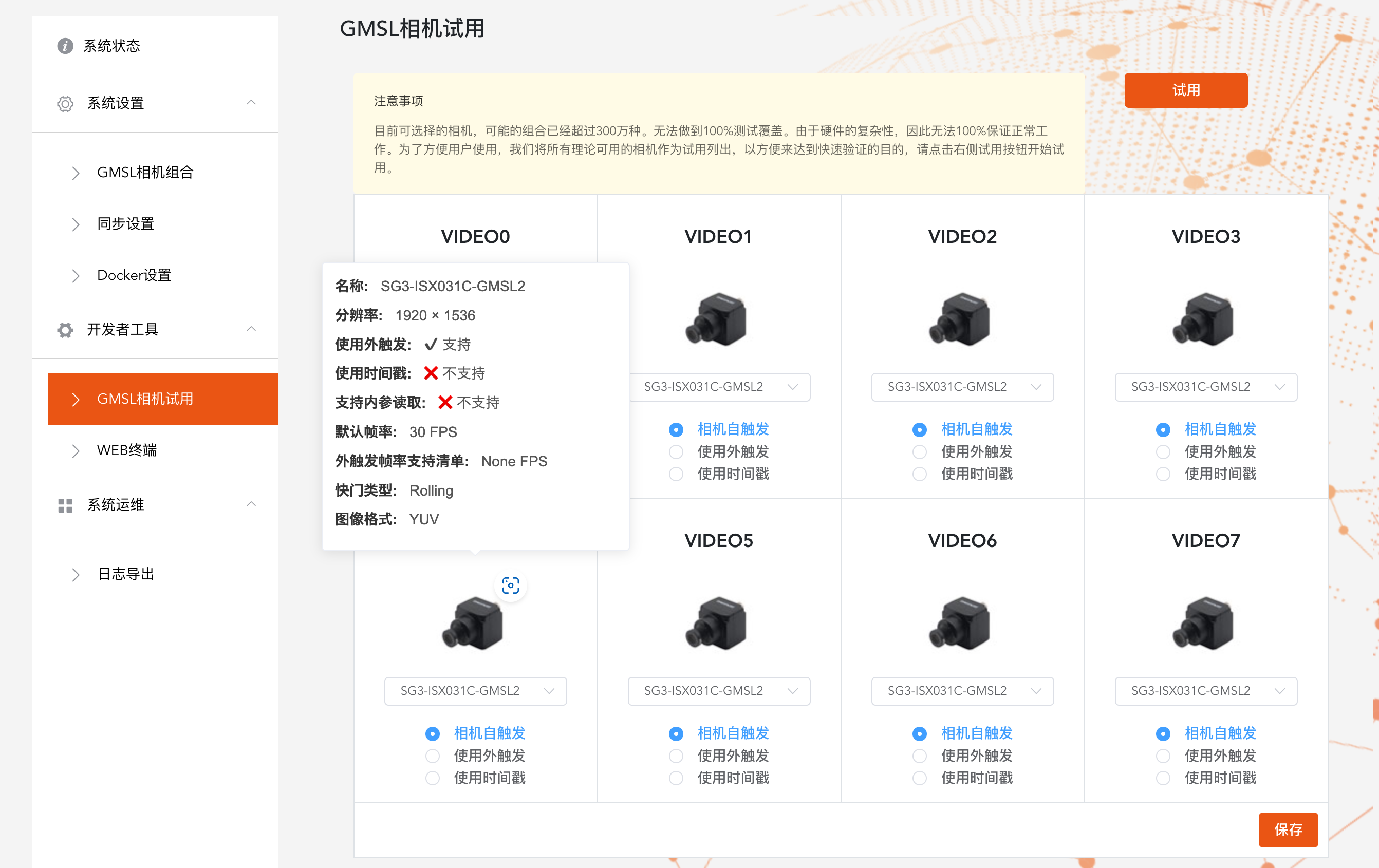
Select a camera.
Move the mouse to the camera icon.
A window will pop up on the interface to indicate the camera’s features.
Video output#
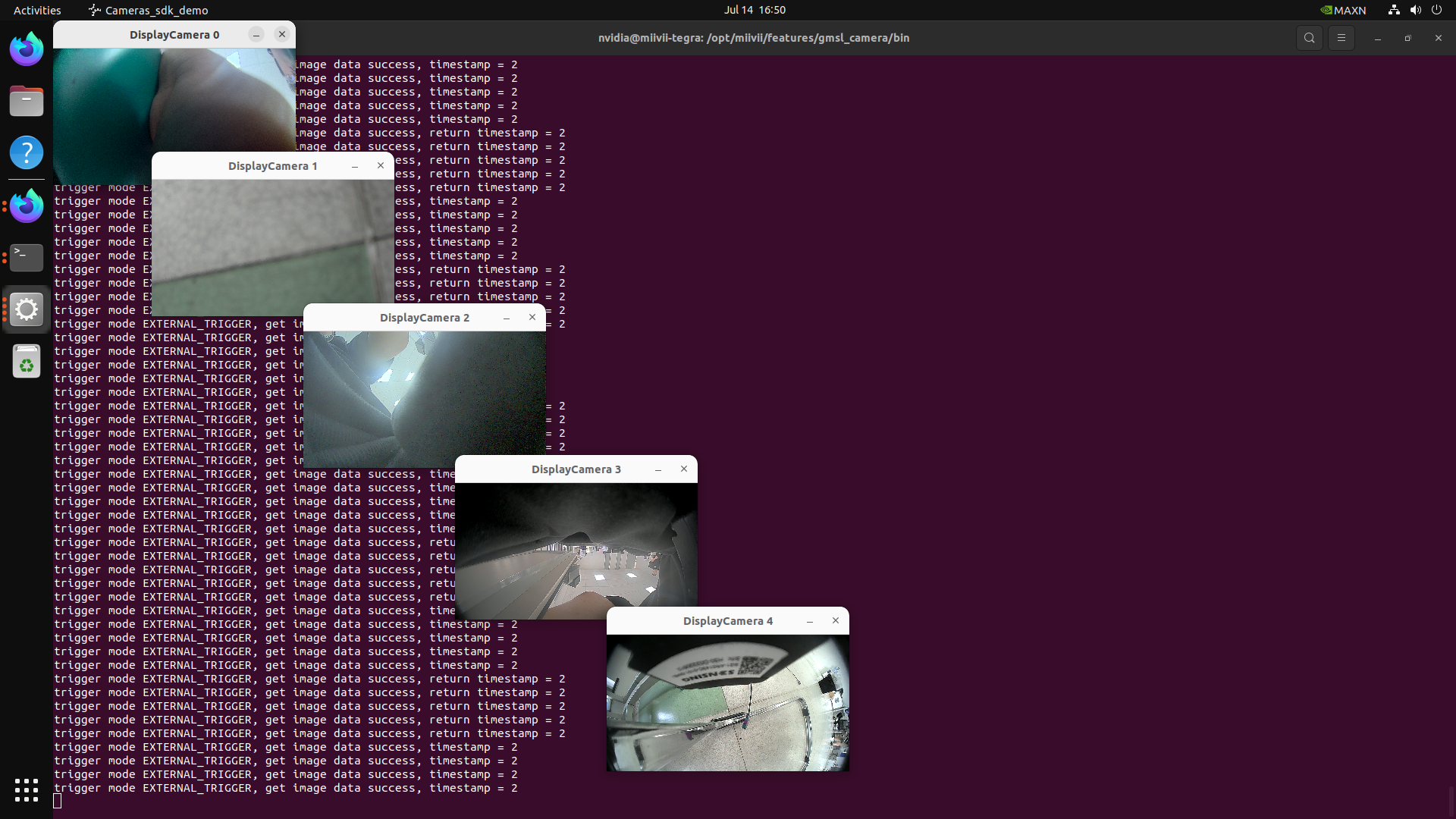
You can use the following commands to quickly open the camera to confirm the effect.
Method 1: Quickly turn on the camera without entering parameters#
Light up the camera#
sudo chmod +x /opt/miivii/features/gmsl_camera/bin/cameras_sdk_demo
cd /opt/miivii/features/gmsl_camera/bin/
# Turn on cameras (Automatically turn on all cameras. To turn on a specific camera, specify the channel number)
./cameras_sdk_demo
#
Method 2: Enter camera parameters to turn on the camera#
Display a single-channel 720P camera#
gst-launch-1.0 -v v4l2src device="/dev/video1" ! video/x-raw,width=1280,height=720,format=UYVY ! xvimagesink
Display a single 1080P camera#
gst-launch-1.0 -v v4l2src device="/dev/video0" ! video/x-raw,width=1920,height=1080,format=UYVY ! xvimagesink
Problem troubleshooting#
The camera shows no image.#
Check if the camera lens cap is open.
The camera shows a green screen#
Check if the camera only supports self - triggering mode. If so, refer to the advanced section.
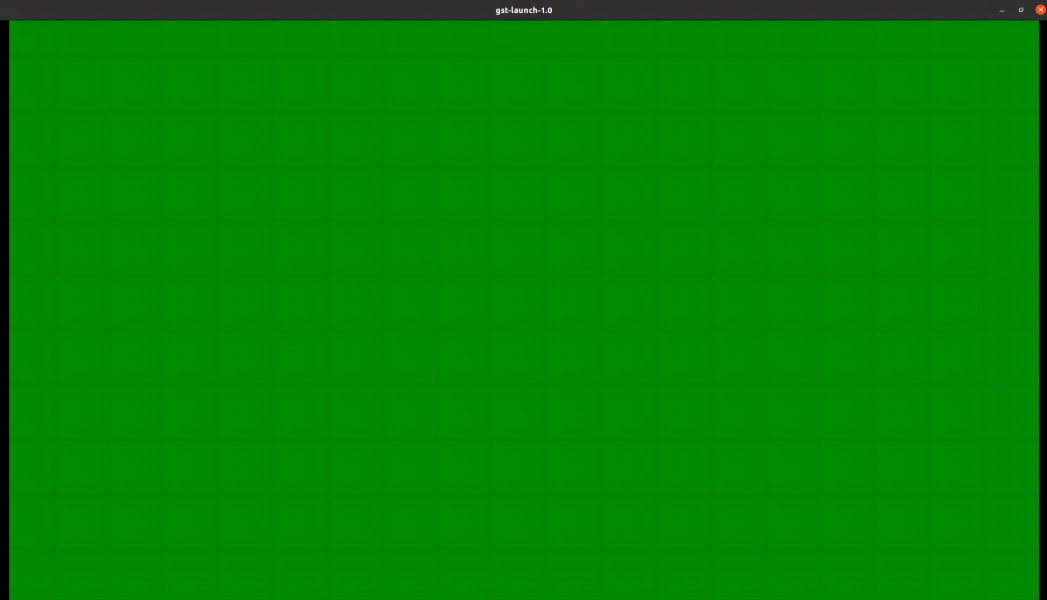
The color displayed by the camera is incorrect.#
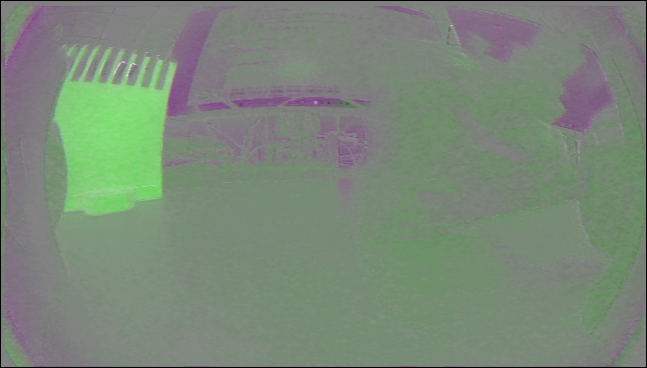
When the camera image format does not match, the following effects will occur.
At this time, it is necessary to check whether the picture format is set correctly.