APEX AD10 ZED-X Usage#
Feature Description#
Supports plug-and-play for the ZED-X binocular camera and can be used simultaneously with other monocular cameras.
Function Limitations:
Only one ZED-X can be connected at a time.
The ZED-X can only be connected to video0 or****video1 port. Ensure that when using video0 or video1, the other is set to NONE.
Installing ZED SDK#
Download the Package#
Download the corresponding version of the ZED SDK from https://www.stereolabs.com/developers/release.
Install the Software
#Install the dependency libraries
sudo apt install zstd
#Assuming the package we downloaded is named as follows:ZED_SDK_Tegra_L4T35.3_v4.1.3.zstd.run
chmod +x ZED_SDK_Tegra_L4T35.3_v4.1.3.zstd.run
./ZED_SDK_Tegra_L4T35.3_v4.1.3.zstd.run

#make sure isp in the correct directory
ls /var/nvidia/nvcam/settings/
README.txt       zedx_ar0234.isp  zedx_imx678.isp

#make sure isp file permission is correct
sudo chown root:root  /var/nvidia/nvcam/settings/zedx_ar0234.isp
sudo chmod 664 /var/nvidia/nvcam/settings/zedx_ar0234.isp
sudo systemctl restart nvargus-daemon.service
Binocular Camera Configuration#
Camera Setup#
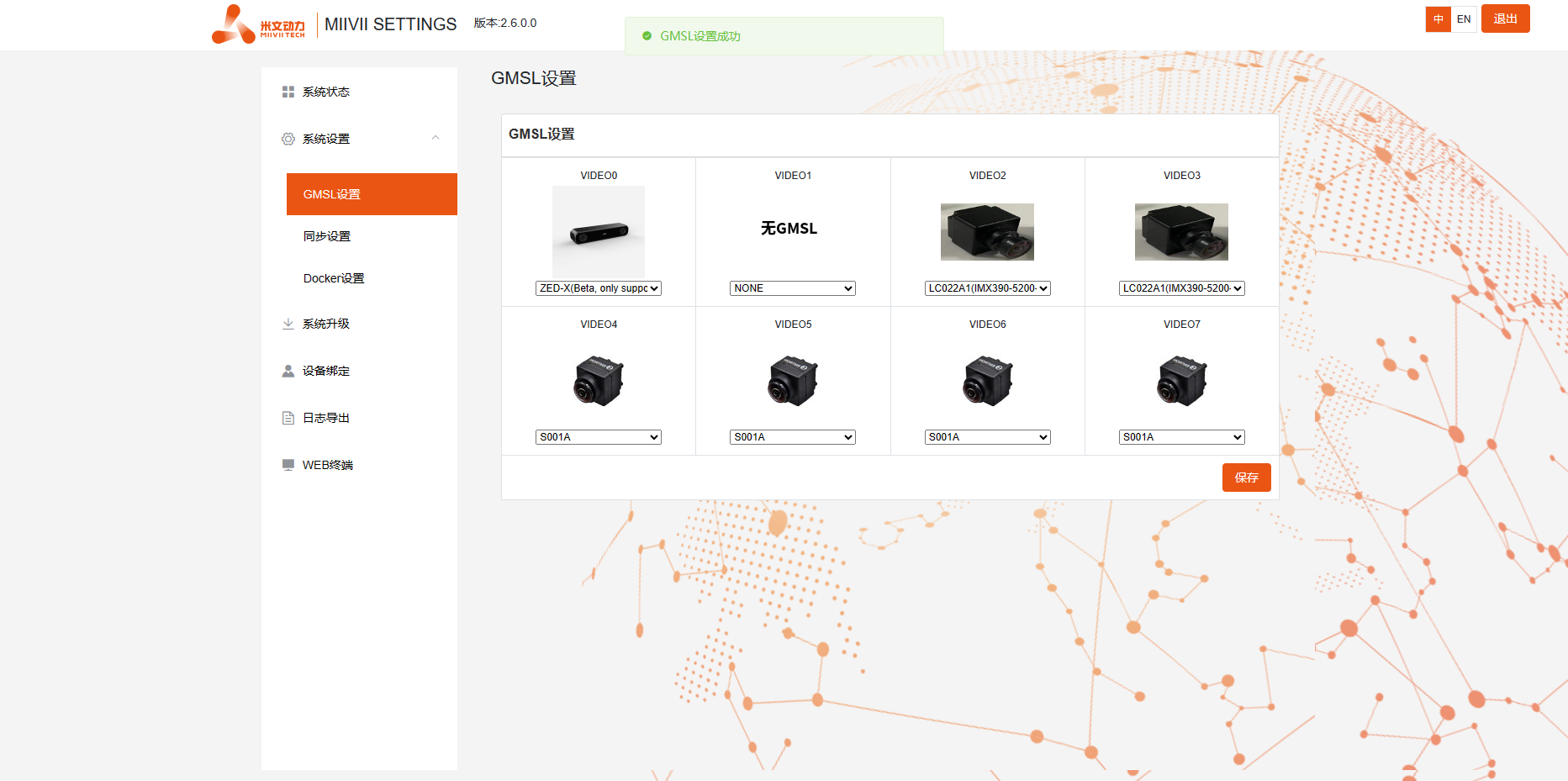
Camera Usage#
#Assuming the default installation directory is used.
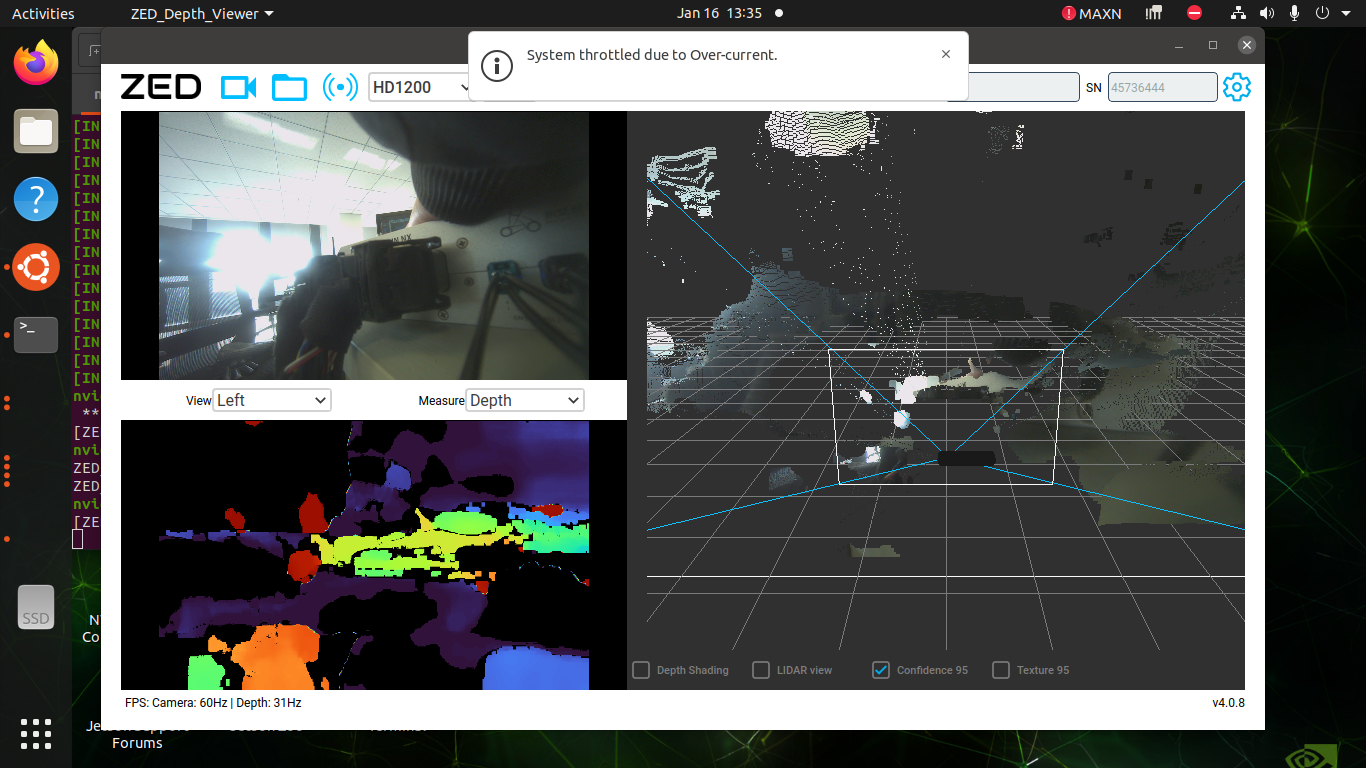
/usr/local/zed/tools/ZED_Depth_Viewer
Mixed Use of Monocular and Binocular Cameras#
Camera Setup#
Camera Usage#
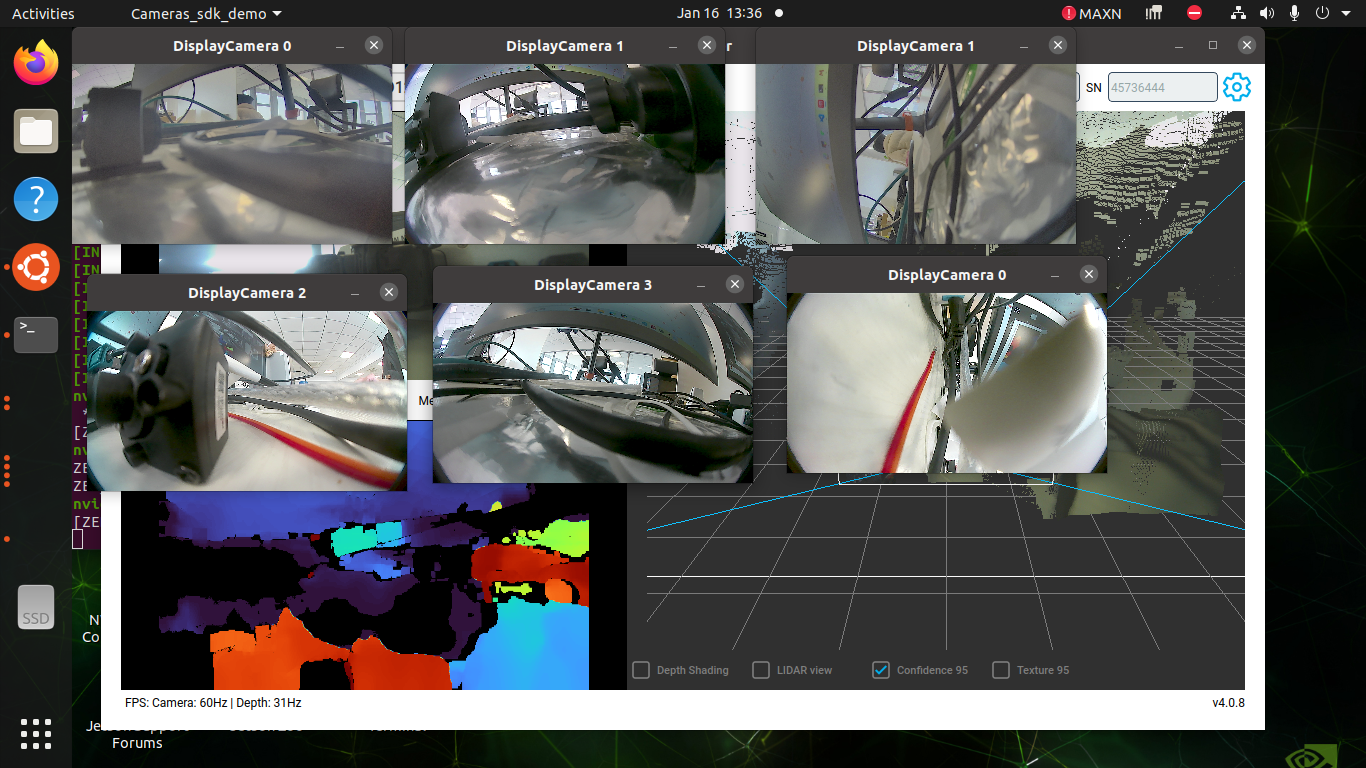
#If the camera being used is the same as the one shown in the illustration, the command to preview a non-ZED camera is as follows:
/opt/miivii/features/gmsl_camera/bin/cameras_sdk_demo -d /dev/video2 -s 1920x1080 -m 2 & /opt/miivii/features/gmsl_camera/bin/cameras_sdk_demo -d /dev/video4 -s 1280x720 -m 4
ZEDX Problem Troubleshooting
Phenomenon: When the zedx camera is plugged into the device, the ZED_Depth_Viewer cannot activate it.#
Check item 1: Confirm the image version#
Step 1: Check if the image version supports the zedx camera#
Currently, only specific versions of APEX ONX and the AD10 6.0 version image of Miwen devices support zedx; other standard versions do not support it for the time being. If you need a version that supports zedx, please contact technical support.
Check item 2: Confirm the hardware link#
Step 1: Check for damage to the GMSL interface#
Visually inspect whether the GMSL interface is deformed, damaged, etc.
If the interface is damaged, contact Miwen’s after-sales service for repair or replacement.
If the interface is normal, perform “Step 2”.
Step 2: Confirm whether the camera harness and GMSL camera are working properly#
If there are extra wiring harnesses/cameras, cross-validation can be performed by connecting other confirmed normal wiring harnesses/cameras to the device for testing to identify the problem.
If the wiring harness/camera is normal, execute “Troubleshooting Item 3: Confirm whether the camera configuration is normal”.
If the wiring harness/camera is abnormal, replace the wiring harness/camera.
Check item 3: Confirm whether the camera configuration is normal#
Step 1: Confirm whether the camera is connected to the wrong node#
Only one ZED-X can be connected at a time.
ZED-X can only be connected to the video0 or video1 port. Ensure that when using video0 or video1, video1 or video0 is set to NONE.
If it is confirmed that the node is normal, execute “Step 2”.
If it is not normal, modify the camera node.
Step 2: Check the configuration in websetting#
Open websetting → gmsl configuration, confirm that the selected camera is the currently used camera model, and ensure that the saving is successful.
To check whether the saving is successful, you can view /var/log/gmsl_camera.log.
If the link is abnormal as shown in the figure below, you need to check “Troubleshooting Item 2: Confirm Hardware Link” again.
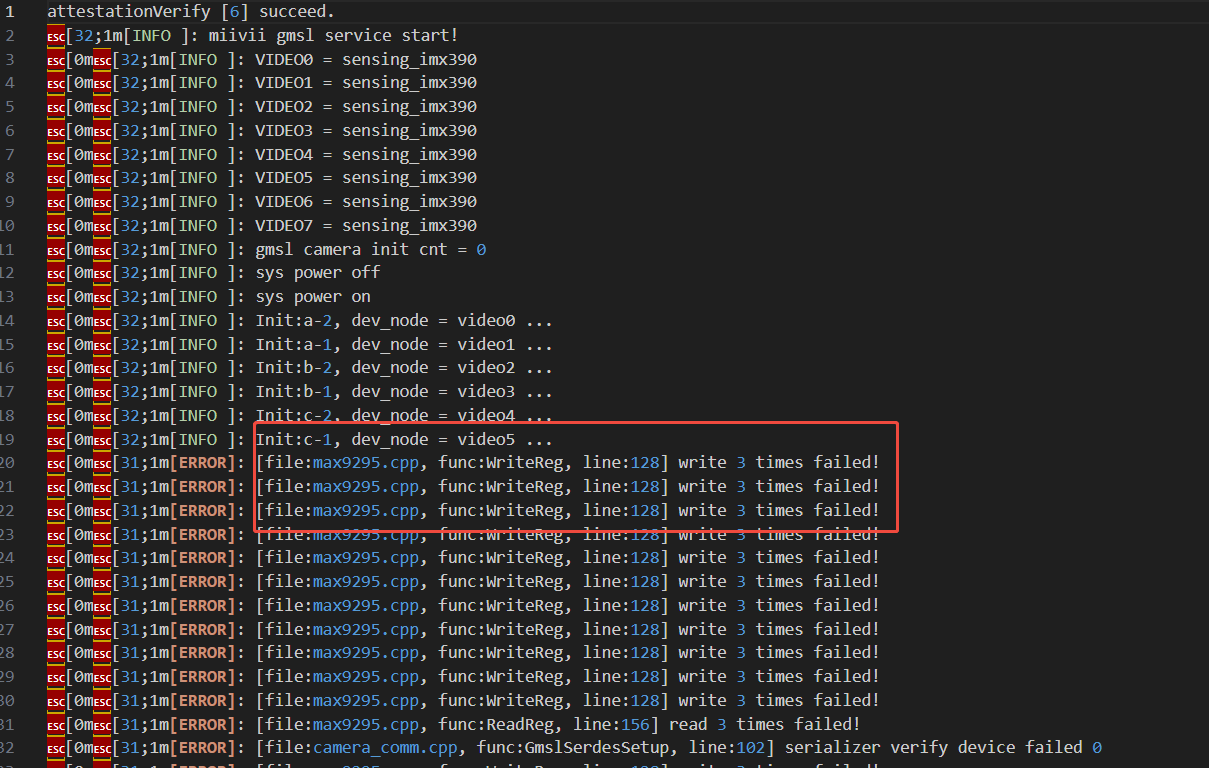
If you confirm that the camera model is selected correctly and saved successfully, perform “Step 3”.
If there is a problem with the operation, modify it again and then try to turn on the camera.
Step 3: After configuring the camera, is there any hot-plugging of the camera?#
If hot-swapping is involved, you need to reconfigure the camera in webstting, or you can achieve this by restarting the camera service (miivii_gmsl2_service).
If there is no hot-swapping, execute “Troubleshooting Item 4: Confirm the wiring methods of other cameras in the system”.
Check item 4: Confirm the wiring methods of other cameras in the system#
Step 1: Confirm whether there are other cameras in the system#
If there are other GMSL cameras, it should be noted that GMSL cameras and ZED cameras cannot be on the same serializer (if conditions permit, GMSL cameras can be connected to video ports 4-7).
If there are no other cameras, it is necessary to perform “Check Item 5: Confirm whether the software environment configuration is correct”.
Check item five: Collect log information#
After connecting the device to the external network, open the terminal and enter:
curl -sSL https://doc.miivii.com/scripts/run_miivii_diagnostic.sh | sudo bash -s gmsl
And export the logs and the files under /var/log, upload them to the fault work order, and hand them over to Miwen technical support.