APEX AD10 Web GUI#
Access method:#
Method 1-Access via local desktop shortcut:#
Double-click the desktop shortcut “MIIVII WEBSETINGS” to open the application through the browser
The username and password required to log in to the local machine must have sudo permissions. Users without sudo permissions cannot use it
Method 2-Access via local browser:#
Open the browser
Enter http://127.0.0.1:3000
The username and password must have sudo permissions, and users without sudo permissions cannot log in
Method 3-Access via LAN browser:#
Open the PC browser
Enter “LAN browser of the device + port number”, the port number is 3000. For example: http://192.168.1.100:3000 http://192.168.1.100:3000
The username and password must have sudo permissions, and users without sudo permissions cannot log in
Function description#
Login#
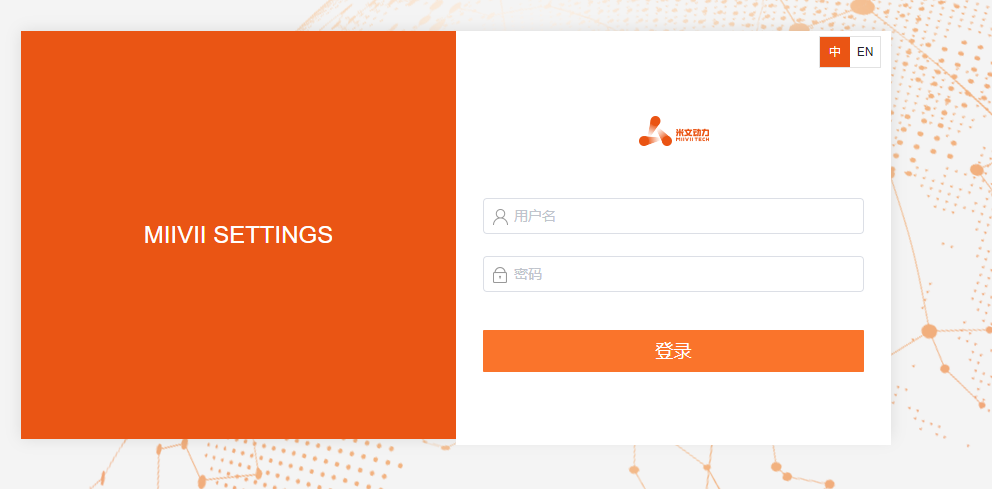
Username:nvidia
Password:nvidia
Switch between Chinese and English interfaces#
There is an
 interface switch button in the upper right corner of the page. Click the button to switch between Chinese and English interfaces.
(The Chinese and English switching function is available from V2.5.x and later versions)

System Status#
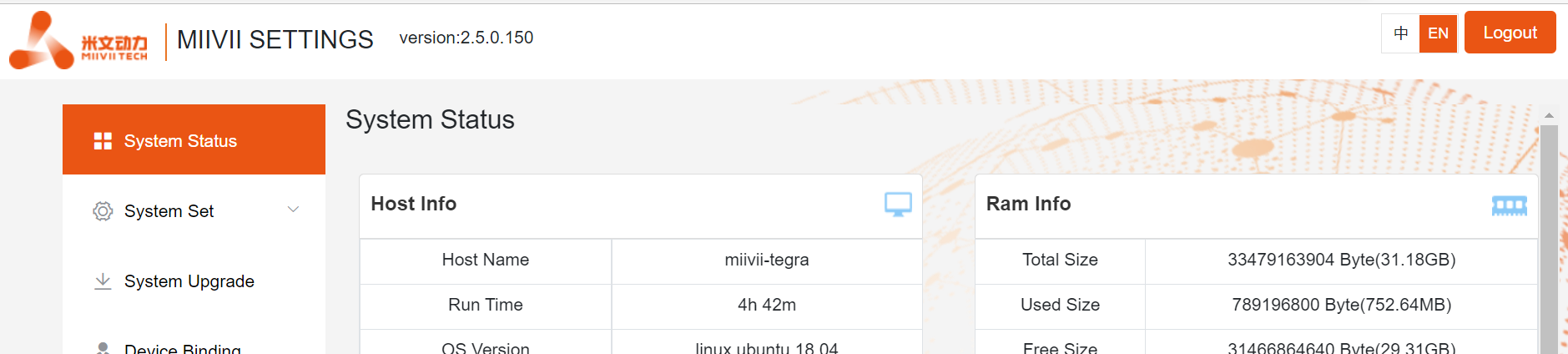
Used to view various status information of the current system, such as CPU usage, memory usage, storage usage and other basic information.
Click “System Status” in the left menu bar to enter the page.
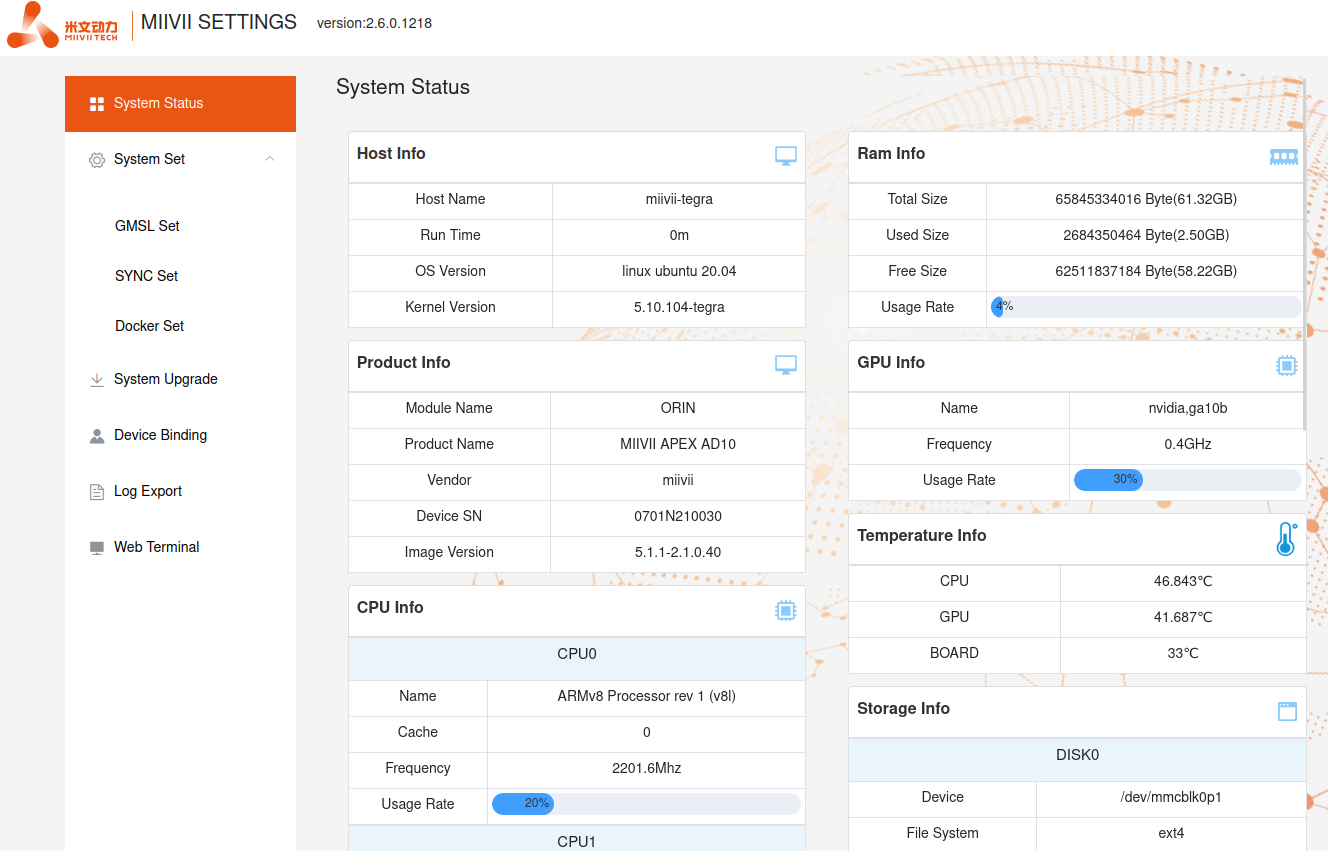
You can also check the system version through the command line (when accessing the LAN, you can use the “WEB terminal” function):
cat /etc/miivii_release
APEX 4.2.2-1.5.0
System Settings#
Set basic system functions, such as system timing settings, GMSL camera settings, etc.
GMSL Settings#
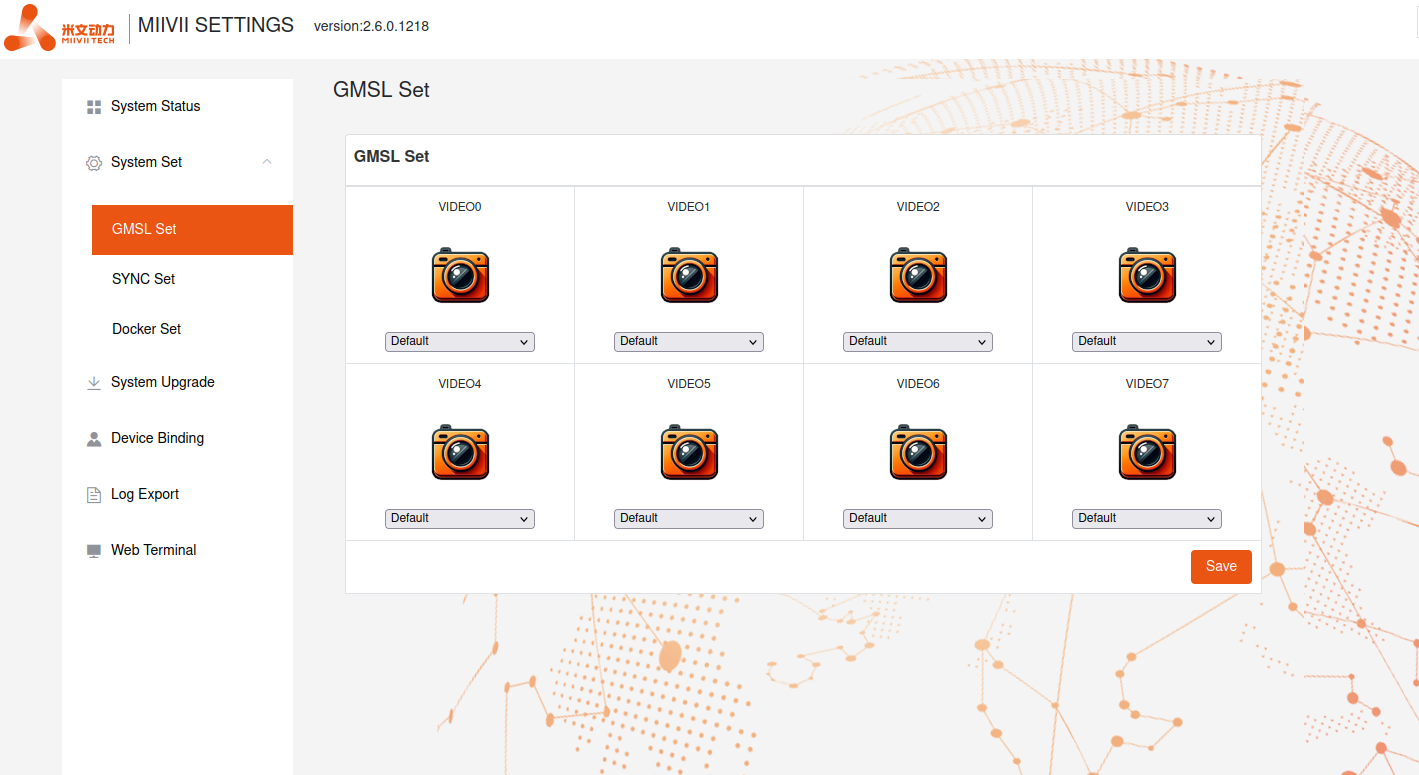
Click “System Settings-GMSL Settings” on the left menu bar to enter the page
Select the corresponding camera model for each channel
Click Save
Wait for a while, the system will prompt that the GMSL setting is successful, and you can use the GMSL camera
Synchronization Settings (System Timing Settings)#
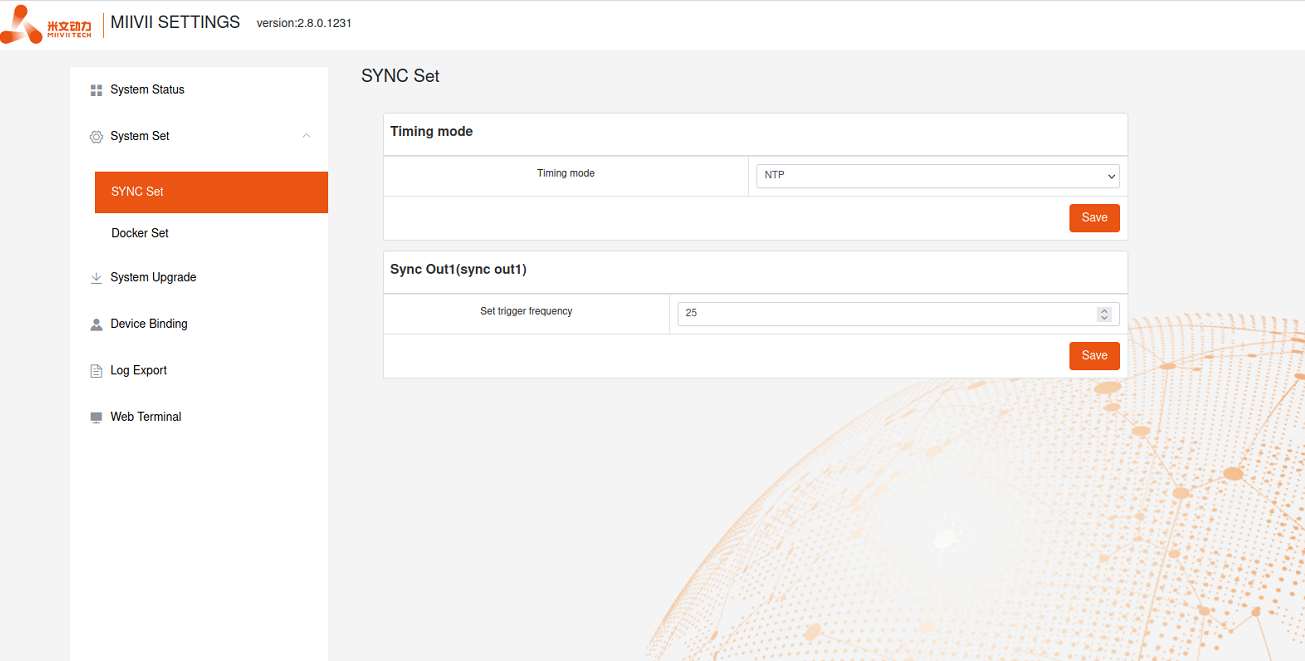
Click “System Settings-Synchronization Settings” on the left menu bar to enter the page.
Select external timing mode: NTP/GPS/NONE
NTP is the default mode: NTP network timing mode. At this time, the device is connected to the network and is timed by the NTP service. If you need to synchronize the sensor, this mode should not be used, because the jitter caused by NTP will cause timing errors.
GPS is the external timing mode of GPS: the device is connected to GPS and is timed by GPS. The device can be used as a synchronization source to time and synchronize the sensor. It is the most recommended mode.
None is the asynchronous mode: the device is not timed by the outside world, but can be used as a synchronization source.
Set external trigger (SYNC OUT):
Adjust the Sync out output frequency. Note that this is not the frequency of GMSL.
Configuration file path:
/opt/miivii/config/sync/sync.cfg
The timing mode is achieved by modifying the X value of “sync_type:X”.0: GPS external timing mode 1: NTP network timing mode 2: asynchronous mode
The Sync out output frequency is adjusted by modifying the XX value of “sync_out_freq:XX”. This adjustment only supports integers
cat /opt/miivii/config/sync/sync.cfg
sync_out_freq:25
sync_type:2
/*
note:
sync_out_freq---the frequency is 25 for sync out time
sync_type---0 is for GPS calibrate time
1 is for SYS calibrate time
2 can not calibrate time
Log export#
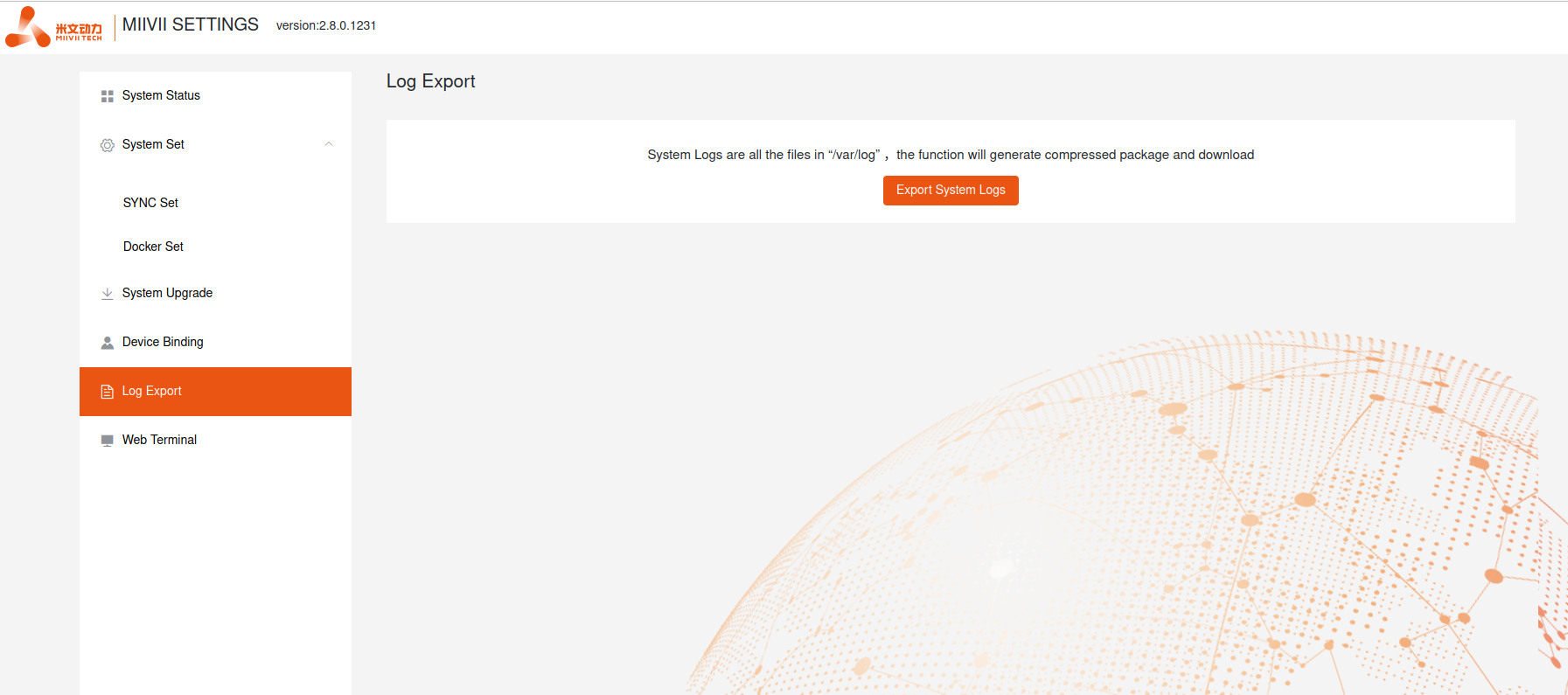
The system operation log is stored in the log in /var/log/. The “Log export” function provides the function of packaging and downloading to the local.
Click “Account Management” on the left menu bar to enter the page
Click “Export System Log” to complete
WEB Terminal#
Miivii Settings provides a remote terminal function through WEB.
Miivii Settings provides a remote terminal function through WEB.
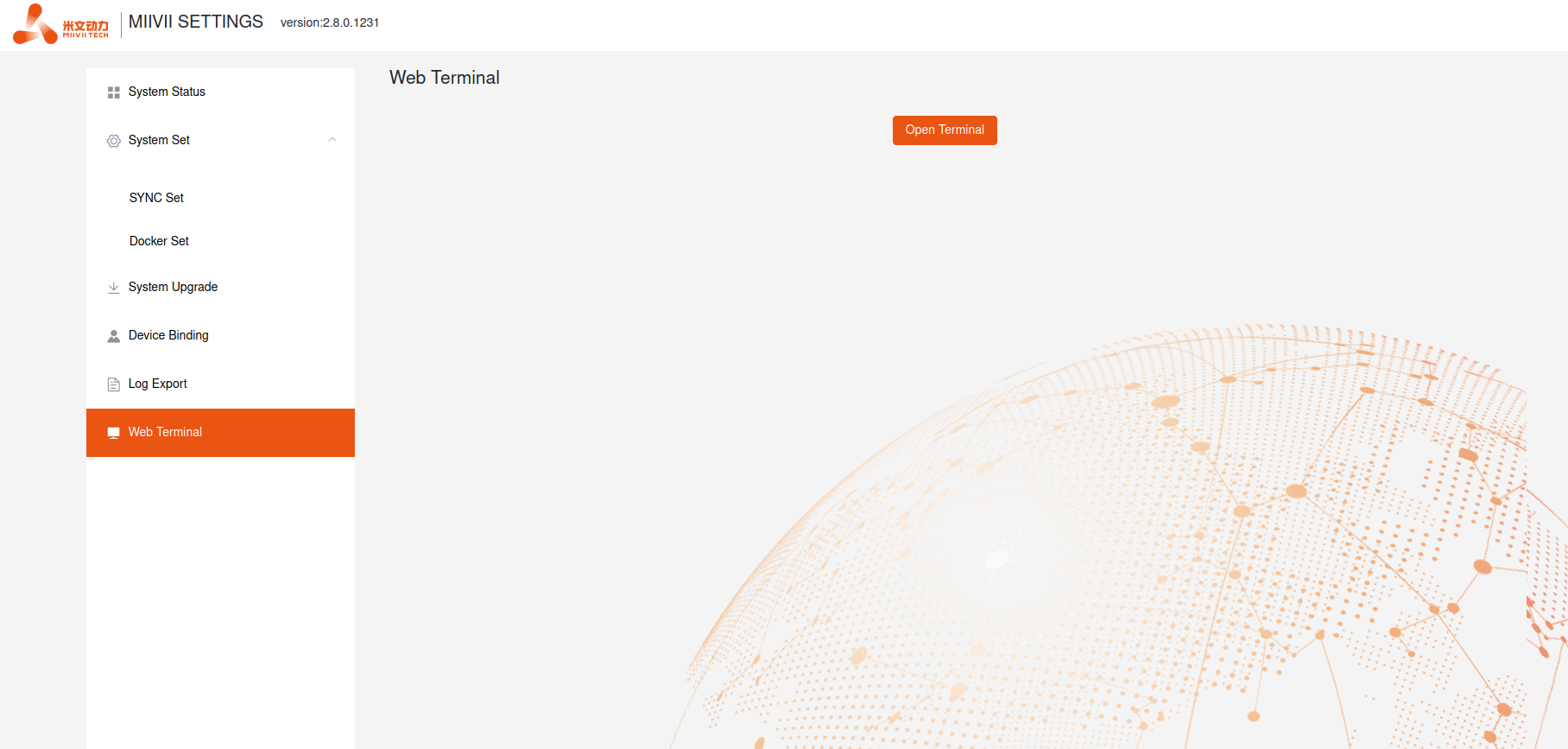
Click “Open Terminal” to open the WEB terminal (as shown below)