APEX THOR USB Port#
Hardware interface#
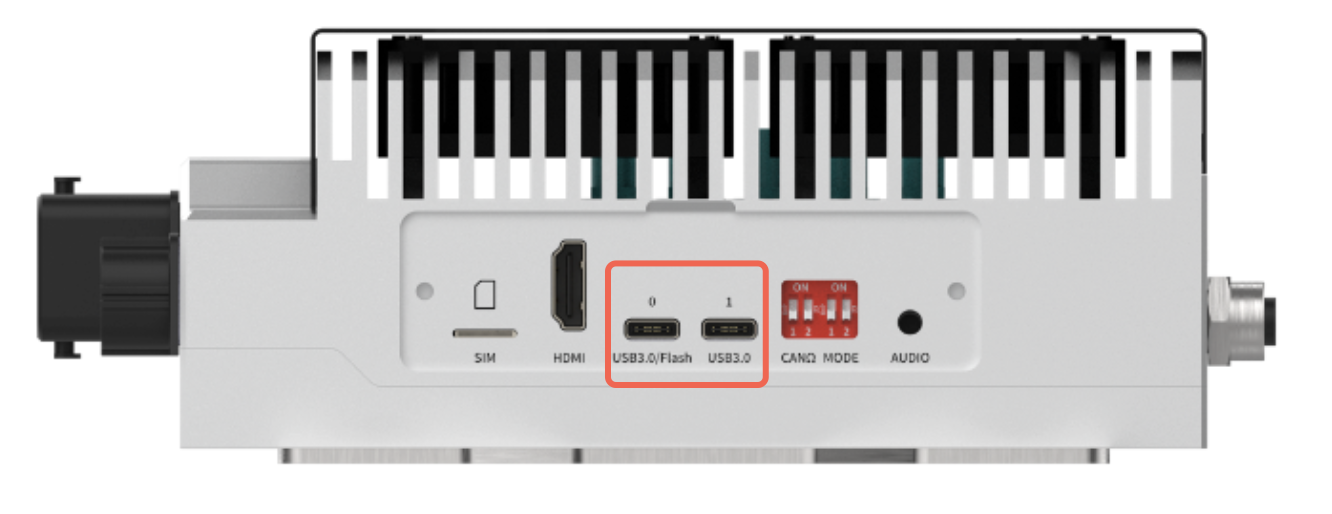
Hardware specifications#
Single-port maximum load current: 2A. Maximum transmission rate: 5Gb/s
USB problem troubleshooting#
Phenomenon 1: After the device is powered on and started, the USB cannot communicate.#
Check item 1: Check if the hardware environment is normal#
Step 1: Check if the interface is damaged#
If there is obvious damage to the interface, directly transfer it to Miwen’s after-sales service for subsequent processing.
If there is no damage, perform “Step 2: Cross-validation (if conditions permit)”.
Step 2: Cross-validation (if conditions permit)#
If cross-validation conditions are met, you can connect the cable and the peripheral device connected to the USB port to another device to check if normal communication is possible.
If another device can communicate normally, it is likely a hardware issue with the single device, and you need to contact Miwen after-sales service for handling.
If another device also cannot communicate normally, it is recommended to check whether there is a fault in the cables and the peripherals of the USB port.
If there is no other device for verification, you can try connecting the device to another USB interface to check if it works normally. If other interfaces work normally, it indicates that the current interface is damaged, and you need to contact Miwen after-sales service for handling.
Check item 2: Use the lsusb command to check if the USB device is recognized#
Step 1: Enter lsusb to check if the target device is in the device list.#
If not, it may be a driver or hardware issue.
If yes, execute “Check item 3: Re-flash the image to verify if it is caused by the software environment”.
Check item 3: Re-flash the image to verify if it is caused by the software environment#
Step 1: Flash the image#
Method for flashing the image:https://doc.miivii.com/Apex-AD10-User-Manual-CH/wiki/Apex-AD10-%E5%9B%BA%E4%BB%B6%E7%83%A7%E5%86%99.html
After the image flashing is completed, re-perform the USB communication verification.
After flashing the image, if the USB can communicate normally, it indicates that the issue is caused by the system software environment, and the customer needs to troubleshoot the software environment themselves.
After flashing the image, if communication is still not normal, connect the device to the external network and then execute “Step 2: Obtain the log”.
Step 2: Obtain the log#
After connecting the device to the external network, open the terminal and enter: curl -sSL https://doc.miivii.com/scripts/run_miivii_diagnostic.sh | bash -s usb And export the logs and upload them to the fault work order system (the analysis will be performed by Miwen’s after-sales engineers).
Phenomenon 2: When an external usb_hub is connected to a keyboard and mouse, the USB keyboard and mouse become unresponsive.#
Check item 1: Check if the hardware environment is normal#
Step 1: Check if the interface is damaged#
If there is obvious damage to the interface, please directly transfer it to Miwen after-sales service for subsequent processing.
If there is no damage, execute “Step 2: Cross-validation (if conditions permit)”.
Step 2: Cross-validation (if conditions permit)#
If cross-validation conditions are met, you can connect the cable and the peripheral device connected to the USB port to another device to check if normal communication is possible.
If another device can communicate normally, it is most likely a hardware issue with the single device, and you need to contact Miwen after-sales service for handling.
If another device also cannot communicate normally, it is recommended to check whether there is a fault in the cables and the peripherals connected to the USB port.
If there is no other device for verification, you can try connecting the device to another USB interface to check if it works normally. If other interfaces work normally, it indicates that the current interface is damaged, and you need to contact Miwen after-sales service for handling.
Check item 2: Use the lsusb command to check if the USB device is recognized#
Step 1: Run lsusb to check if the target device is in the list of devices.#
If not, it may be a driver or hardware issue.
Step 2: Use lsusb -t to check the USB topology and see if the device is recognized.#

Check item 3: Replace hardware connections#
Step 1: Cross-verify whether it is a hub issue#
It is recommended to replace it with a high-performance hub and try to see if the problem can be solved.
Step 2: Verify whether it is caused by a cascading problem#
Connect the hub to the native USB port to avoid USB signal transmission issues caused by cascading (you can consult Miwen Technical Support for the location of the native USB port).
Check item 4: Re-flash the image to verify if it is caused by the software environment#
Step 1: Flash the image#
Method for flashing the image:
After the image flashing is completed, re-perform the USB communication verification.
After flashing the image, if the external USB hub connected to the keyboard and mouse can be used normally, it indicates that the issue is caused by the system software environment, and the customer needs to check the software environment by themselves.
After flashing the image, if the external USB hub connected to the keyboard and mouse cannot be used normally, connect the device to the external network and then execute “Step 2: Obtain the log”.
Step 2: Obtain the log#
After connecting the device to the external network, open the terminal and enter: curl -sSL https://doc.miivii.com/scripts/run_miivii_diagnostic.sh | bash -s usb And export the logs and upload them to the fault work order system (the analysis will be performed by Miwen after-sales engineers).