APEX THOR HDMI Port#
Hardware interface#
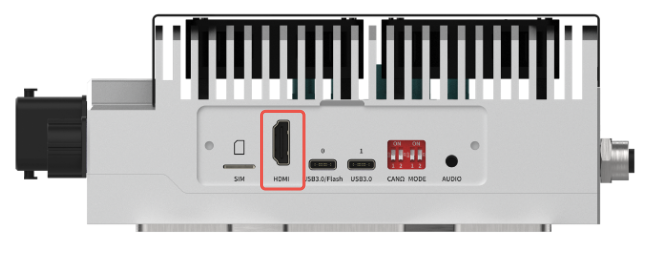
Hardware specifications#
HDMI 2.0 Bandwidth: 18Gbps
Max Resolution: 4K@60Hz
Display problem troubleshooting#
Phenomenon: When the device is connected to an external monitor, the monitor cannot be turned on and there is no signal output.#
Check item 1: Check hardware connections#
Step 1: Confirm that the monitor’s power cord is properly plugged in and that the socket has power.#
If the power supply of the monitor is abnormal, you can try replacing the socket or using other electrical appliances to test whether the socket is working properly.
If the power supply of the monitor is normal, perform “Step 2”.
Step 2: Check if the interface between the monitor and the device is normal#
Check if the connecting cable (such as HDMI) between the device and the monitor is firmly plugged in.
Inspect the interfaces at both ends for any signs of damage.
Try replacing with a different cable or using the same cable to connect to another display device to rule out the possibility of cable damage.
If the problem is resolved after the above troubleshooting, the issue will be closed.
If not resolved, execute “Troubleshooting Item 2: Check the monitor itself”.
Check item 2: Check the monitor itself#
Step 1: Check if the monitor is working properly#
Connect the monitor to another laptop/computer and check if it can be turned on.
If it can be turned on, it indicates that the monitor is normal; proceed to “Step 2”.
If it cannot be turned on, it is likely a fault with the monitor itself. It is recommended to replace the monitor and try again.Monitors recommended by Miwen:https://doc.miivii.com/Apex-AD10-User-Manual-CH/wiki/Apex-AD10-%E4%BE%BF%E6%90%BA%E6%98%BE%E7%A4%BA%E5%99%A8%E6%8E%A8%E8%8D%90.html。
Step 2: Ensure the monitor is configured correctly#
Use the physical buttons on the monitor to access the menu, adjust the brightness and contrast settings, and ensure they are not set too low, which would make the screen appear non-functional.
Make sure the input source is selected correctly.
Monitors support multiple input sources, so please ensure the correct input source is chosen.
For example, if using an HDMI connection, you need to select the HDMI input source. Additionally, check if the monitor has correctly recognized the input signal.
If the problem is resolved after the above troubleshooting, the problem will be closed.
If not resolved, execute “Troubleshooting Item 3: Check whether the device is powered on normally”.
Check item 3: Check whether the device enters the system normally#
Step 1: Check if the device enters the system normally#
Is the device powered normally?
Use ssh or debug tools to try to remotely connect to the device and determine whether the device has entered the system. How to use the debug tool:https://doc.miivii.com/Apex-AD10-User-Manual-CH/wiki/Apex-AD10-DEBUG-UART.html。
If the system cannot function properly, it is necessary to flash the image and then re-verify.
If the display still cannot be turned on after flashing the image, it is highly likely that the device hardware is damaged, and you need to contact Miwen for repair.
If you can enter the system normally, execute “Check Item 4: Check if the running space is sufficient”.
Check item 4: Check if the running space is sufficient#
Step 1: Use df -h to check the space size#
Check if the system storage space is full: df -h
If the space is full, you need to delete redundant files, such as logs.
If the space is not full, you need to perform “Check Item 5: Check if the service is normal”.
Check item five: Check if the service is functioning properly#
Step 1: Confirm whether the status of the system desktop service application is normal.#
Open the terminal and enter:sudo systemctl status gdm3.service
If the service fails to start normally, try manually restarting it with “sudo systemctl restart gdm3.service” and then verify again.
If the manual restart fails, it is necessary to analyze the specific cause based on the error message.
If the monitor can light up normally after manual restart, it is necessary to check the reason why the service did not start automatically. In this case, it is most likely due to a software system issue, and it is recommended to reflash the image to resolve it.
If the service starts normally, it is necessary to investigate the specific cause. Execute “Troubleshooting Item Six - Step 2: Collect log information”.
Check item 6: Re-flash the image to verify if it is caused by the software environment#
Step 1: Flash the image#
Method for flashing the image:https://doc.miivii.com/Apex-AD10-User-Manual-CH/wiki/Apex-AD10-%E5%9B%BA%E4%BB%B6%E7%83%A7%E5%86%99.html。
After flashing the image, if the display can light up normally, it indicates that the issue is caused by the system software environment, and the customer needs to check the software environment themselves.
After flashing the image, if the display still cannot light up normally, execute “Step 2”.
Step 2: Capture the log#
After connecting the device to the external network, open the terminal and enter:
curl -sSL https://doc.miivii.com/scripts/run_miivii_diagnostic.sh | bash -s hdmi
And export the logs and the files under /var/log, upload them to the fault work order, and hand them over to Miwen technical support.