APEX THOR GMSL Camera#
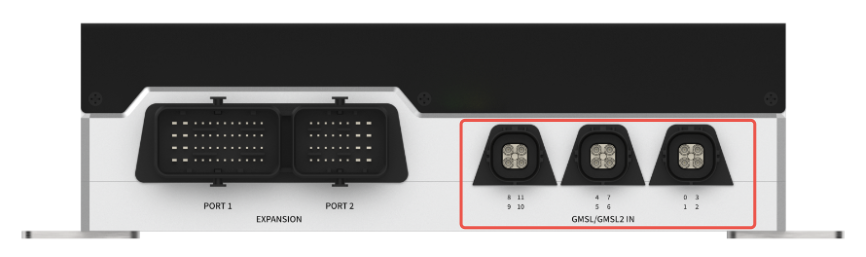
Interface Description#
Does not support hot swapping.
Supports signal transmission over coaxial cables up to 15 meters long
Cameras that support multiple output resolutions such as 720p, 1080p, and 4k are recommended
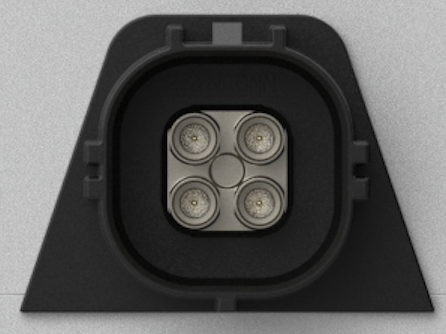
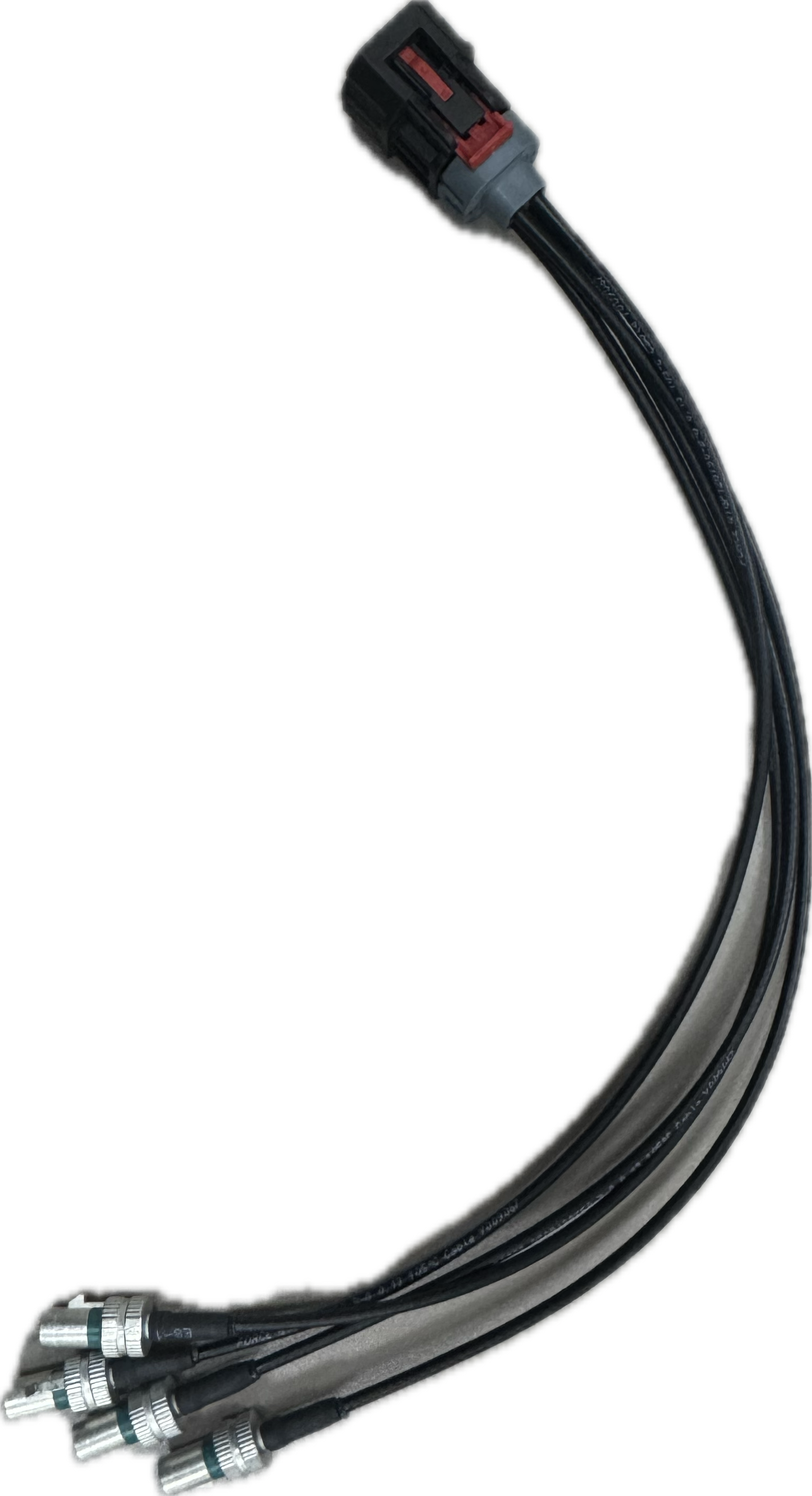
It is recommended to use an adapter cable.
Node mapping relationship#
Interface |
Device node |
|---|---|
GMSL 0 |
/dev/video0 |
GMSL 1 |
/dev/video1 |
GMSL 2 |
/dev/video2 |
GMSL 3 |
/dev/video3 |
GMSL 4 |
/dev/video4 |
GMSL 5 |
/dev/video5 |
GMSL 6 |
/dev/video6 |
GMSL 7 |
/dev/video7 |
GMSL 8 |
/dev/video8 |
GMSL 9 |
/dev/video9 |
GMSL 10 |
/dev/video10 |
GMSL 11 |
/dev/video11 |
Feature Description#
Currently, there are more than 3 million possible combinations of cameras to choose from. It is impossible to achieve 100% test coverage. Due to the complexity of the hardware, it cannot be guaranteed to work 100% normally. In order to facilitate user use, we have listed all of the available cameras for trial use, allowing for quick verification.
Select GMSL On Trial#
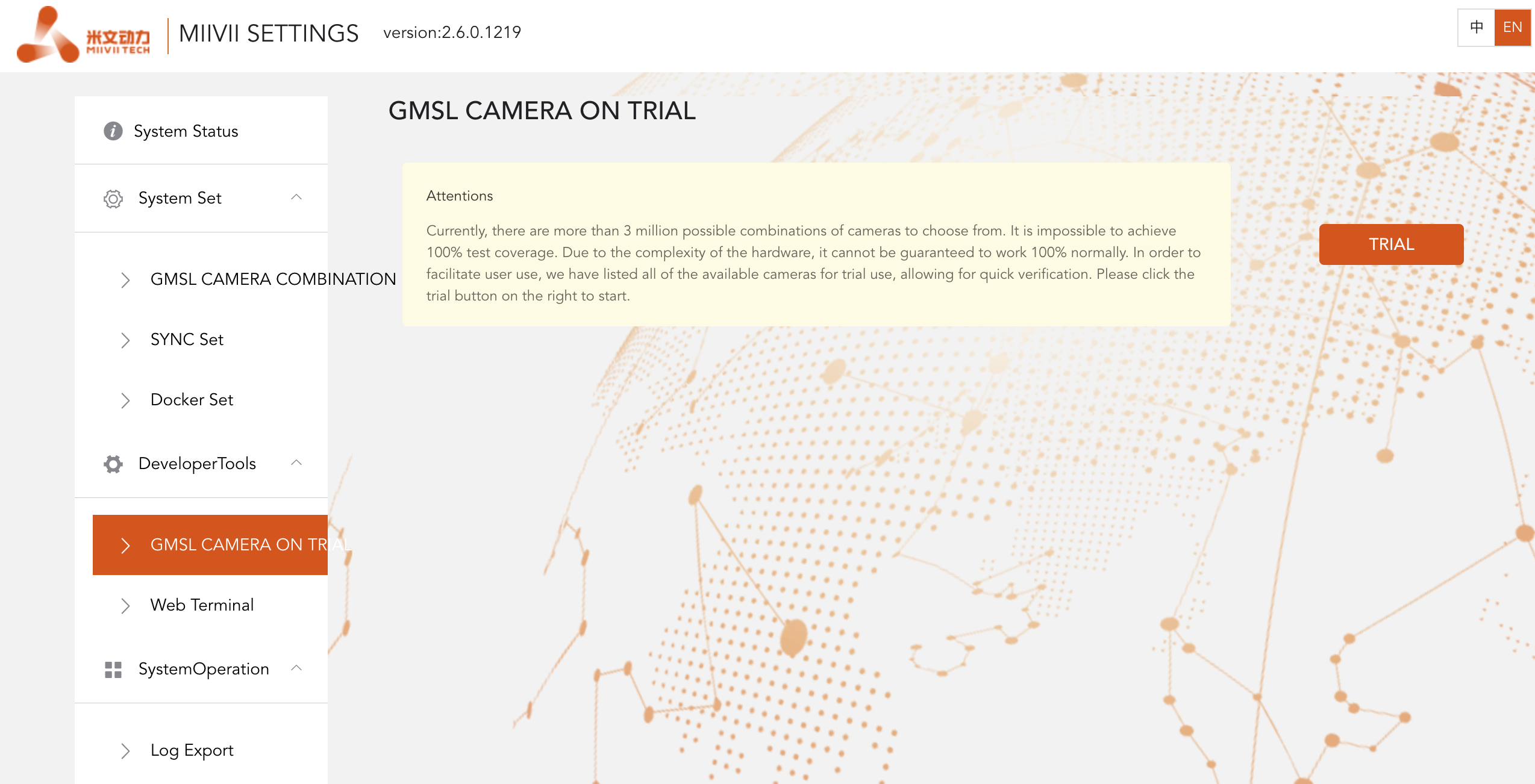
Use TRIAL to use Feature#
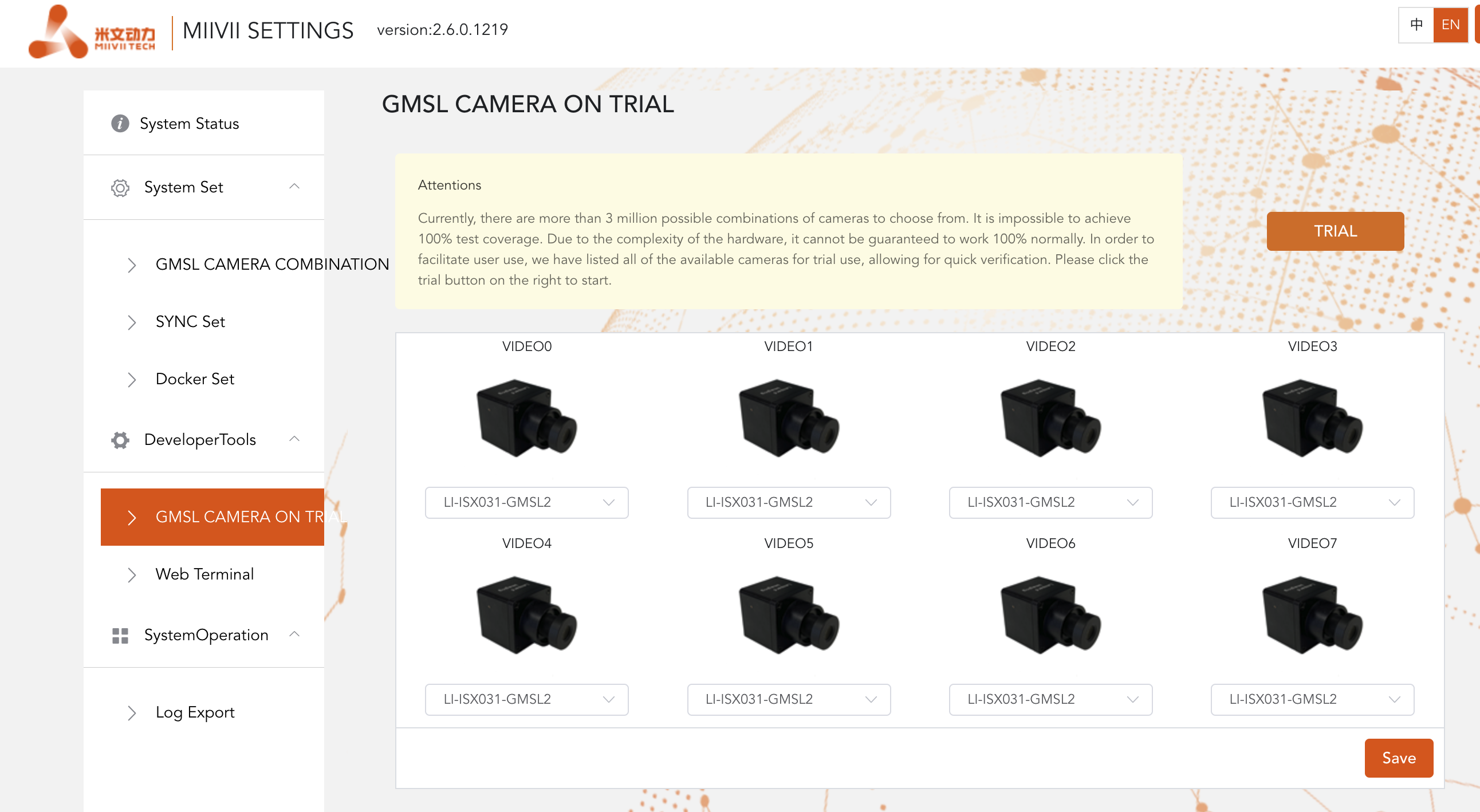
Video Output#
You can use the following command to quickly open the camera and verify the effect.
Display the camera with a single 720P resolution.#
gst-launch-1.0 -v v4l2src device="/dev/video1" ! video/x-raw,width=1280,height=720,format=UYVY ! xvimagesink
Display the camera with a single 1080P resolution.#
gst-launch-1.0 -v v4l2src device="/dev/video0" ! video/x-raw,width=1920,height=1080,format=UYVY ! xvimagesink
Display four 1080p cameras.#
#Here, taking the camera resolution of 1920x1080 as an example, execute the following commands in the terminal under the Ubuntu desktop in order.
#Set the width and height of the display, which can be customized.
MIIVII_WIDTH=960
MIIVII_HEIGHT=540
#Set the image format and actual image width and height for the four cameras.
MIIVII_CONFIG="video/x-raw(memory:NVMM),format=(string)UYVY, width=1920, height=1080"

gst-launch-1.0 nvcompositor name=comp \
sink_0::xpos=0 sink_0::ypos=0 sink_0::width=$MIIVII_WIDTH sink_0::height=$MIIVII_HEIGHT \
sink_1::xpos=$MIIVII_WIDTH sink_1::ypos=0 sink_1::width=$MIIVII_WIDTH sink_1::height=$MIIVII_HEIGHT \
sink_2::xpos=0 sink_2::ypos=$MIIVII_HEIGHT sink_2::width=$MIIVII_WIDTH sink_2::height=$MIIVII_HEIGHT \
sink_3::xpos=$MIIVII_WIDTH sink_3::ypos=$MIIVII_HEIGHT sink_3::width=$MIIVII_WIDTH sink_3::height=$MIIVII_HEIGHT ! nv3dsink \
nvv4l2camerasrc device=/dev/video0 ! $MIIVII_CONFIG ! nvvidconv ! "video/x-raw(memory:NVMM),format=(string)NV12" ! comp. \
nvv4l2camerasrc device=/dev/video1 ! $MIIVII_CONFIG ! nvvidconv ! "video/x-raw(memory:NVMM),format=(string)NV12" ! comp. \
nvv4l2camerasrc device=/dev/video2 ! $MIIVII_CONFIG ! nvvidconv ! "video/x-raw(memory:NVMM),format=(string)NV12" ! comp. \
nvv4l2camerasrc device=/dev/video3 ! $MIIVII_CONFIG ! nvvidconv ! "video/x-raw(memory:NVMM),format=(string)NV12" ! comp.

Troubleshooting#
Camera displays no image.#
Check if the camera lens cap is removed.
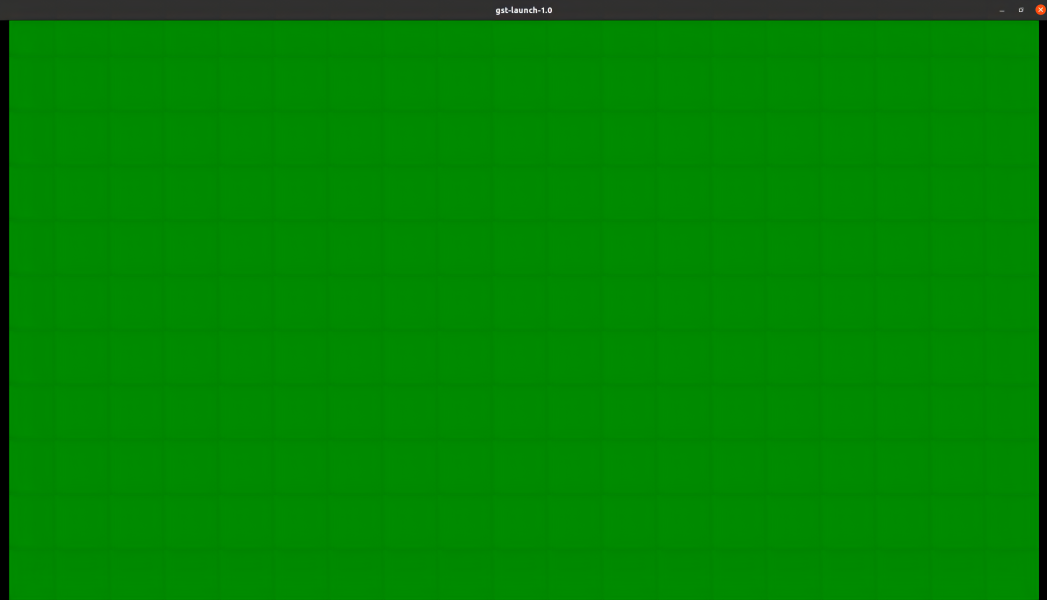
Camera displays a green screen.#
Check if the camera only supports self-triggering mode. If it does, refer to the advanced section.
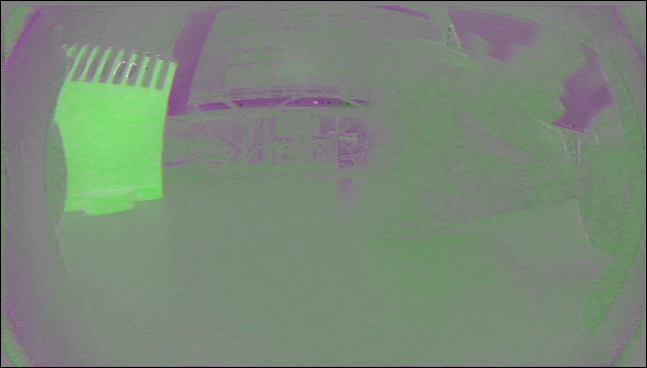
Camera displays incorrect colors.#
When the camera image format does not match, the following effects may occur.
In this case, it is necessary to check if the image format is set correctly.
Phenomenon: The camera frame rate is inconsistent with the specification in the manual.#
Contact Miwen’s pre-sales for customized support. The optional external trigger frame rates are frame rates that have been verified in practice.
Phenomenon: The external trigger mode is selected, but the actual frame rate does not change following the external trigger.#
Confirm that the correct camera model configuration has been selected.
Ask the camera manufacturer if external trigger mode is supported.
Phenomenon: The camera cannot be turned on or shows a black screen.#
Hardware adaptation check: Confirm that the camera model is on the compatibility list supported by the device (contact the manufacturer to obtain the latest list).
Check if the camera interface is tightly plugged in and that the cable is free from damage or oxidation.
Configuration Node Consistency: In the device web page settings, ensure that the selected camera node number is consistent with the actual physical interface (for example, Interface 2 corresponds to “Camera 2” in the configuration).
Hot-plugging handling: If the camera is re-plugged, the configuration needs to be re-saved in the web settings or the service needs to be restarted to take effect.
Phenomenon: The image appears green.#
Replace the cable. The green screen of most images is related to the cable.
When conducting position swapping tests with other cameras, there are a significant number of green screen issues, which are also related to the camera’s own firmware.
Contact the camera manufacturer to confirm whether the image format output by the firmware is the same as the format supported by the camera.
如不同:联系相机厂商更新固件。或寻找米文销售进行支持。
Situations where the above methods are ineffective#
#Use the following commands to obtain the logs and send the obtained logs to the technical support staff.
curl -sSL https://doc.miivii.com/scripts/run_miivii_diagnostic.sh | sudo bash -s gmsl