BRD602 ORIN External triggering of GMSL camera#
Configuration method#
Camera working mode selection#
Work mode |
Pattern description |
Differences in usage |
Attention |
|---|---|---|---|
Use external trigger |
The start time of exposure will be controlled by the device, and all cameras will shoot simultaneously. |
You can use the default Linux method and the SDK to obtain images. |
All cameras need to use the same working mode. |
Function and role:#
Eliminate the time difference between cameras: In the traditional continuous shooting mode, each camera works independently, and there are slight differences in the time points of exposure and image acquisition. For scenarios such as high-speed moving object analysis, multi-view 3D reconstruction, and precision industrial inspection, this time difference can lead to data misalignment or inconsistency, affecting the accuracy of the results. The external trigger function enables all cameras to strictly follow the command of the same external signal, achieving simultaneous shooting.
Unified frame rate control: Through the configuration interface, the system will automatically list all the frequencies commonly supported by all connected cameras for selection, and an accurate trigger frequency can be uniformly set for all cameras that support external triggering.
Key advantages:#
High-precision synchronization: All cameras start exposure the moment they receive an external trigger signal, achieving microsecond-level or even higher-precision synchronization.
Consistent and controllable frame rate: Uniformly set and verify the shooting frequency of all cameras to ensure the consistency of data acquisition rhythm.
Simplified configuration: The external trigger mode can be enabled and the commonly supported frequency can be selected through an intuitive software interface, without the need for complex underlying commands.
Flexible compatibility: Supports obtaining the synchronized image stream through the standard Linux method or using our SDK.
Application scenarios:#
Autonomous Driving/Robot Vision: Multiple cameras synchronously capture environmental information to ensure the spatio-temporal consistency of perception data.
Industrial Automation and Machine Vision: Multi-station synchronous measurement and positioning of high-speed moving objects on the production line, robot guidance and grasping.
Sports Science Analysis: Multiple cameras capture the movements of athletes for accurate motion trajectory and pose reconstruction.
VR/AR: Build spatial perception or synchronously record the real environment with multiple cameras.
Scientific Research Experiments: Experiments that require multiple sensors to collect data at strictly the same time point.
Usage method#
After selecting the corresponding camera, if the camera supports external triggering, the “Use external trigger mode” option will be available.
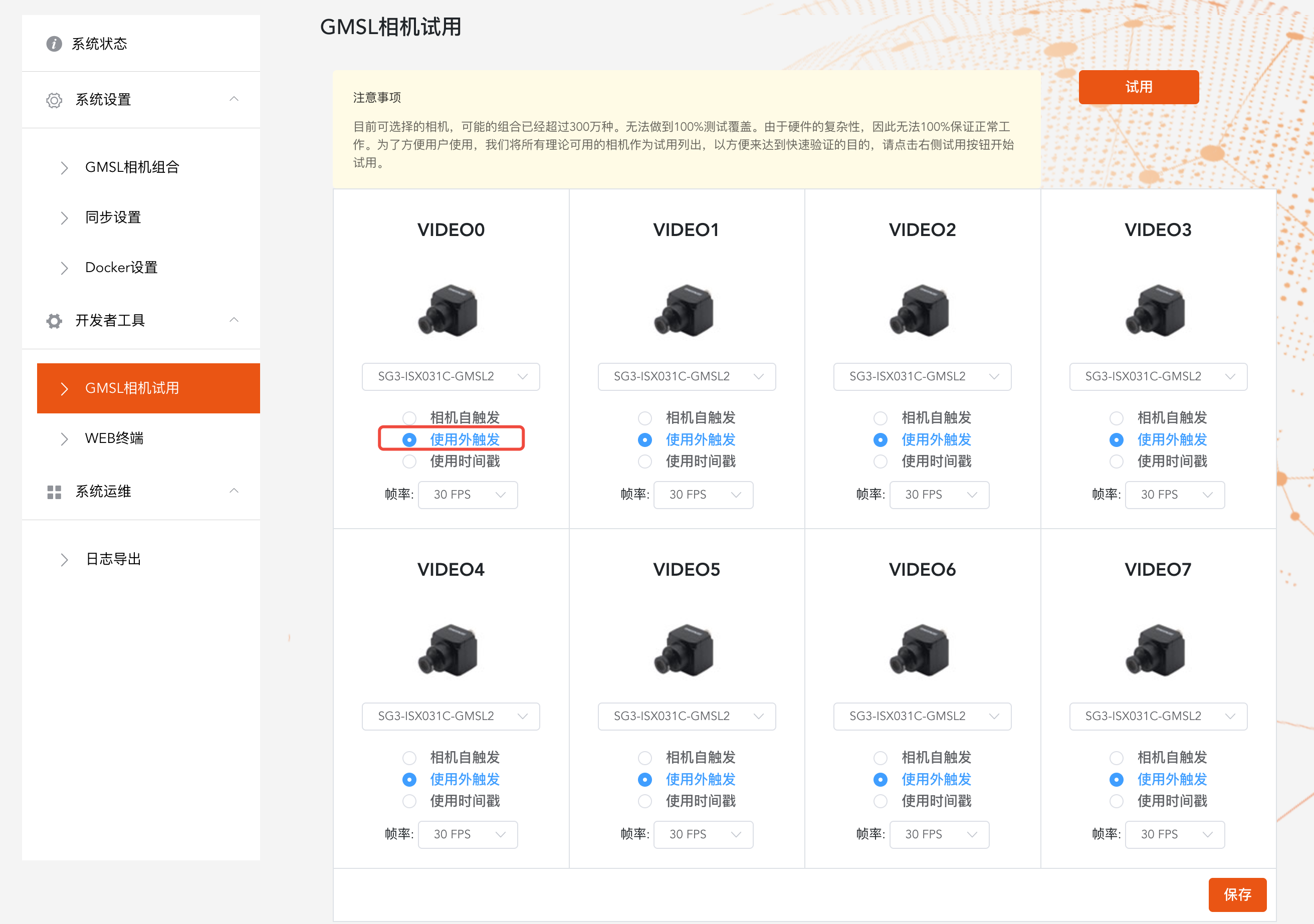
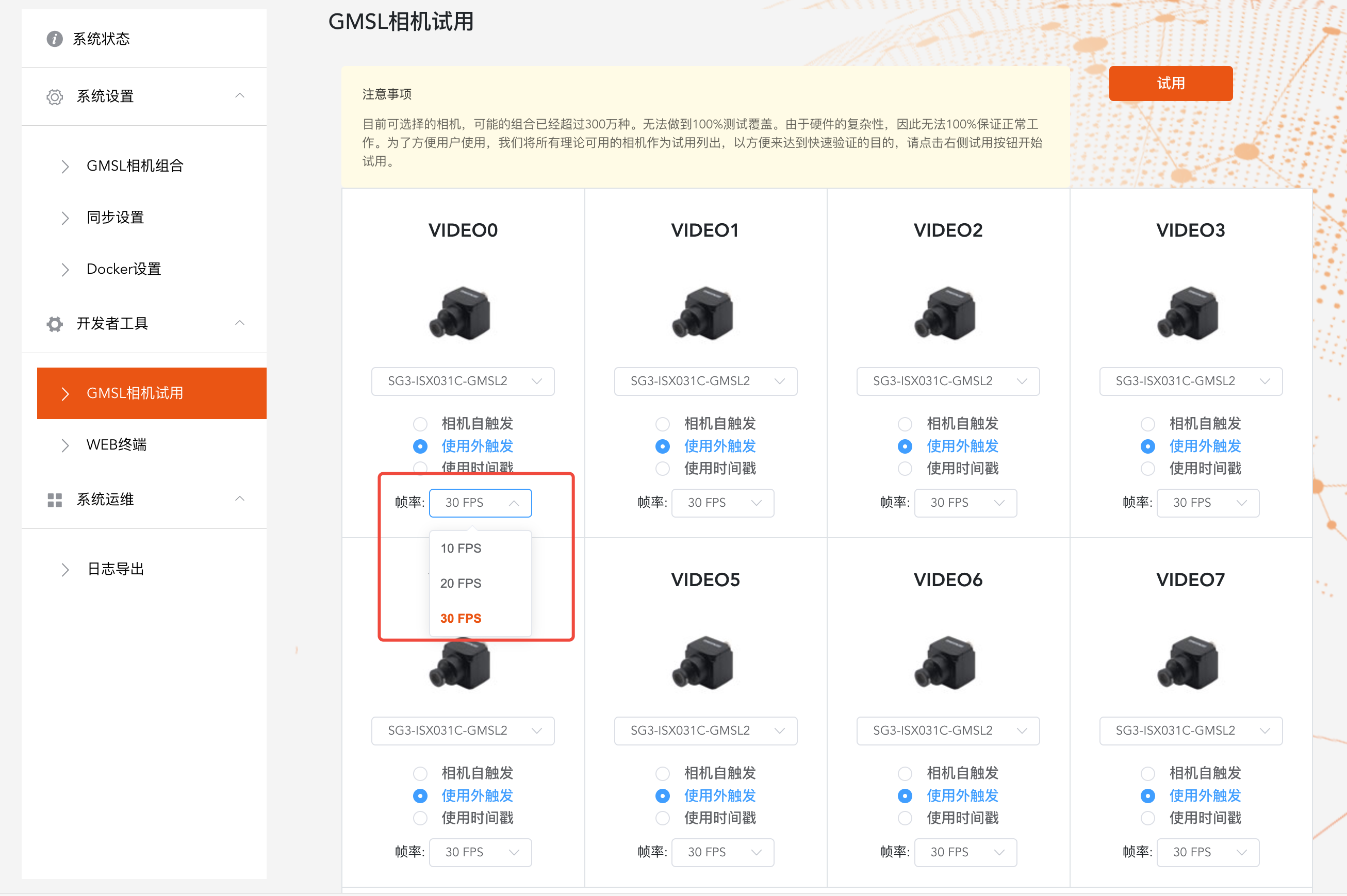
In the external trigger mode, you can select the supported trigger frequencies.
Since the trigger is the same for all cameras, the selectable frequencies are the trigger frequencies commonly supported by all cameras.
How to verify that the external trigger is successful#
Condition 1: The camera images can be obtained normally#
gst-launch-1.0 -v v4l2src device="/dev/video1" ! video/x-raw,width=1280,height=720,format=UYVY ! xvimagesink
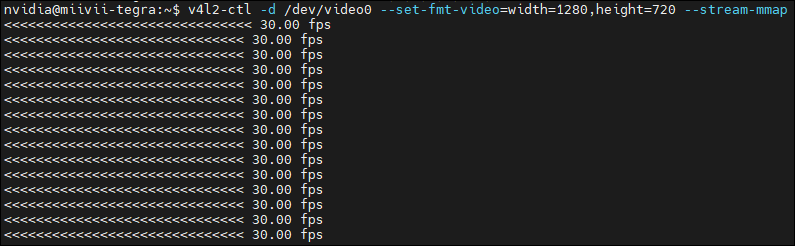
Condition 2: The camera frame rate is consistent with the set trigger frequency.#
You can use the v4l-utils tool in Linux to verify whether the corresponding video port is outputting images normally and whether the frame rate is normal.
Install the v4l-utils tool.
# Update the Ubuntu software source
sudo apt update

# Install tools
sudo apt install v4l-utils
Use this tool to obtain the output images and frame rate based on the resolution of the camera used and the insertion position.
# Take the camera with video0 and 1280x720 resolution as an example
v4l2-ctl -d /dev/video0 --set-fmt-video=width=1920,height=1080,pixelformat=UYVY --stream-mmap
Instructions for use#
Video output#
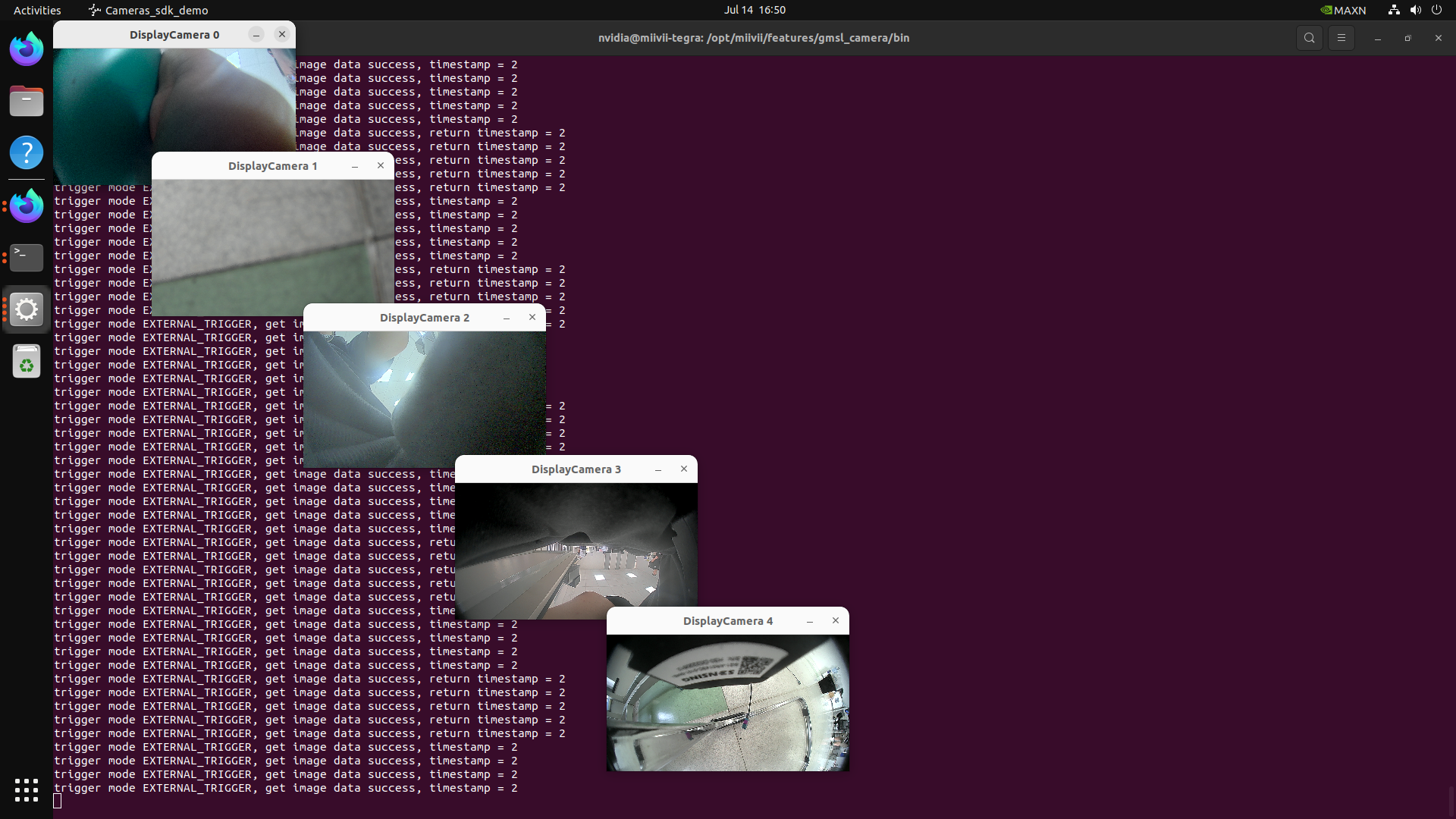
You can use the following commands to quickly open the camera to confirm the effect.
Method 1: Quickly turn on the camera without entering parameters#
Light up the camera#
sudo chmod +x /opt/miivii/features/gmsl_camera/bin/cameras_sdk_demo
cd /opt/miivii/features/gmsl_camera/bin/
# Turn on cameras (Automatically turn on all cameras. To turn on a specific camera, specify the channel number)
./cameras_sdk_demo
#
Method 2: Enter camera parameters to turn on the camera#
Display a single-channel 720P camera#
gst-launch-1.0 -v v4l2src device="/dev/video1" ! video/x-raw,width=1280,height=720,format=UYVY ! xvimagesink
Display a single 1080P camera#
gst-launch-1.0 -v v4l2src device="/dev/video0" ! video/x-raw,width=1920,height=1080,format=UYVY ! xvimagesink
Problem troubleshooting#
The camera shows no image.#
Check if the camera lens cap is open.
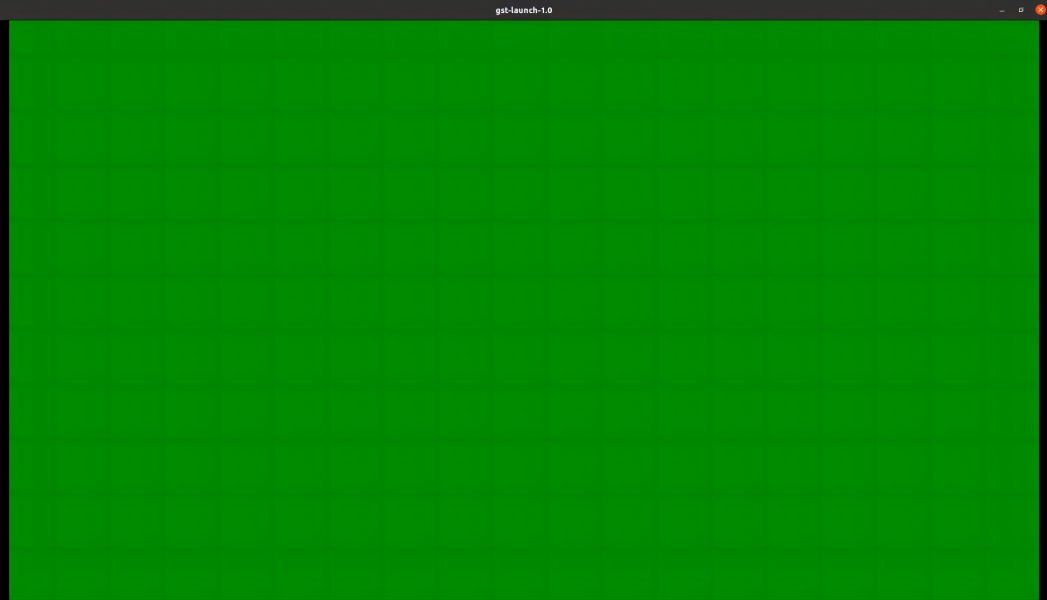
The camera shows a green screen#
Check if the camera only supports self - triggering mode. If so, refer to the advanced section.
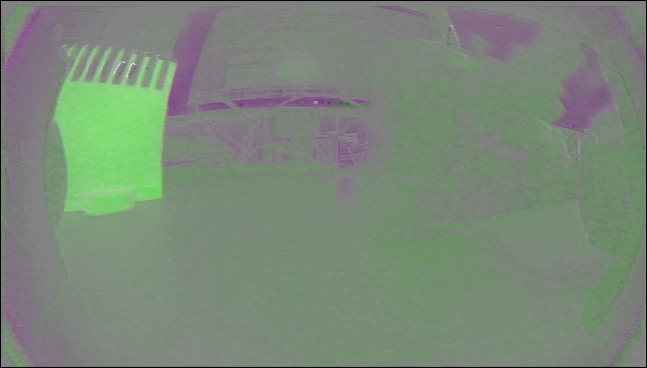
The color displayed by the camera is incorrect.#
When the camera image format does not match, the following effects will occur.
At this time, it is necessary to check whether the picture format is set correctly.
Problem troubleshooting#
Phenomenon: The camera frame rate is inconsistent with the specification in the manual.#
Contact Miwen’s pre-sales for customized support. The optional external trigger frame rates are frame rates that have been verified in practice.
Phenomenon: The external trigger mode is selected, but the actual frame rate does not change following the external trigger.#
Confirm that the correct camera model configuration has been selected.
Ask the camera manufacturer if external trigger mode is supported.
Phenomenon: The camera cannot be turned on or shows a black screen.#
Hardware adaptation check: Confirm that the camera model is on the compatibility list supported by the device (contact the manufacturer to obtain the latest list).
Check if the camera interface is tightly plugged in and that the cable is free from damage or oxidation.
Configuration Node Consistency: In the device web page settings, ensure that the selected camera node number is consistent with the actual physical interface (for example, Interface 2 corresponds to “Camera 2” in the configuration).
Hot-plugging handling: If the camera is re-plugged, the configuration needs to be re-saved in the web settings or the service needs to be restarted to take effect.
Phenomenon: The image appears green.#
Replace the cable. The green screen of most images is related to the cable.
When conducting position swapping tests with other cameras, there are a significant number of green screen issues, which are also related to the camera’s own firmware.
Contact the camera manufacturer to confirm whether the image format output by the firmware is the same as the format supported by the camera.
如不同:联系相机厂商更新固件。或寻找米文销售进行支持。
Situations where the above methods are ineffective#
#Use the following commands to obtain the logs and send the obtained logs to the technical support staff.
curl -sSL https://doc.miivii.com/scripts/run_miivii_diagnostic.sh | sudo bash -s gmsl