APEX AD10 WIFI Usage#
Wireless Setting#
WiFi Setting#
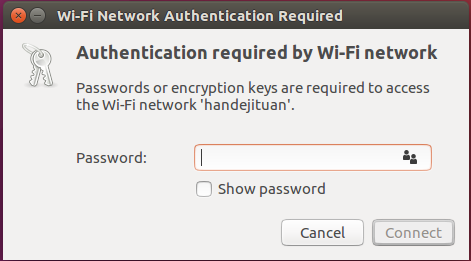
Click the network icon in upper-right corner of the desktop. Find the name of your WiFi network and click on it. Enter your password and click ‘Connect’.
WiFi Connection
Mini-PCIe WIFI Support List#
Brand |
Product NO. |
Interface |
Module function |
Operating temperature |
Standard |
Spec |
Note |
|---|---|---|---|---|---|---|---|
Azurewave |
AW-CB161H |
Mini PCIe |
WIFI+BT |
0ºC - 70ºC |
Wifi 802.11a/b/g/n/ac BT:4.0 |
WIFI rate ≤433.3Mbps |
WIFI problem troubleshooting#
Phenomenon 1: After the device is plugged into the Wi-Fi module, it cannot recognize the wireless network port driver.#
Check item 1: Check hardware status#
Step 1: Confirm whether the WiFi model is a Miwen compatible model#
The compatible models can be found in the user manual. For example, AD10:https://doc.miivii.com/Apex-AD10-User-Manual-CH/wiki/Apex-AD10-WIFI.html。
If it is not a Miwen compatible model, it is recommended that the customer replace the WiFi model.
If it is a Miwen compatible model, proceed to “Step 2”.
Step 2: Ensure that the WiFi module is correctly inserted into the PCIE slot#
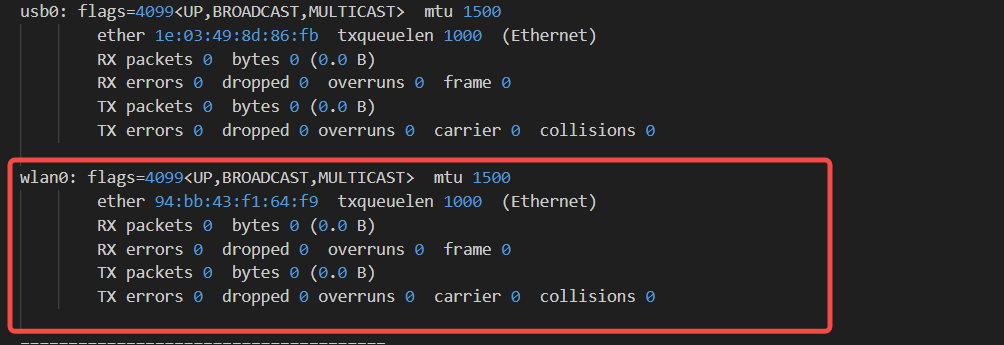
1、Use ifconfig -a to check if the wifi is recognized
2、sudo lspci
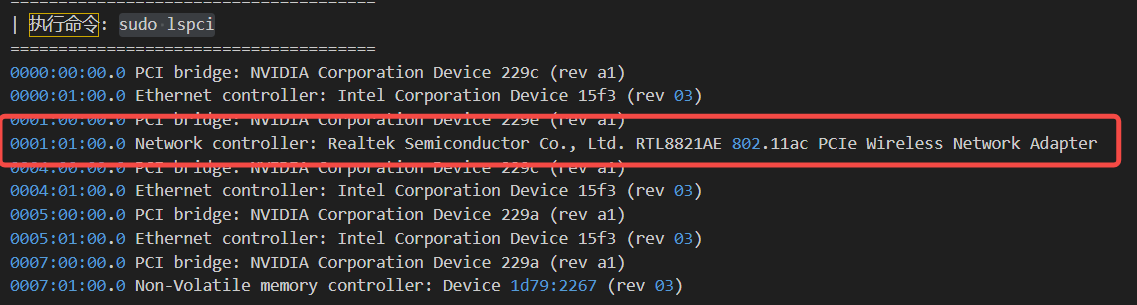
If the module is not displayed, it may be a hardware connection issue or the module is damaged. It is recommended to check the module and hardware connections.
Check item 2: Check service status#
Step 1: Check the status of NetworkManager.service#
Open the terminal and use: sudo systemctl status NetworkManager.service
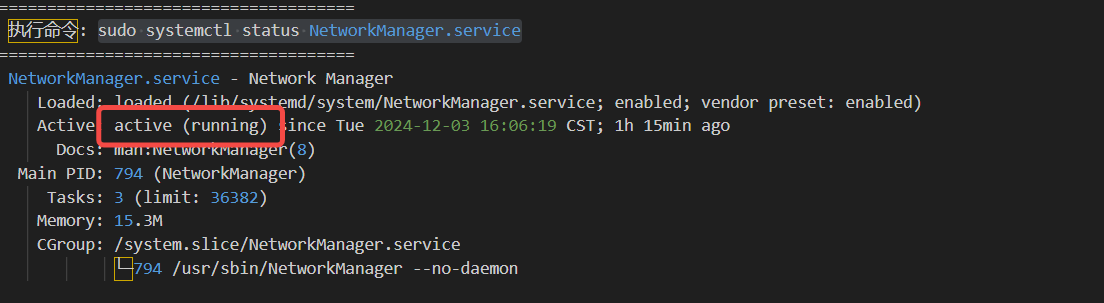
It is recommended to reflash the image to verify whether it is caused by the system environment.
Check item 3: Re-flash the image to verify if it is caused by the software environment#
Step 1: Flash the image#
Method for flashing the image:https://doc.miivii.com/Apex-AD10-User-Manual-CH/wiki/Apex-AD10-%E5%9B%BA%E4%BB%B6%E7%83%A7%E5%86%99.html。
After the image flashing is completed, verify whether the WiFi can connect to the network normally.
After flashing the image, if the WiFi can communicate normally, it indicates that the issue is caused by the system software environment, and the customer needs to check the software environment themselves.
After flashing the image, if the WiFi cannot connect to the network normally, execute “Step 2”.
Step 2: Capture the log#
After connecting the device to the external network, open the terminal and enter:
curl -sSL https://doc.miivii.com/scripts/run_miivii_diagnostic.sh | bash -s wifi
And export the logs and the files under /var/log, upload them to the fault work order, and submit them to Miwen technical support.
Phenomenon 2: After inserting the WiFi module into the device, it cannot connect to the network.#
Check item 1: Check hardware status#
Step 1: Confirm whether the WiFi model is a Miwen compatible model#
The compatible models can be found in the user manual. For example, AD10:https://doc.miivii.com/Apex-AD10-User-Manual-CH/wiki/Apex-AD10-WIFI.html。
If it is not a Miwen compatible model, it is recommended that the customer replace the WiFi model.
If it is a Miwen compatible model, execute “Step 2”.
Step 2: Ensure that the WiFi module is correctly inserted into the PCIe slot.#
1、Use ifconfig -a to check if the wifi is recognized.
2、sudo lspci
If the module is not displayed, it may be a hardware connection issue or the module is damaged. It is recommended to check the module and hardware connections.
Step 3: Check if the antenna is connected properly#
Accessories needed: IPEX to SMA antenna patch cord x2.
Check if the number of antennas meets the requirements.
Check if the antennas are connected properly.
Check item 2: Cross-validation#
Step 1: Cross-verify whether the WiFi is working properly#
Use other devices that can connect to Wi-Fi to connect to this Wi-Fi and verify whether the network function is normal.
If other devices can connect to this Wi-Fi normally, execute “Check Service Status”.• If other devices also cannot use this Wi-Fi normally, it is necessary to troubleshoot the Wi-Fi module itself.
Check item 3: Check service status#
Step 1: Check the status of NetworkManager.service#
Open the terminal and use:sudo systemctl status NetworkManager.service
If the NetworkManager.service is not running, try restarting the service manually :sudo systemctl restart NetworkManager.service
If manually restarting the service fails to start it, you need to upload the error information to the fault ticket system and submit it to Miwen for analysis.
If manually restarting the service allows it to start normally, you need to investigate the reason why the service did not start automatically.
Step 2: Check the status of wpa_supplicant.service#
Open the terminal: sudo systemctl status wpa_supplicant.service
If the wpa_supplicant.service is not running, try restarting the service manually : sudo systemctl restart wpa_supplicant.service
If manually restarting the service fails to start it, you need to upload the error information to the fault work order system and submit it to Miwen for analysis.
If manually restarting the service allows it to start normally, you need to investigate the reason why the service did not start automatically.
Check item 4: Re-flash the image to verify if it is caused by the software environment#
Step 1: Flash the image#
Method for flashing the image:https://doc.miivii.com/Apex-AD10-User-Manual-CH/wiki/Apex-AD10-%E5%9B%BA%E4%BB%B6%E7%83%A7%E5%86%99.html。
After flashing the image, if the Wi-Fi can communicate normally, it indicates that the issue is caused by the system software environment, and the customer needs to check the software environment themselves.
After flashing the image, if the Wi-Fi cannot connect to the network normally, proceed to step 2.
Step 2: Capture the log#
After connecting the device to the external network, open the terminal and enter:
curl -sSL https://doc.miivii.com/scripts/run_miivii_diagnostic.sh | bash -s wifi
And export the logs and files under /var/log, upload them to the fault work order, and hand them over to Miwen technical support.