EVO ORIN 4G/5G Usage#
4G/5G Module and SIM card installation:#
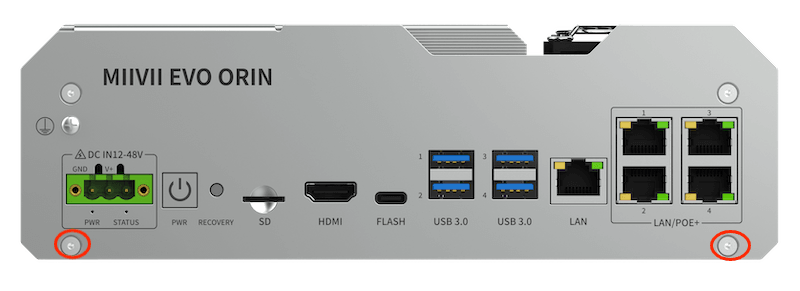
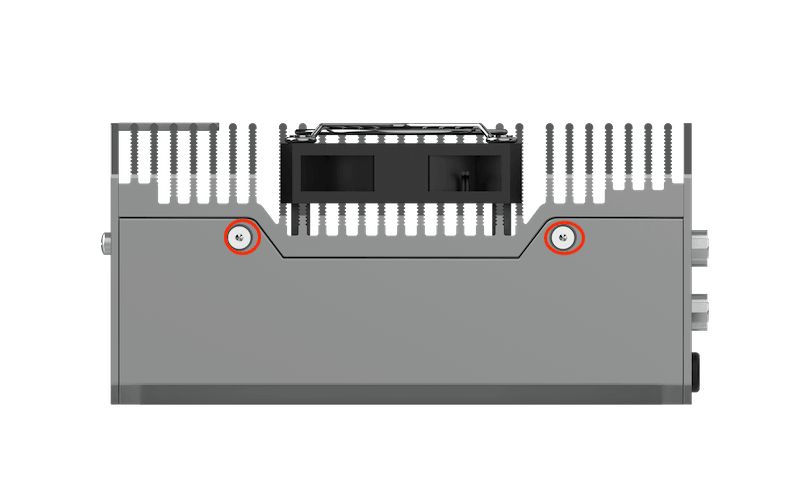
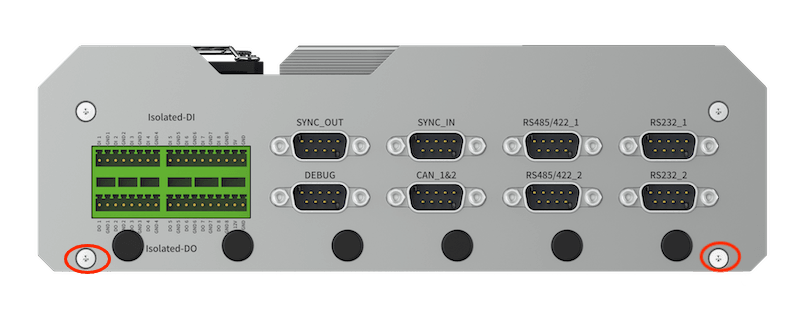
Disassemble the following panels:#
Front:#
#
Side (left/right):#
#
Back:#
#
4G/5G Module and SIM card installation:#
Installation steps:#
Install the 4G/5G module on the seat shown in the picture, in which 4G is installed with two M2.56 Phillips with adhesive screws, and 5G is installed with one M36 Phillips with adhesive screws.
Separate the antenna adapter cables, IPEX connector snap on 4G/5G module, SMA female connector fixed to the device antenna interface
Stick the thermal pad on the 4G/5G module (4G thickness: 6mm, 5G thickness: 8mm).
Install the SIM card in the SIM1 or SIM2 holder.
Fix the antenna to the antenna connector of the device.
Reference Photos:#
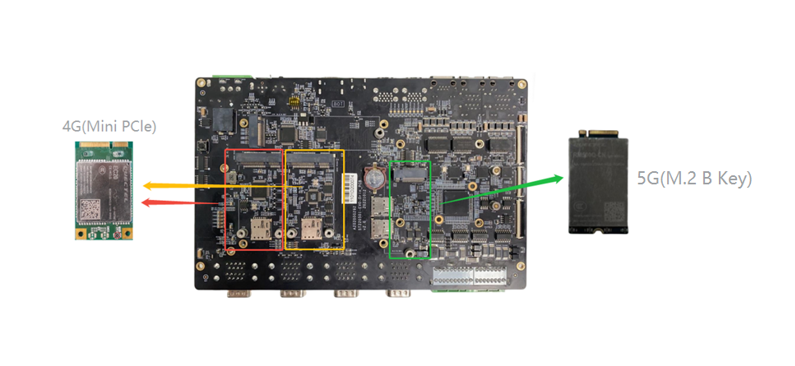
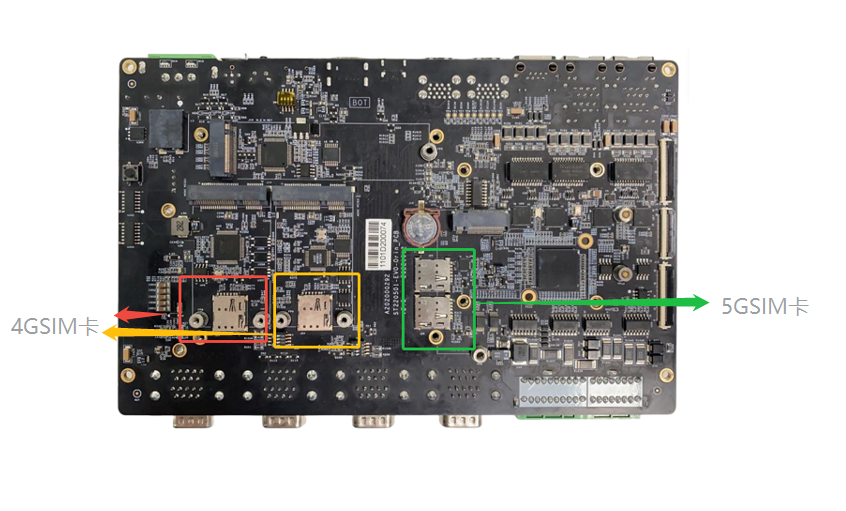
Required accessories:#
4G module x1
SIM card x1
M2.5*6 Phillips screws with adhesive x2
IPEX to SMA antenna adapter
6mm thermal conductor x1
5G module x1
SIM card x1
M3*6 Phillips screws with adhesive x1
IPEX to SMA antenna adapter x2
6mm thermal conductor x1
Notes:#
4G/5G modules need to install thermal pads for heat dissipation
Mini PCIe 4G Support List#
NO. |
Brand |
Product NO. |
Interface |
Module function |
Operating temperature |
Spec |
Note |
|---|---|---|---|---|---|---|---|
1 |
Quectel |
EC20-CEHCLG-MINIPCIE-CB |
Mini PCIe |
4G |
-40ºC - 80ºC |
Speed: Max 130Mbps (Download)/Max 30Mbps (Upload) |
M.2 B Key 5G Support List#
NO. |
Brand |
Product NO. |
Interface |
Module function |
Operating temperature |
Spec |
Note |
|---|---|---|---|---|---|---|---|
1 |
Quectel |
RM500Q-CN |
M.2 B KEY |
5G |
-20ºC - 60ºC |
SA : DL: 2.1Gbps ; UL:900Mbps NSA : DL: 2.5Gbps ; UL:650Mbps |
Start-up settings#
The built-in driver of Miivii does not need any additional configuration, it is in the state of automatic startup and automatic dial-up.
Module configuration method#
Please note that if you are using an IoT SIM card, there will be a problem that the SIM card is bound to the device hardware, please confirm with the communication provider in advance.
The corresponding module drivers are integrated in the Mivin system image. After the module is installed, the system will automatically recognize it.
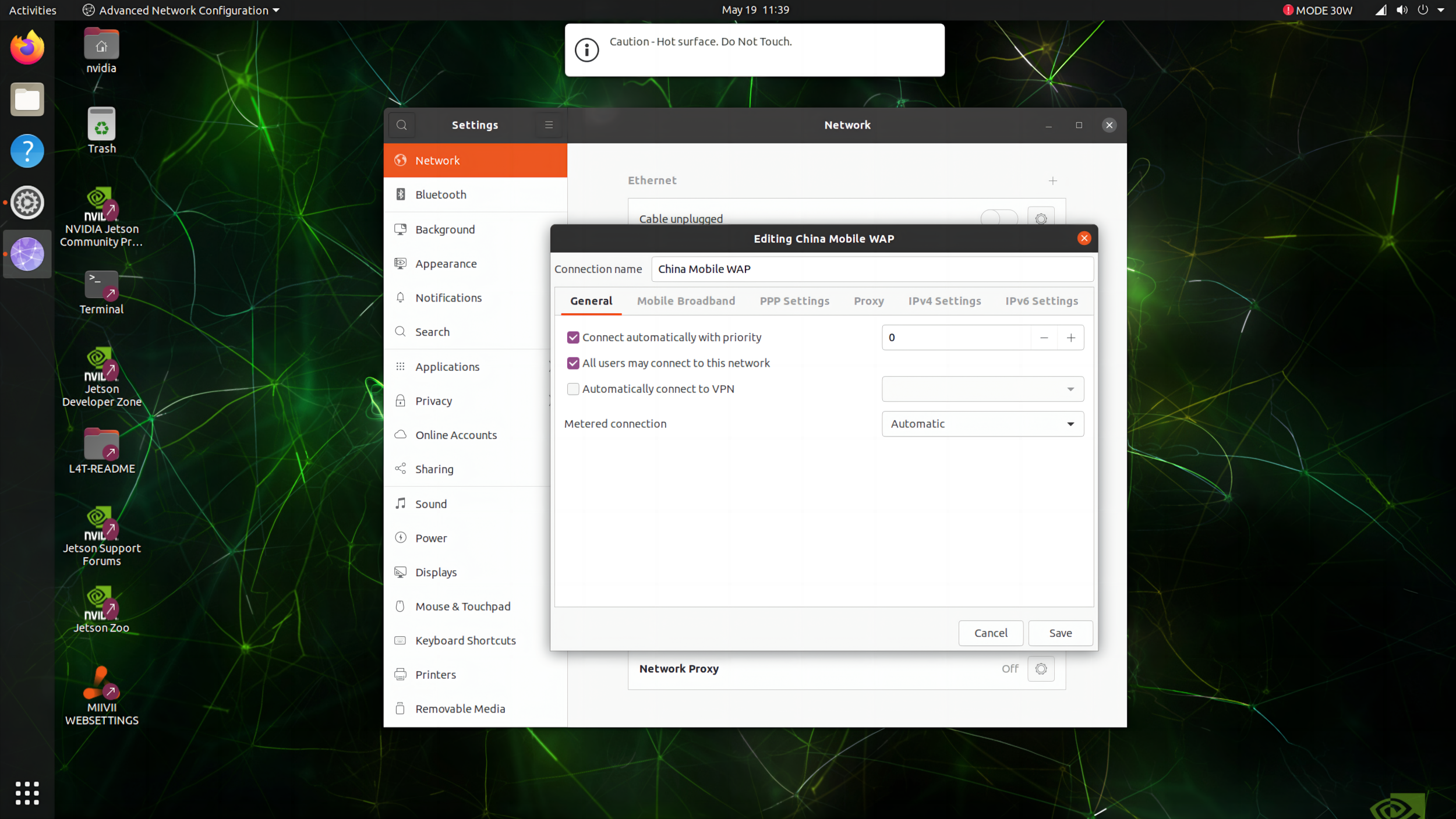
In the network connection icon at the top right of the desktop, find Mobile Broadban Settings.

Add new connection.

Select Next.
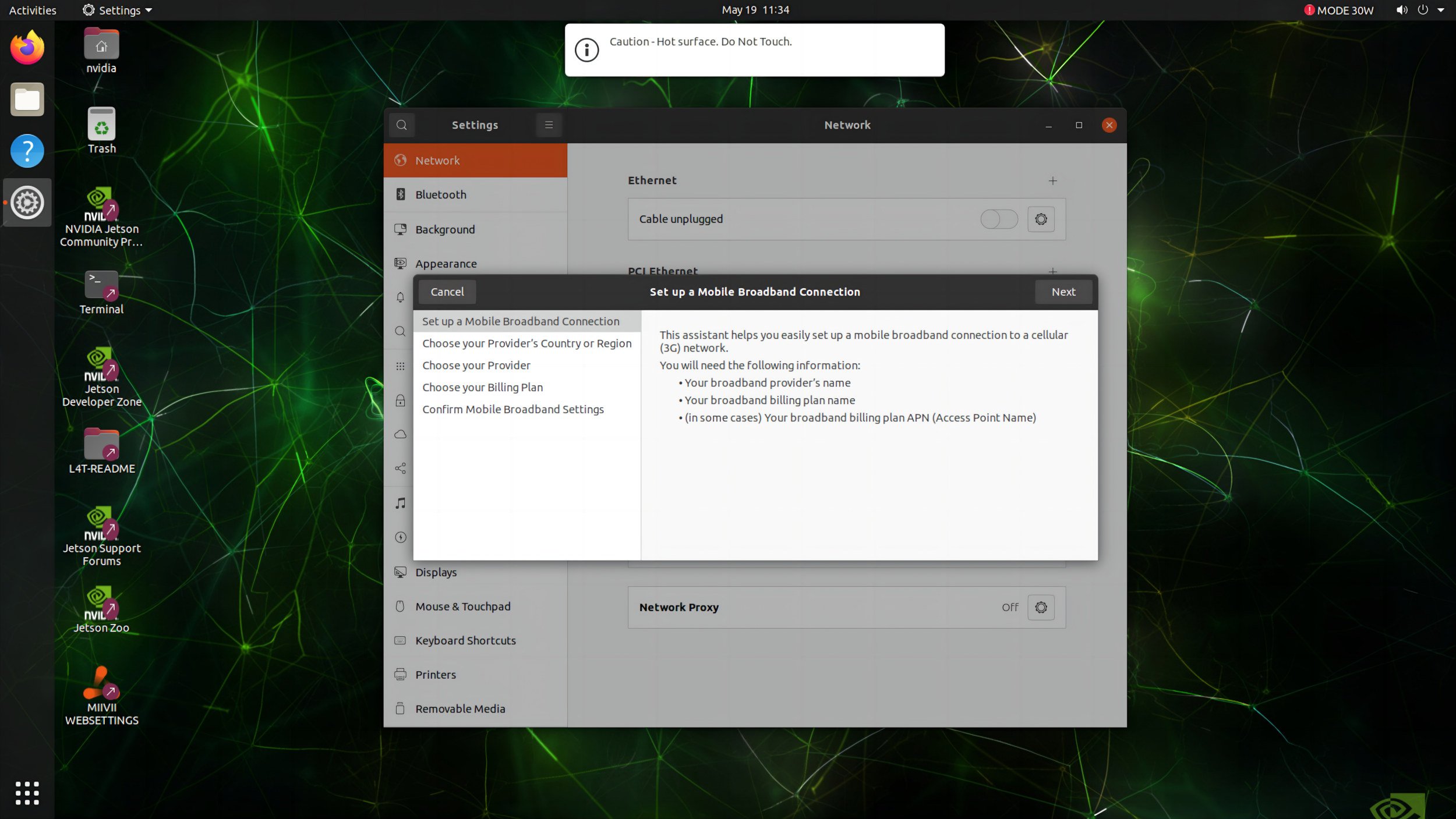
Choose your country.
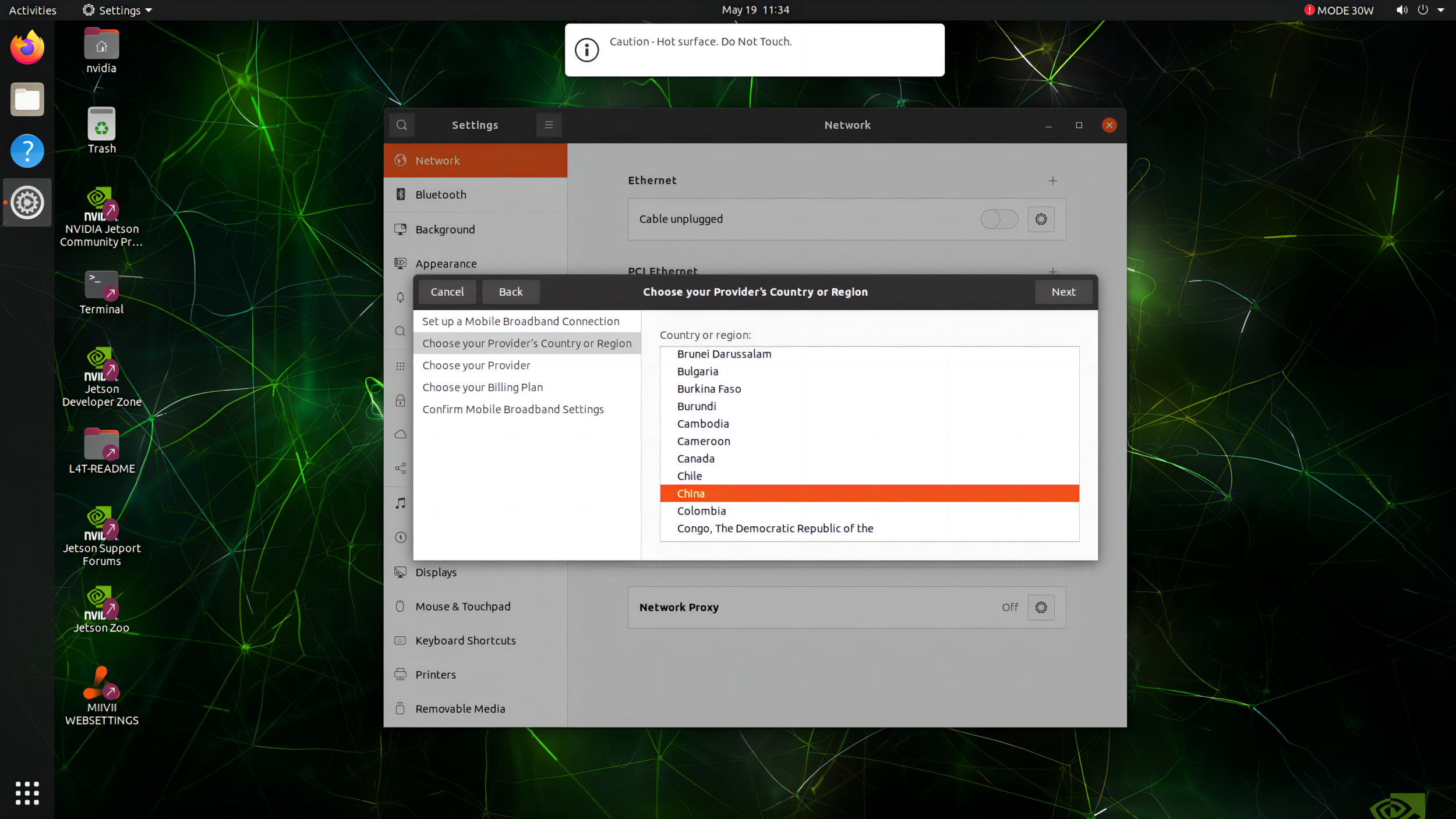
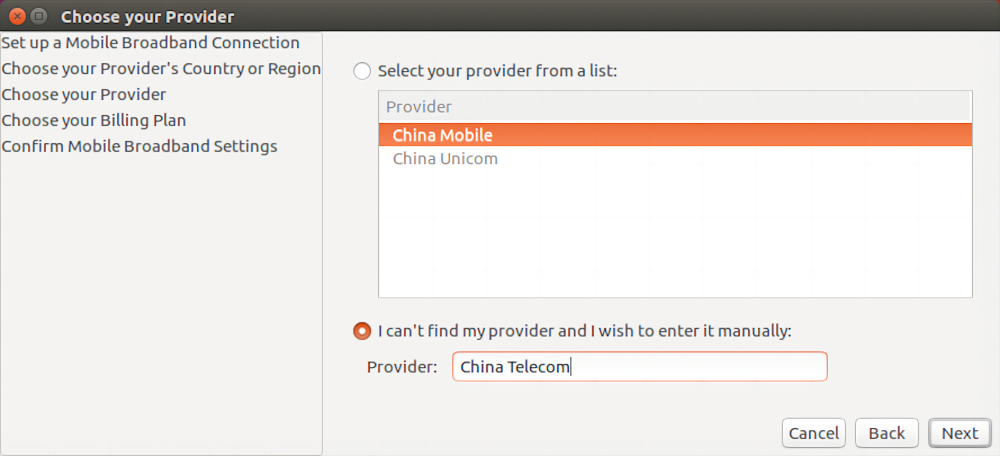
According to the SIM card, choose the corresponding carrier, eg China Mobile, China Unicom.
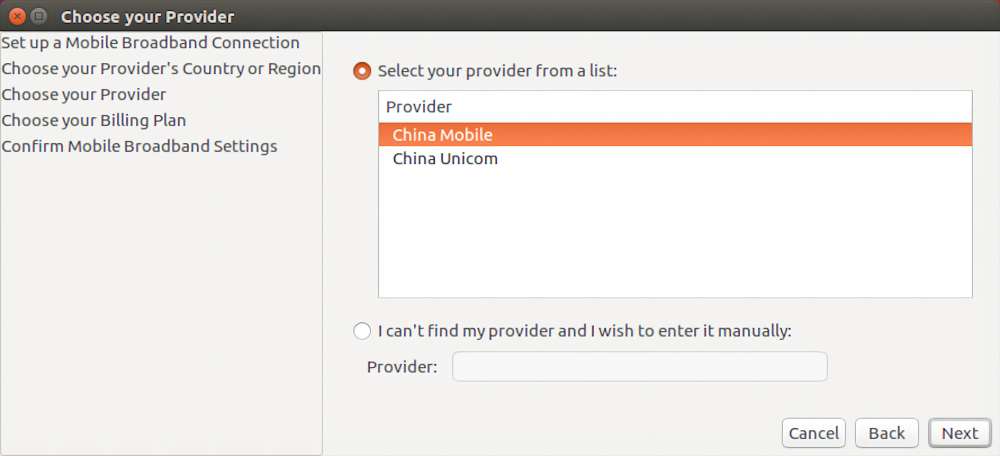
Select operator according to SIM card.
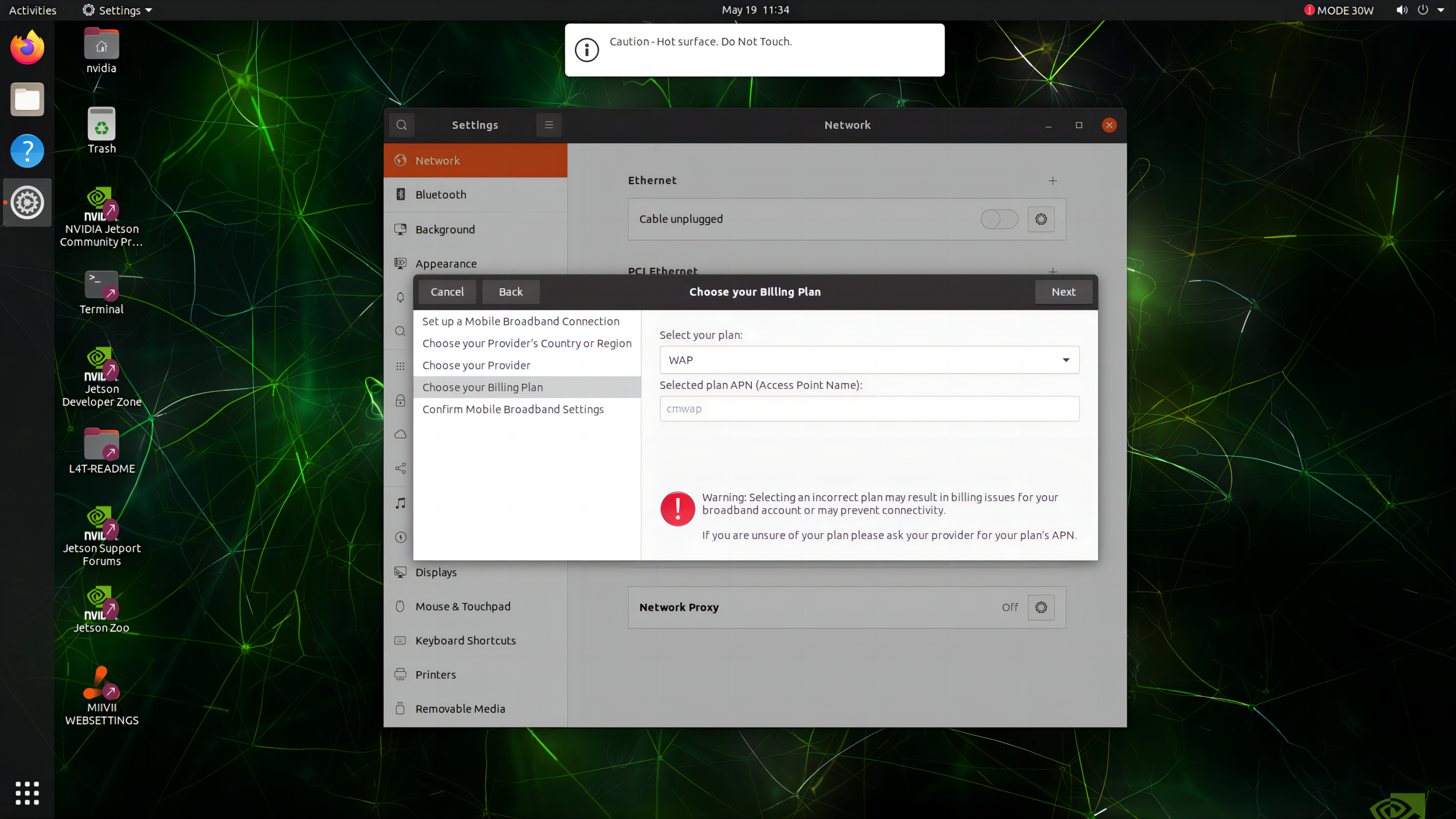
Choose your plan. This item is selected by default, just click Next.
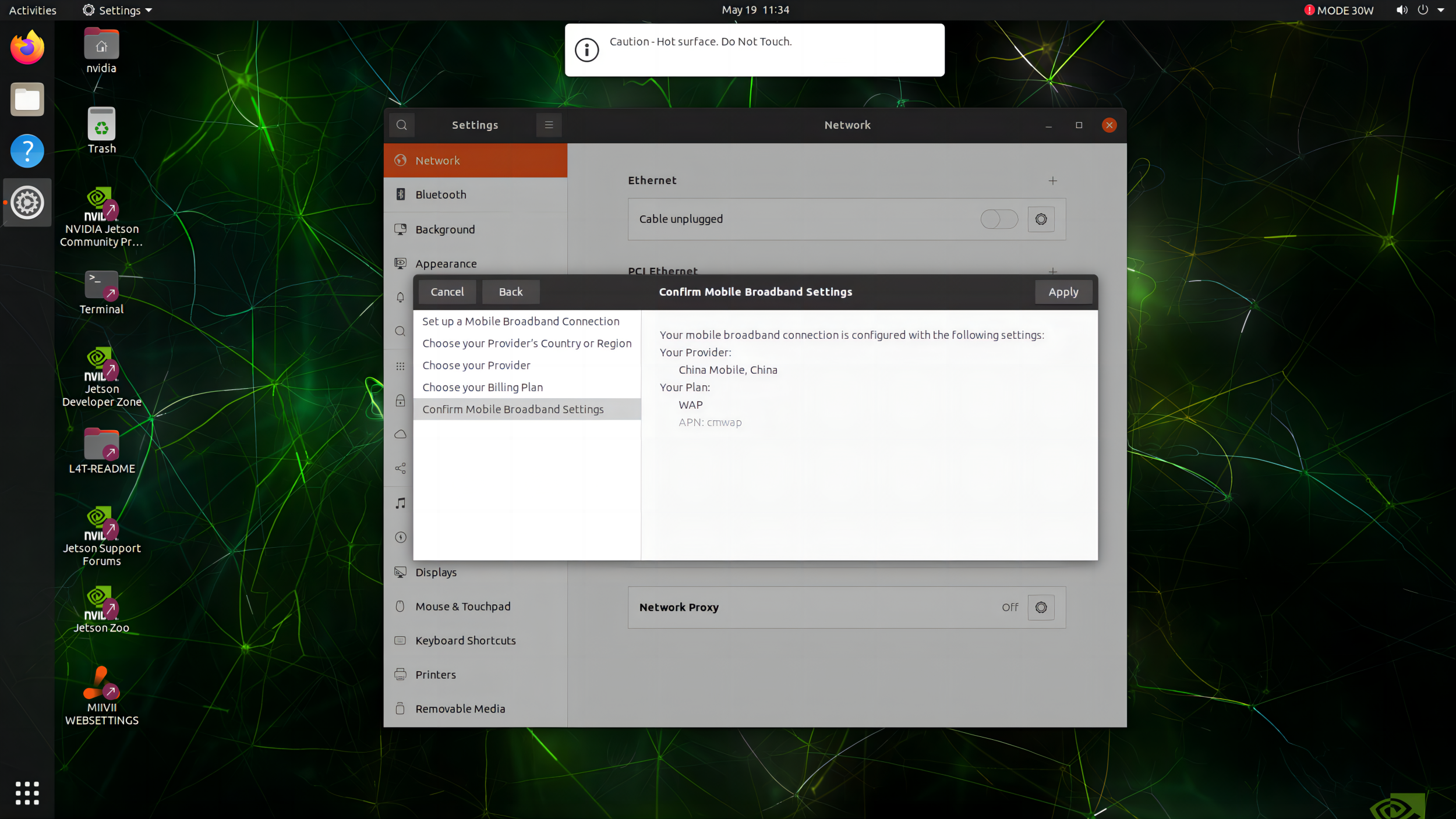
Check the created information, if correct, click Apply.
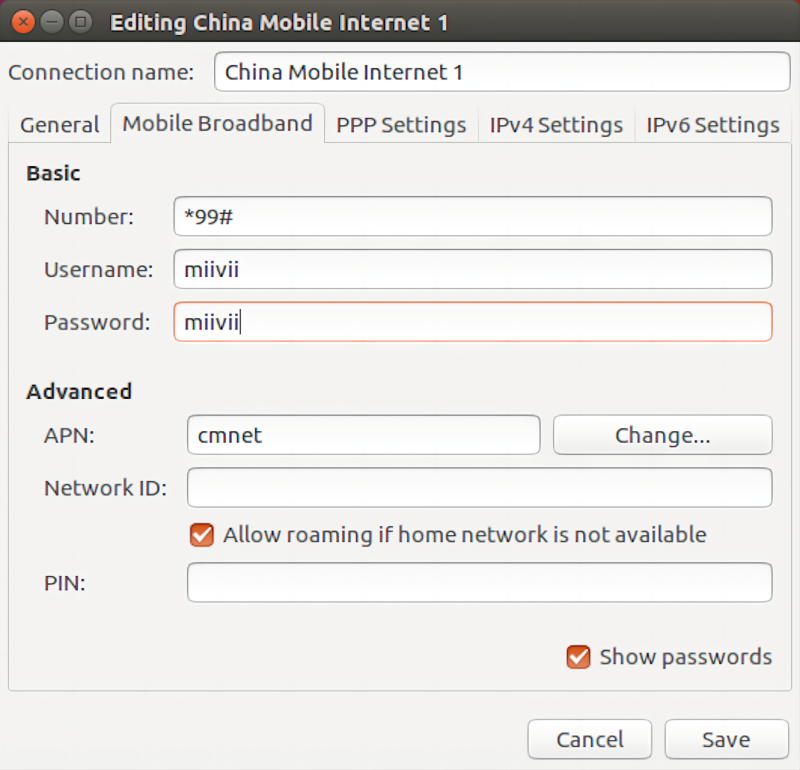
Set user name and password, click save.
After the network is created, select the newly created network connection from the network connection icon at the top right of the desktop, and you can go online normally.
**5G SIM Card **#
SIM 1 |
SIM 2 |
|
|---|---|---|
5G |
Default |
Support |
For 5G, SIM 1 or SIM 2 can be selected as follow
# SIM 2
SIM_SET = 2
# SIM 1
SIM_SET = 1